Skip to content

Keep member work hours in view.

Set how many hours or shifts each member or household contributes. Members record completed work in the Community App. Your team reviews submissions and sees what is approved, awaiting review, or still missing.

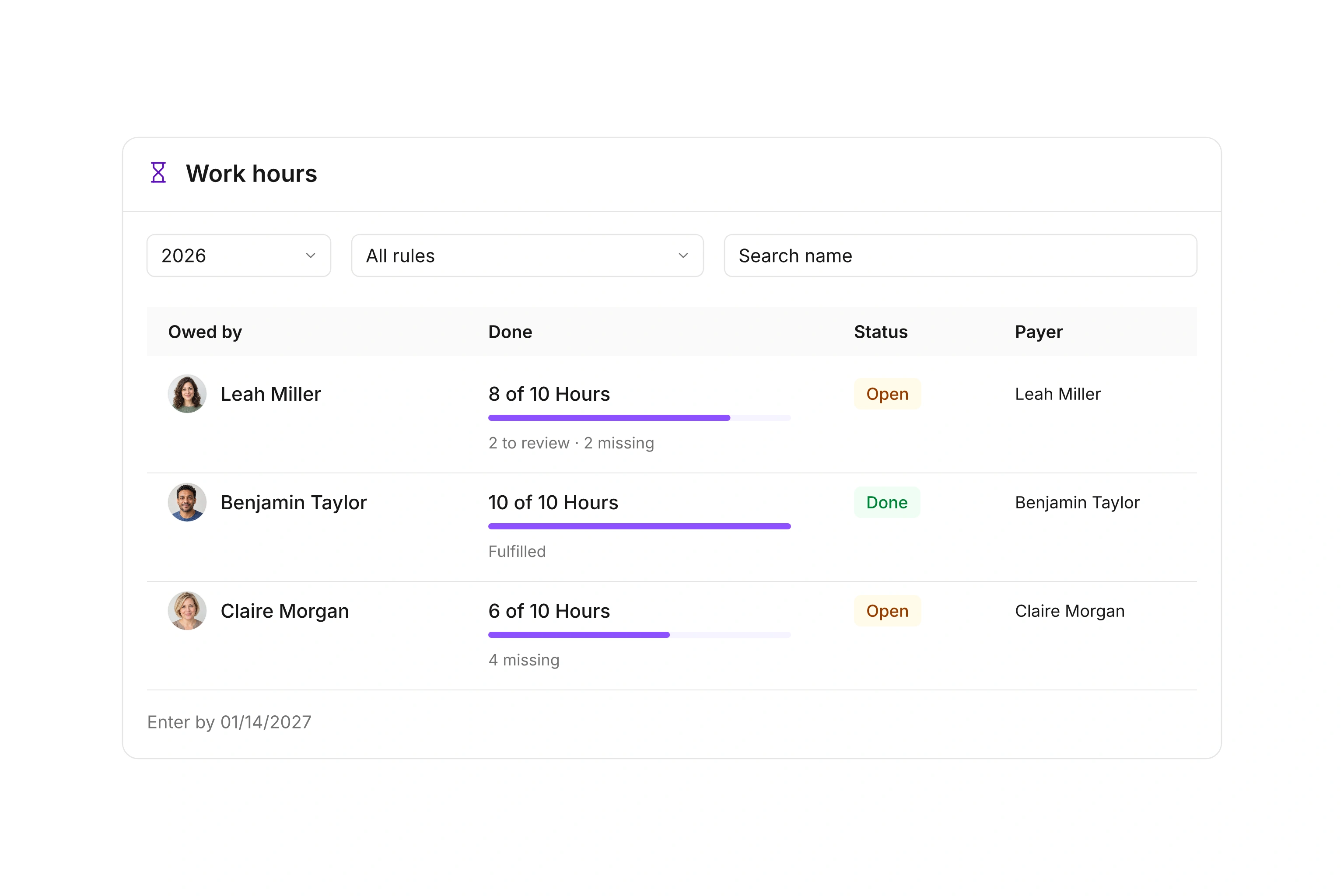
Member work accounts showing approved hours, pending reviews, status, and payer

Set requirements for members or households

Count hours or whole shifts over an annual period. Start with the calendar year or the first month of your season. Rules determine which members qualify and whether each person or a group, such as a household, shares the requirement.

You can prorate the requirement by membership month for people who join or leave during the period. Choose who may contribute and set a submission deadline. Record an individual exemption or adjusted requirement with an internal reason. A zero requirement also supports recording voluntary contributions.
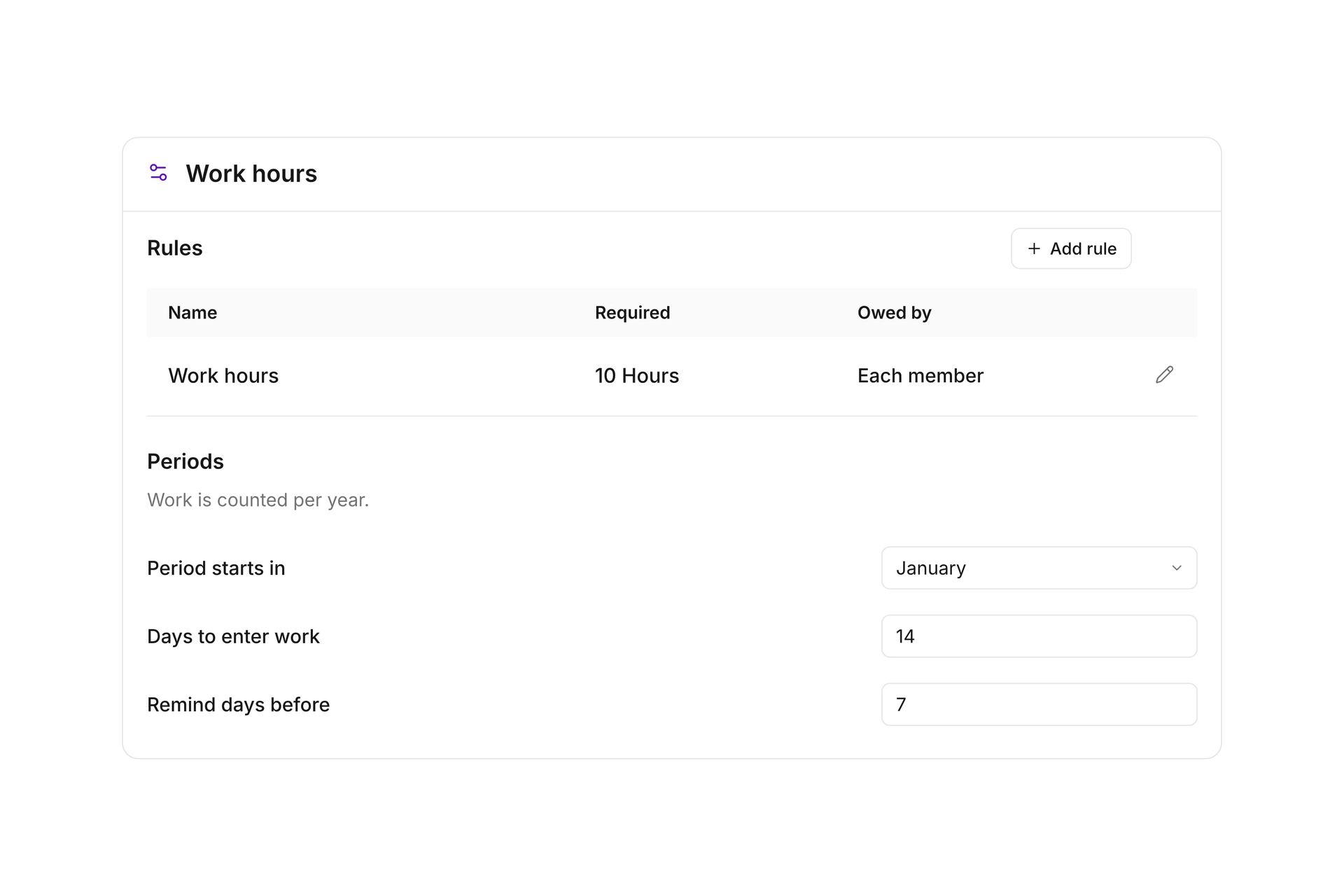
Work hours settings with a rule per member, annual start month, submission deadline, and reminder

Record the work and who completed it

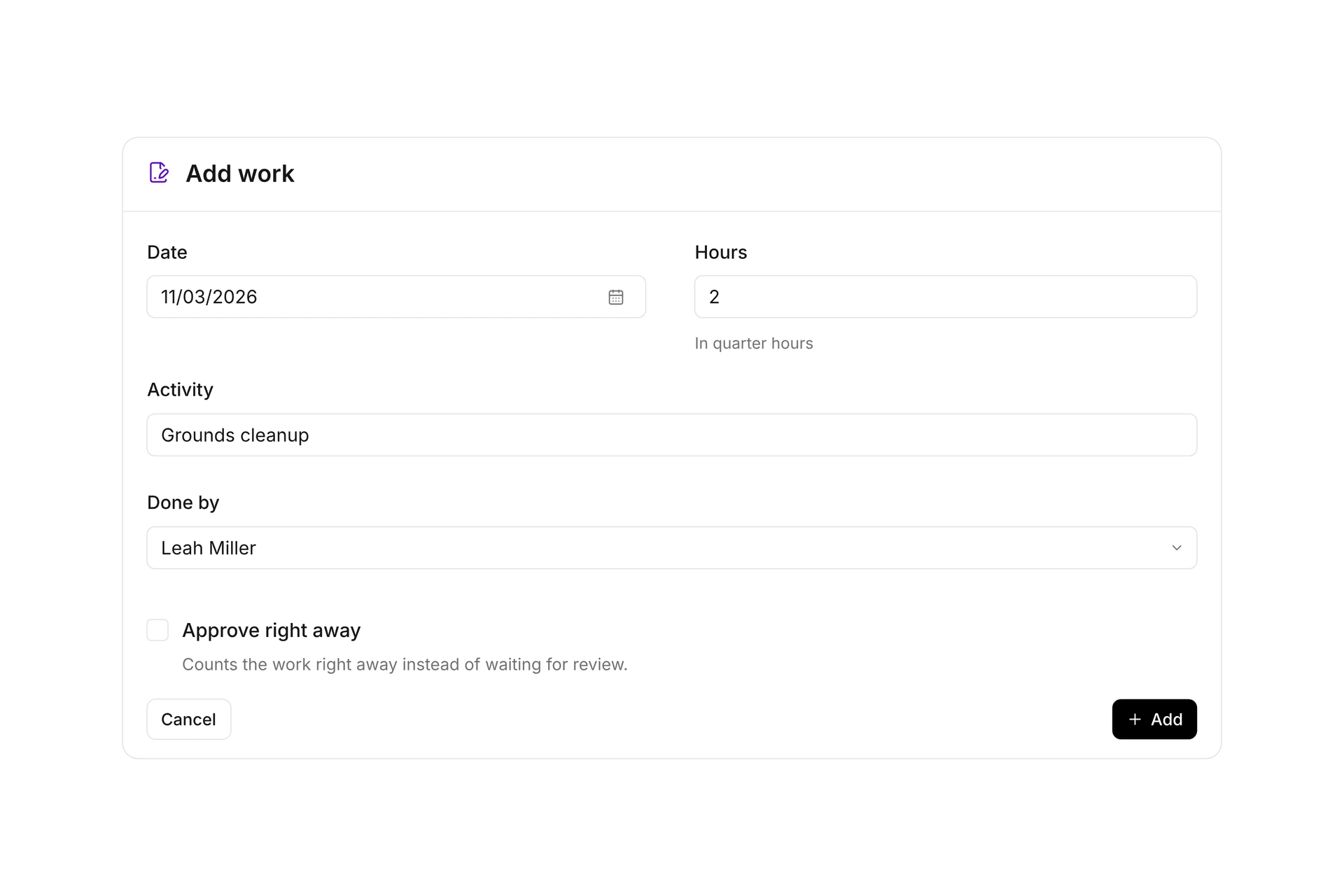
Members enter completed activities in the Community App and check their account totals. Hours use quarter-hour increments; shifts use whole units. Anyone contributing for a household or another person must be allowed by the rule.

Checked-in attendance at events in selected categories can appear as suggested work. Accepted suggestions still go through review. Staff can add or correct entries; members submit their work within the configured deadline.

Work entry with a date, two hours, activity, contributor, and optional immediate approval in the administration

Review work before it counts toward the requirement

Approved work counts toward the requirement. Submitted work and remaining hours stay separate. Assign reviewers directly to a work rule or use matching reviewer rules to route entries, for example to a department lead. Access permissions determine which accounts each reviewer can handle.

Approve an entry or return it with a message asking for a correction. Members see the response in the Community App. You cannot approve your own work or an account that covers you. The history keeps decisions, changes, and internal notes together.

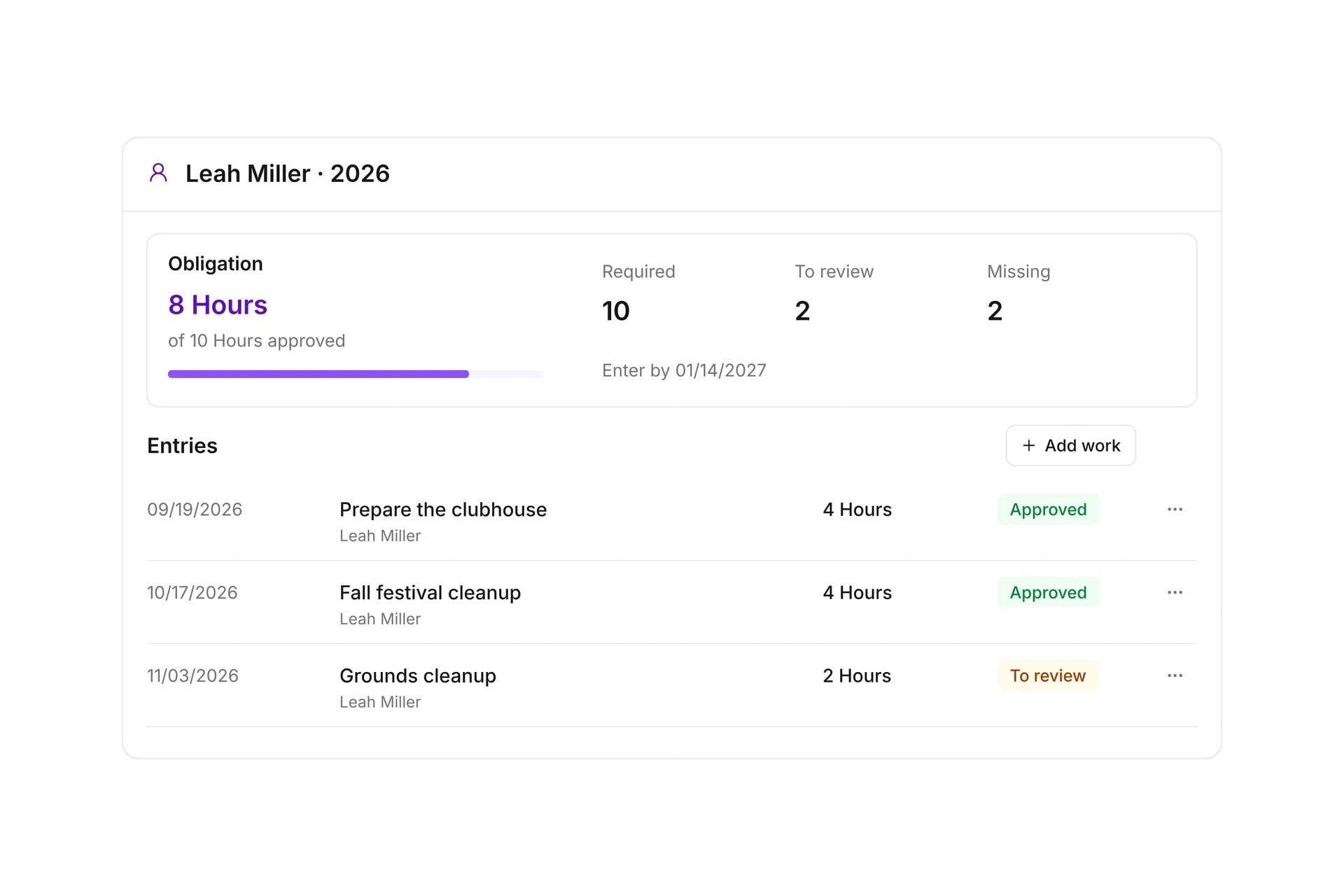
Work account with eight approved hours, two hours awaiting review, two hours still missing, and individual entries

Close the period with reviewed totals

After the submission deadline and all pending reviews, you can settle accounts. If your rule sets a fee for missing hours or shifts, campai creates a membership fee invoice for the assigned payer. Accounts with no billable amount close without an invoice.

You can also offer an optional flat-price buyout. Choosing it creates the invoice and closes the work account; payment status is tracked separately. Export accounts and entries as CSV or Excel for further reporting. Record the basis of your rule and its decision date so members can see them.

From the agreed requirement to a reviewed account

Configure the workflow around your organization’s membership rules.

  1. Set up the rules

    Choose hours or shifts, the eligible members, and an annual period. Set the requirement, deadline, and reviewers. Add optional fees or a buyout and record the basis for the rule.

  2. Record completed work

    Members enter activities in the Community App or accept eligible attendance suggestions. Eligible helpers can contribute toward a shared requirement.

  3. Review submissions

    Reviewers approve the work or return it with a message. Only approved entries count toward the requirement.

  4. Close the period

    Finish pending reviews and settle after the deadline. Check any invoices created and export the records for reporting.

Ten hours of shared club work

Read an account with one submission still awaiting review.

StatusHoursWhat it means
Required10The requirement for the selected period.
Approved8This work already counts toward the requirement.
To review2Submitted work is waiting for a decision.
Missing2Pending work does not reduce the remaining requirement yet.

Approving the two submitted hours fulfills the requirement. Settlement waits until the submission deadline has passed and pending reviews are complete.

Frequently asked questions

Can a household share one work account?

Yes. A rule can apply per group instead of per member. Choose the group type and whether only its contacts or other people may contribute.

How are members who join or leave during the year handled?

Optional proration works by month. Membership is evaluated on the 15th of each month, and the result rounds up to quarter hours or whole shifts. You can adjust the requirement with a reason or set it to zero for an exemption.

Does event attendance count as approved work automatically?

No. Checked-in attendance in selected event categories can appear as suggested work. Accepting a suggestion submits it for review. Attendance already used for a work entry cannot be credited again.

What happens when hours are missing?

You can settle after the deadline once pending reviews are complete. A configured fee is calculated from missing approved work. No invoice is created when there is no billable amount. Your organization decides whether to charge a fee and establishes the basis for it.

Can members choose a buyout instead of working?

If the rule offers it, the payer can choose a buyout in the Community App within its deadline. Work must still be missing, no review may be pending, and the required default billing assignment must be configured. The choice creates an invoice and closes the account; it does not confirm payment.

Is this employee time tracking or volunteer compensation?

Work hours tracks service requirements for members and groups. Task time tracking and compensation claims are separate workflows. It does not run payroll or pay for overtime.

Set up your member work requirements

Bring your rule, annual period, and reviewer responsibilities. We’ll walk through work accounts, submissions, and the closing process with you.

Explore on your own. Get personal help when you need it.