Skip to content

Organize teams, plan tasks, and share files.

Build teams and subteams, create task topics with custom workflows, and keep documents in shared file storage. Follow assignments, access permissions, and review rounds in campai.

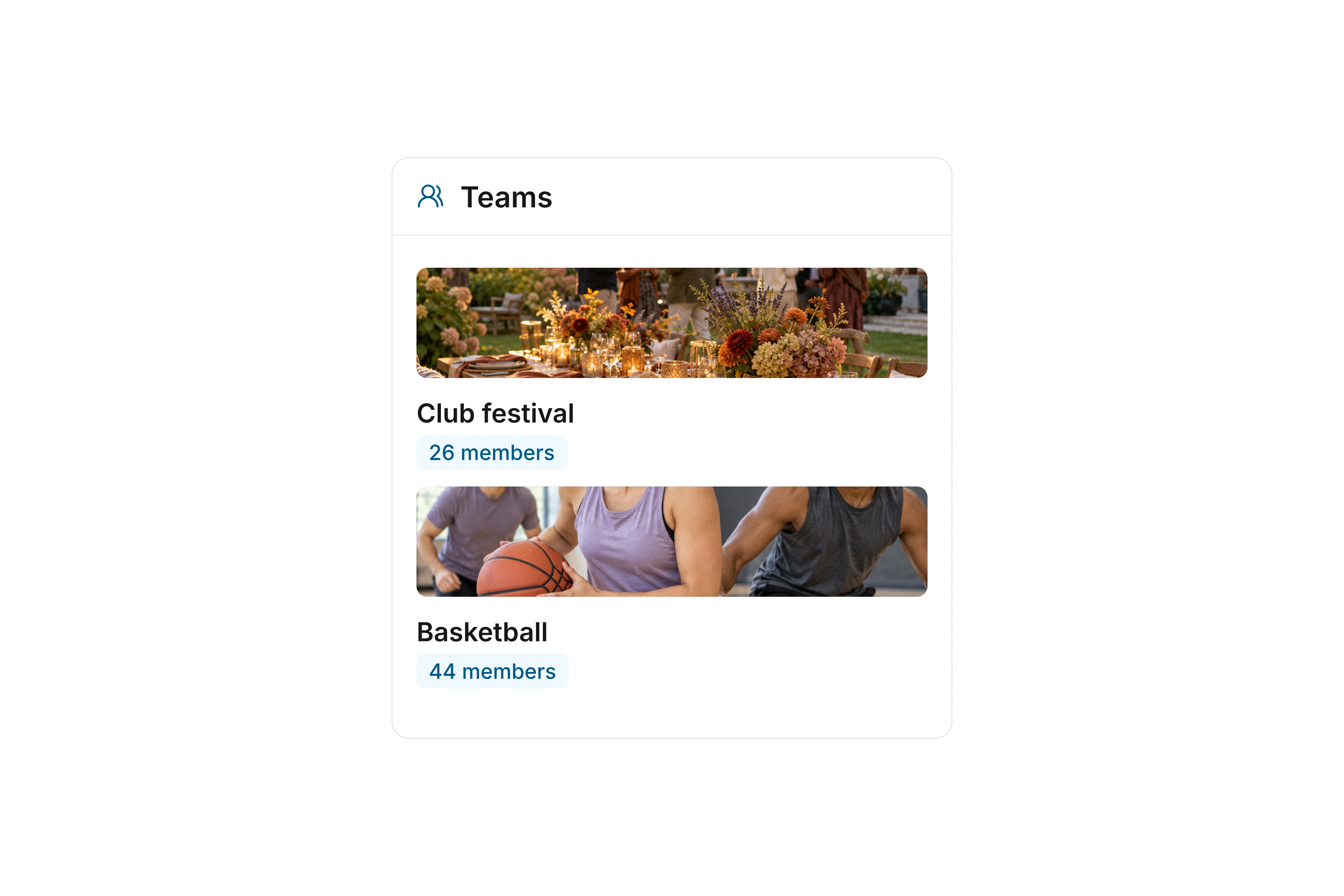
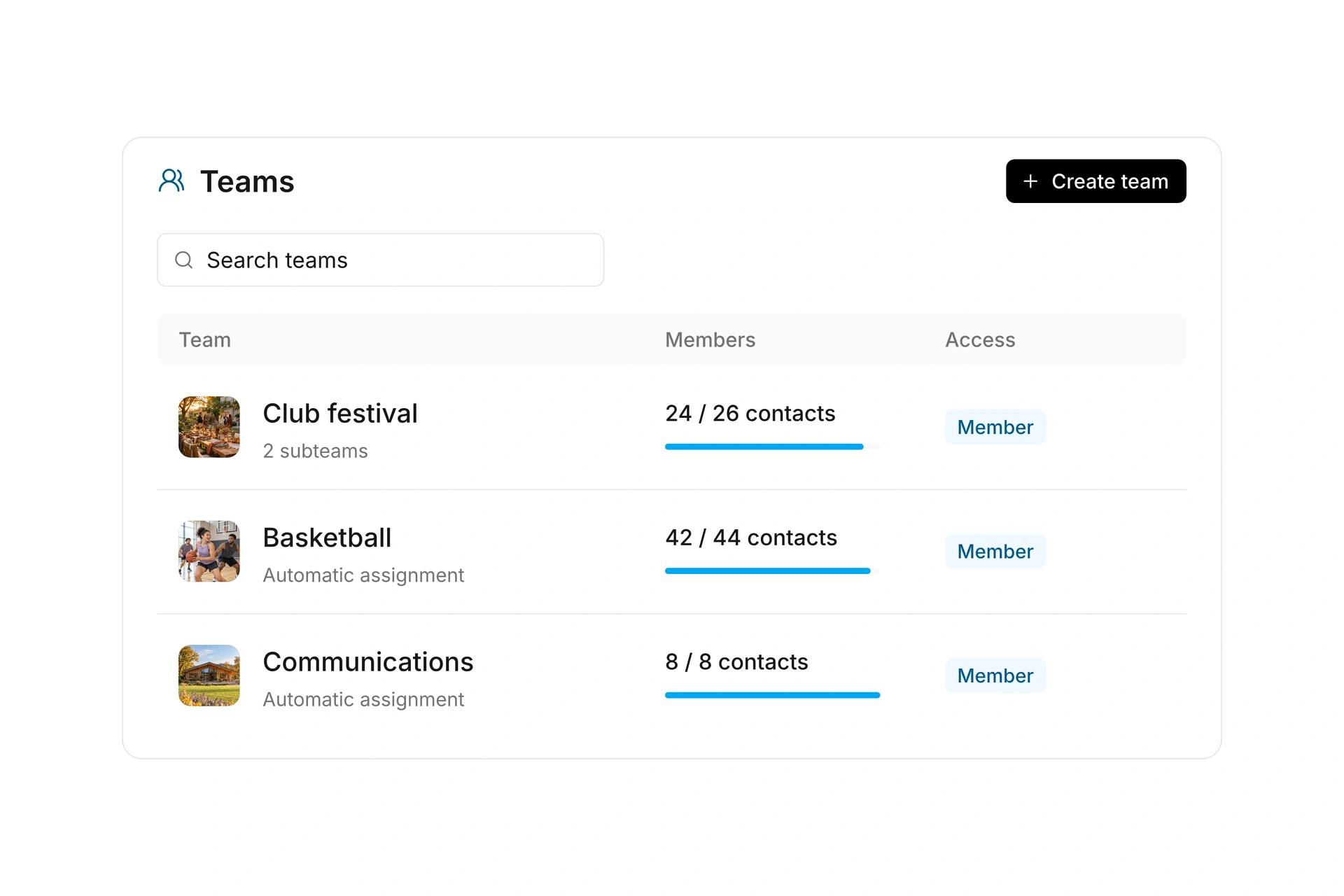
Teams with photos and membership counts
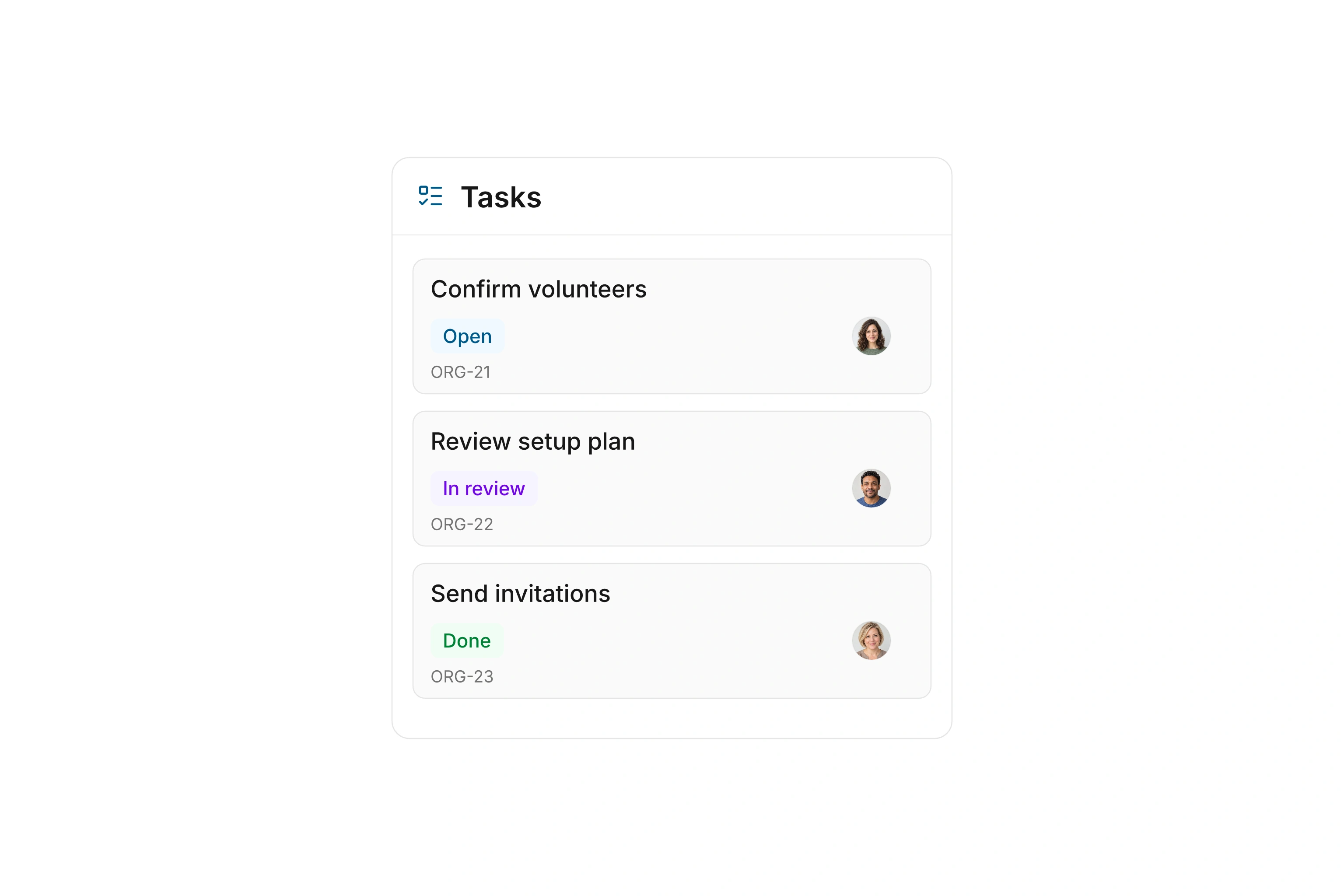
Tasks with assigned people, topic identifiers, and review status
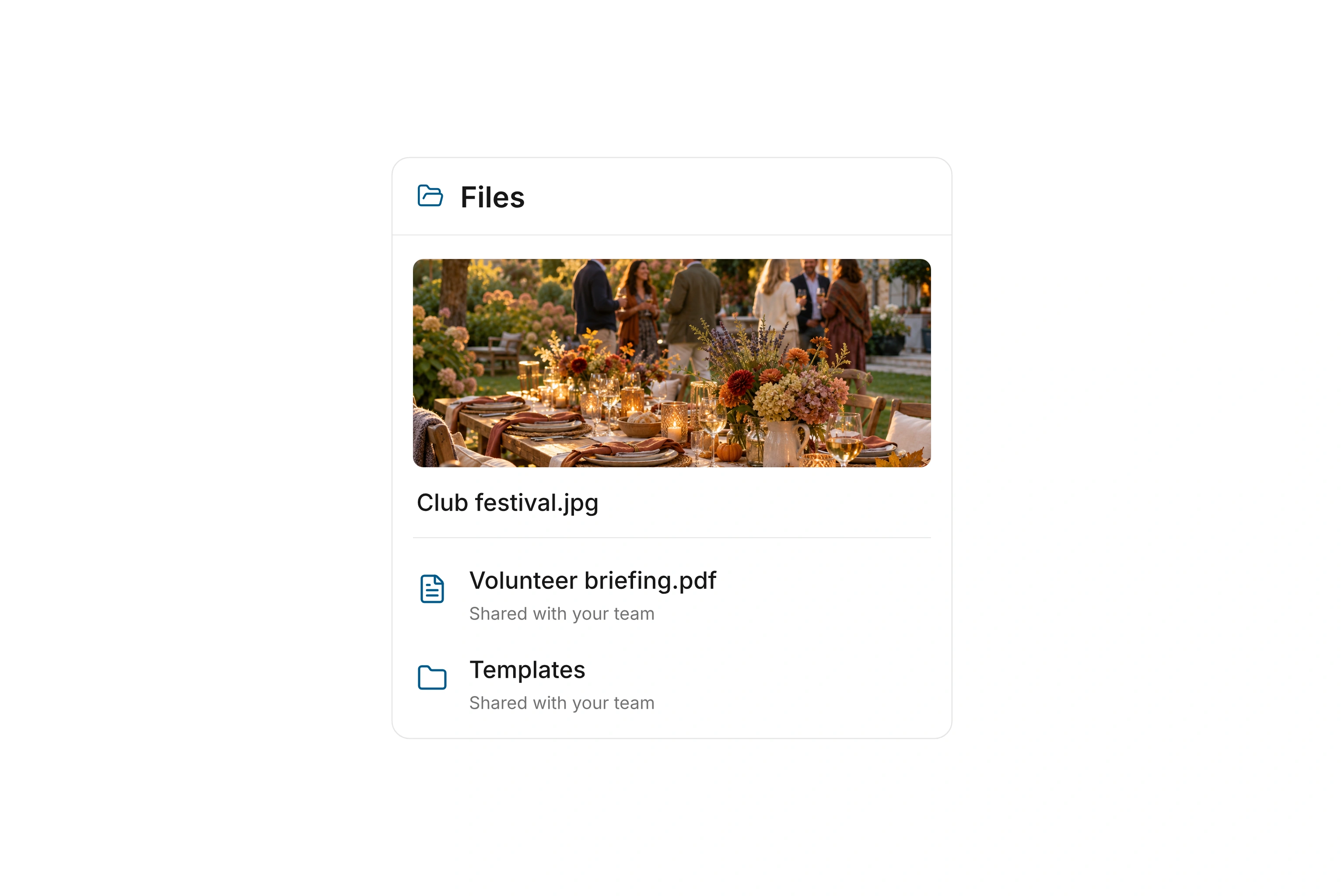
Shared Drive folders with photos and documents

Build teams and assign members

Organize departments, working groups, or project teams with teams and subteams. Set a name, description, and appearance, and manage the associated contacts centrally. Add people individually or use contact types, segments, departments, and tags for automatic membership.

The team overview shows assigned contacts, linked users, and recent activity. It also shows whether automatic assignment is still processing or needs attention, helping you keep track of membership in larger teams.
Build teams and assign members

Manage team roles and shared content

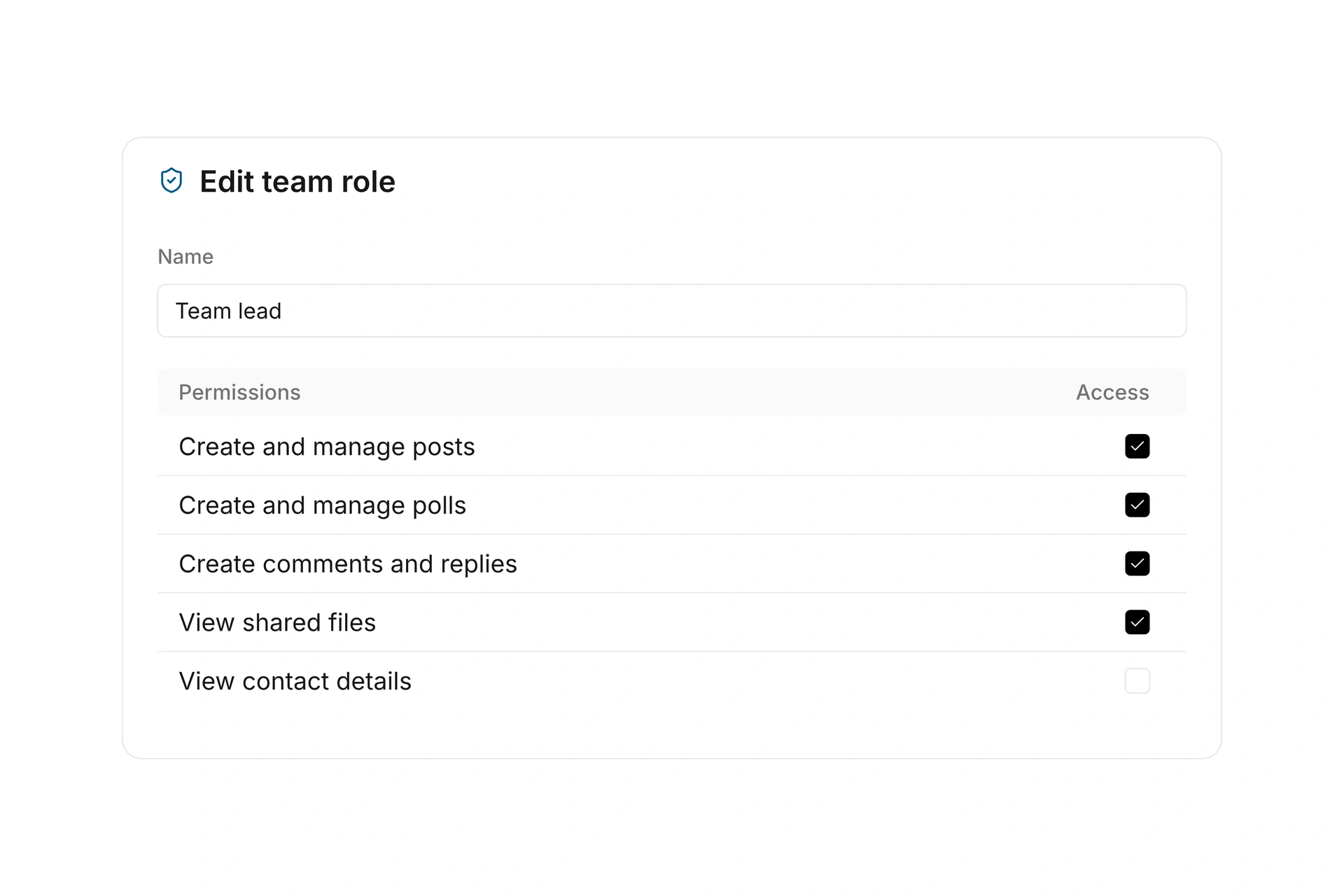
Use team roles to control who can create posts and polls, comment, vote, or chat. Manage access to shared contact details through the same roles. Choose a default role for team members and adjust individual assignments when needed.

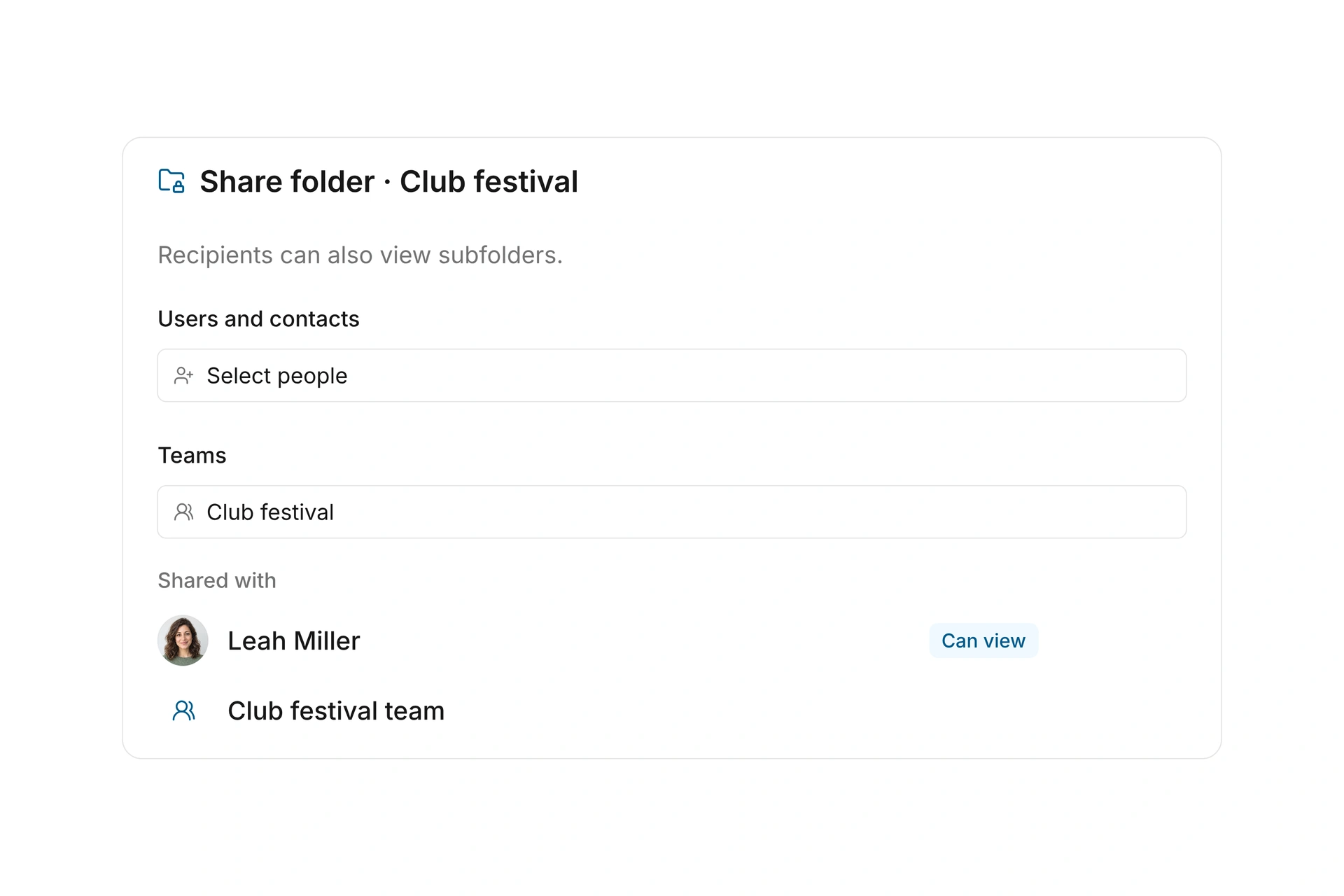
Open a team’s tasks directly in the administration interface to follow assignments and deadlines. Share folders from your file storage with a top-level team and use team roles to control who can view them.

Manage team roles and shared content

Organize tasks by topic and workflow

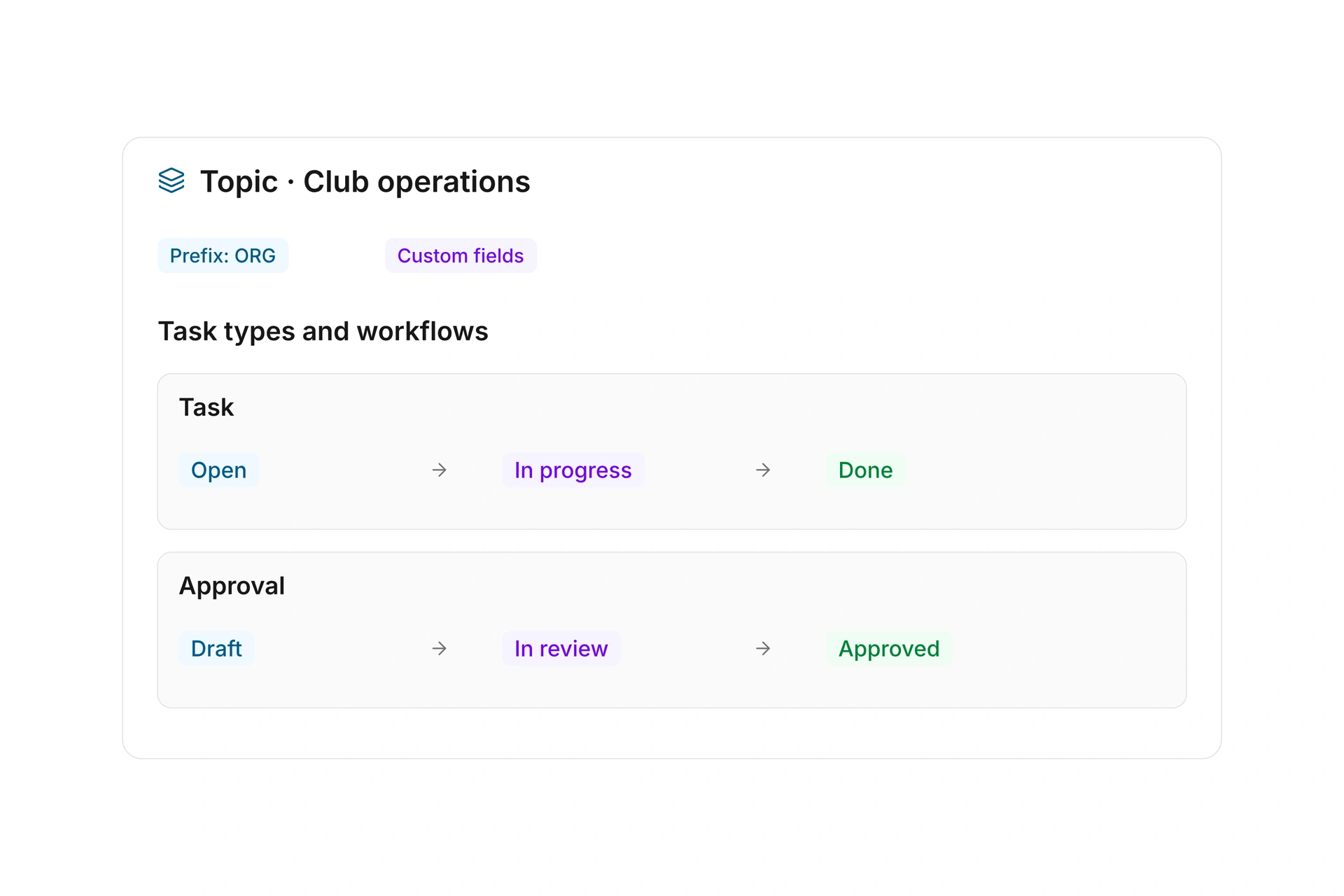
Group tasks into topics for events, communications, or facility upkeep. Give each topic a name, color, and identifier for its task numbers. Add custom fields to capture the information that work requires.

Create task types within a topic. Choose each type’s available statuses, permitted transitions, and optional review step before completion. A repair can follow a different process from approving a newsletter. Archive topics when they are no longer needed.

Organize tasks by topic and workflow

Plan tasks and track progress

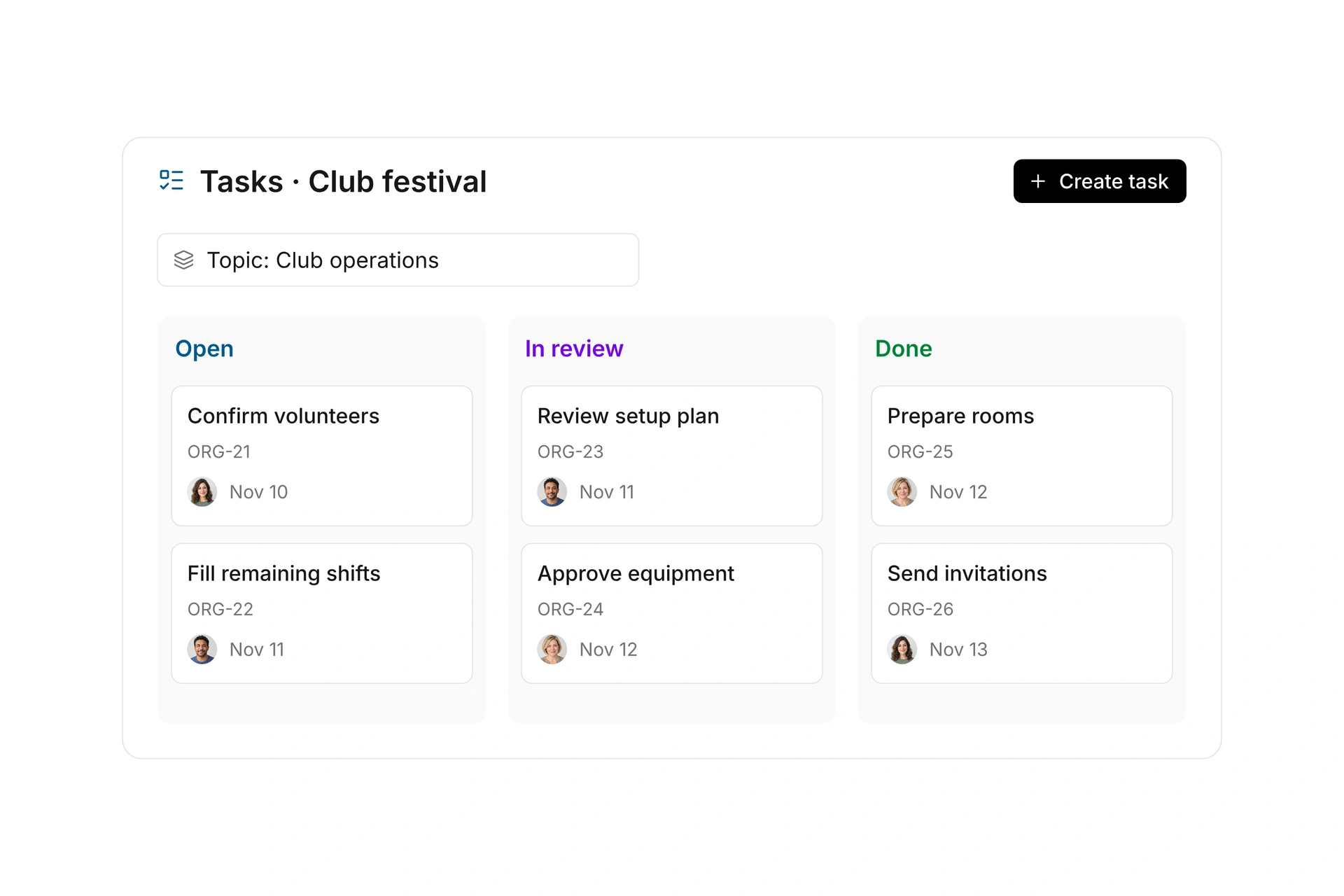
Assign a task to a project, team, event, or resource. Set assignees, a due date, and tags, and divide larger jobs into subtasks. Keep instructions, comments, and attachments with the task.

Switch between list and board views and filter by topic or other properties. Search for a task, sort by due date, and see which subtasks are complete. Follow event preparation and ongoing organizational work with the same tools.

Plan tasks and track progress

Record time and review completed work

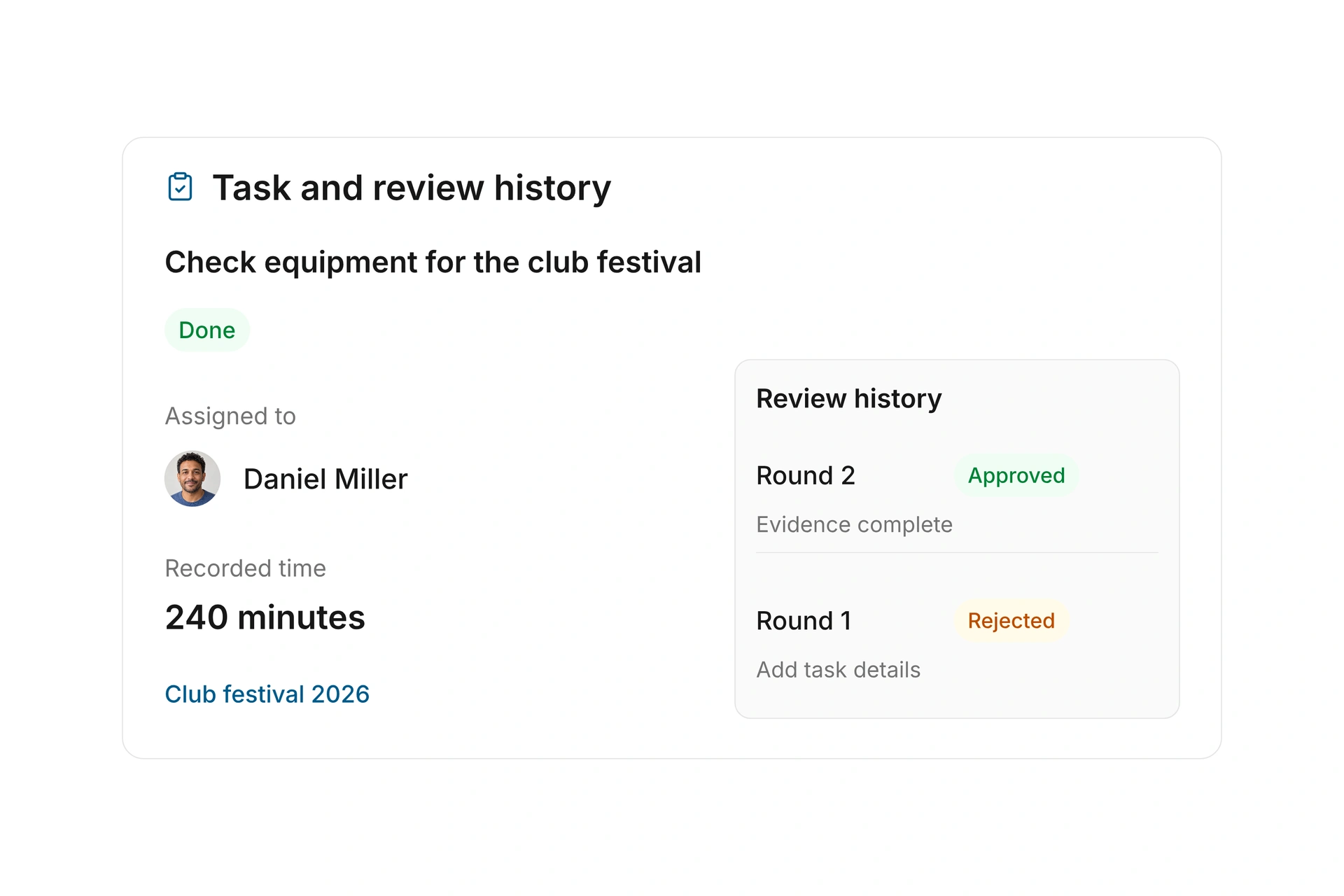
Record time spent on completed work and submit tasks with a review step to the assigned reviewer. The task status shows what is still open, awaiting review, or complete.

The reviewer can accept the result or return it with a reason. Rejection reopens the task. Recorded time and earlier review rounds remain available when you submit the revised work again.

Record time and review completed work

Keep files and folders organized

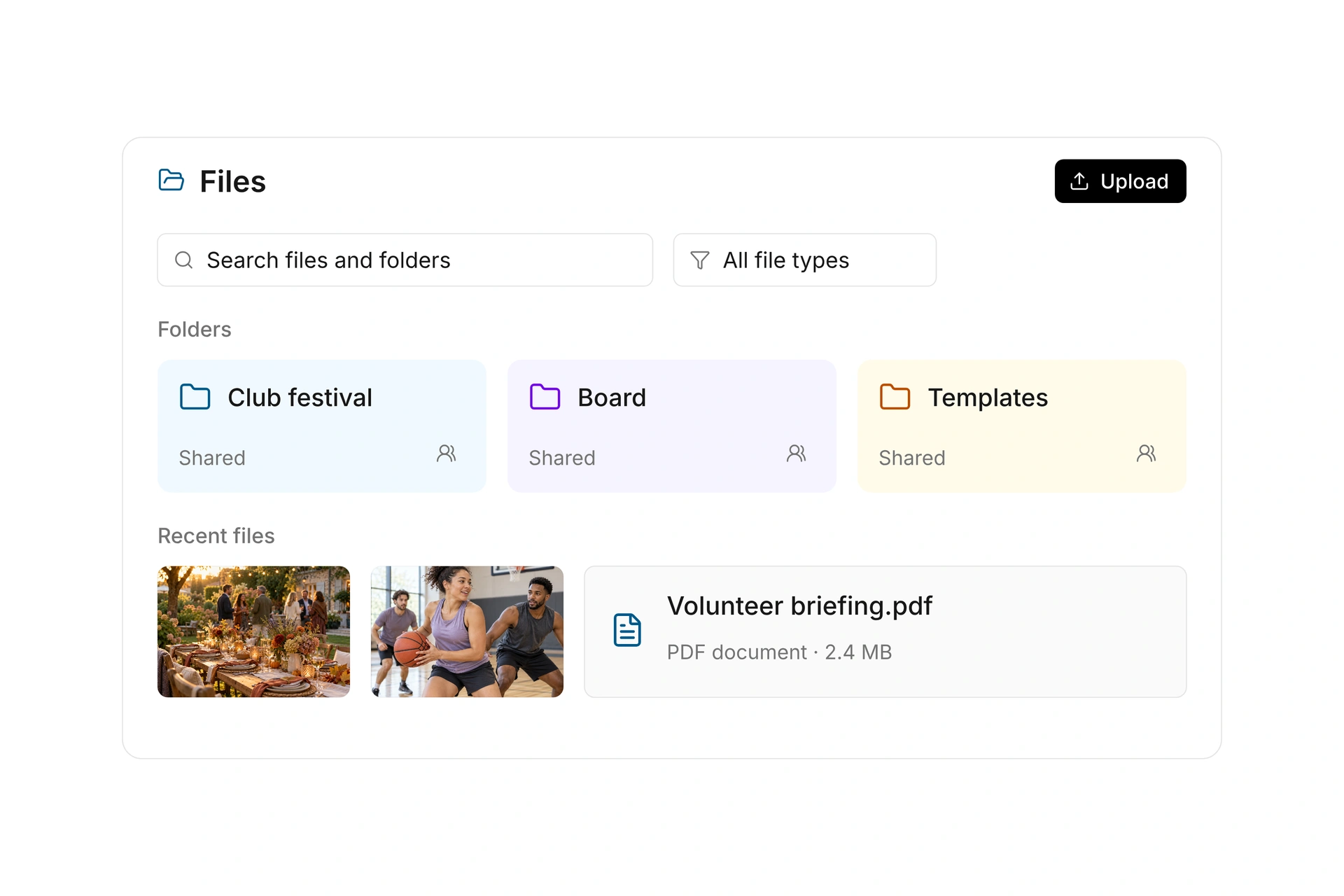
Create shared file storage for your organization across workspaces. Organize minutes, templates, photos, and project documents in folders and subfolders. Use folder colors and cover images to make key areas easier to recognize.

Upload multiple files, including by drag and drop, and follow their progress. Rename files and folders or move selected items together. Dedicated file permissions control who can add, edit, or remove content.

Keep files and folders organized

Share folders with people and teams

Share folders with selected users, contacts, segments, or contact types. You can also share them with top-level teams. Subfolders inherit access, so you can share a collection of related documents together.

Users restricted to assigned items see folders shared with them. Team roles control viewing access for team shares; sharing with subteams is not supported. Separate Files permissions govern uploads and editing in the administration interface.

Share folders with people and teams

Find, preview, and download files

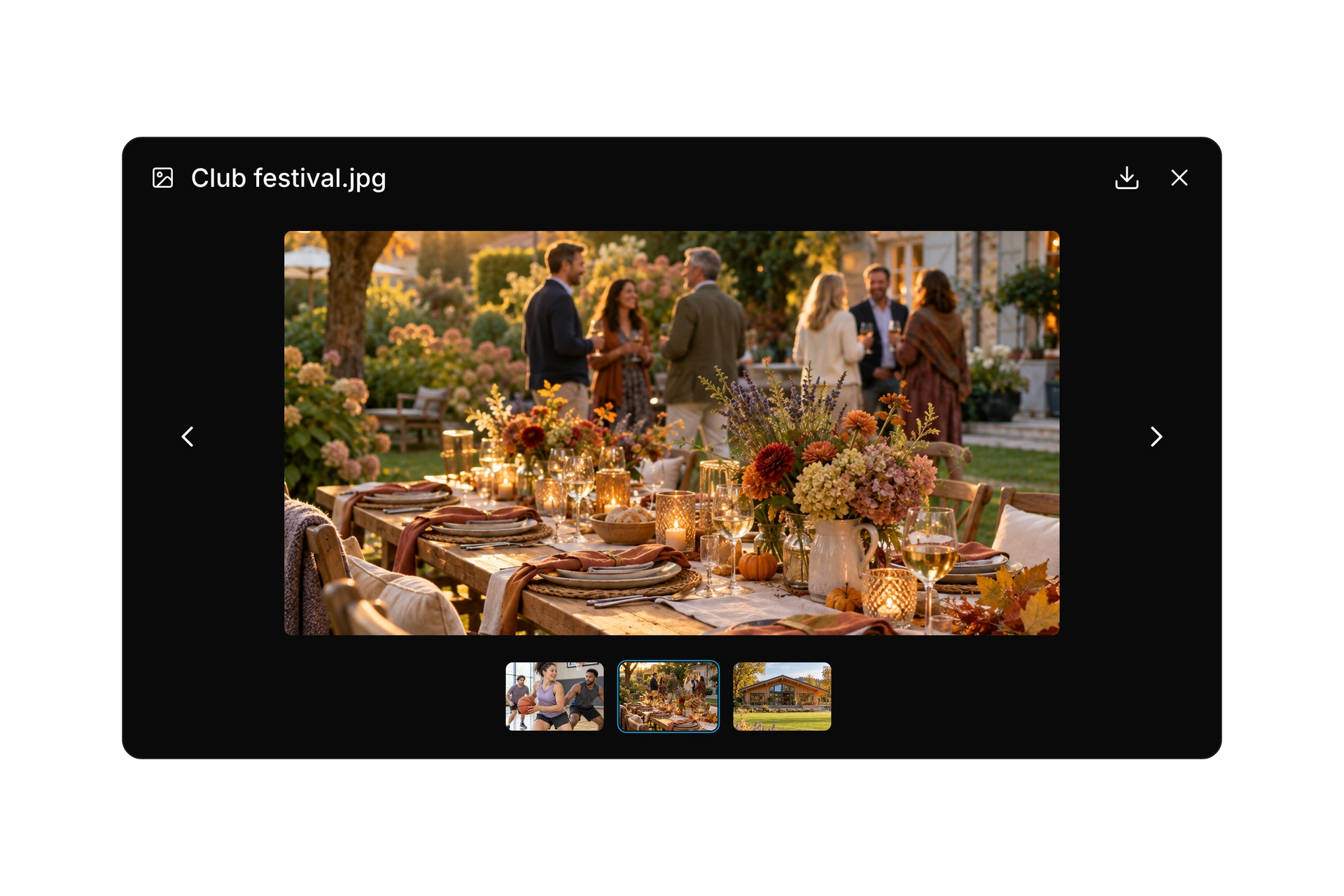
Search by file name, filter by file type, and switch between grid, list, and gallery views. Open supported images, PDFs, video, audio, and text in the preview and browse neighboring files.

Download a single file or prepare a ZIP of selected files and folders totaling up to 250 MB. The download preserves the folder structure. campai prepares the archive in the background and notifies you when it is ready.

Find, preview, and download files

Invite users and manage access

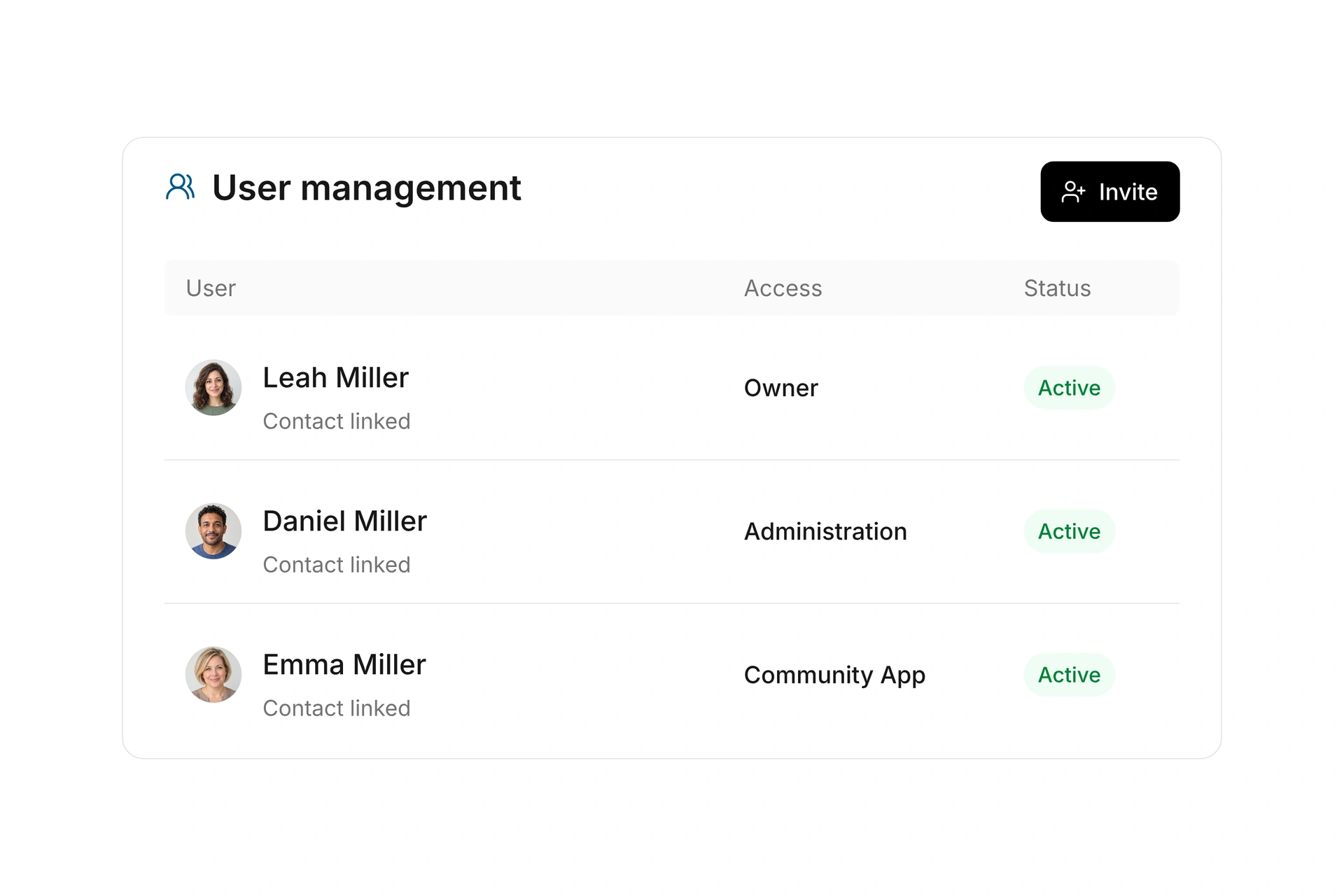
Invite people to the administration area and track pending invitations. The user overview shows owners, administrators, Community App users, and guests, along with account status, activity, and linked contacts.

A contact record does not itself grant administrative access. Assign administrative permissions for work in your team. Access to the Community App and its available features is managed separately through contact permissions and Community App roles.

Invite users and manage access

Match permissions to responsibilities

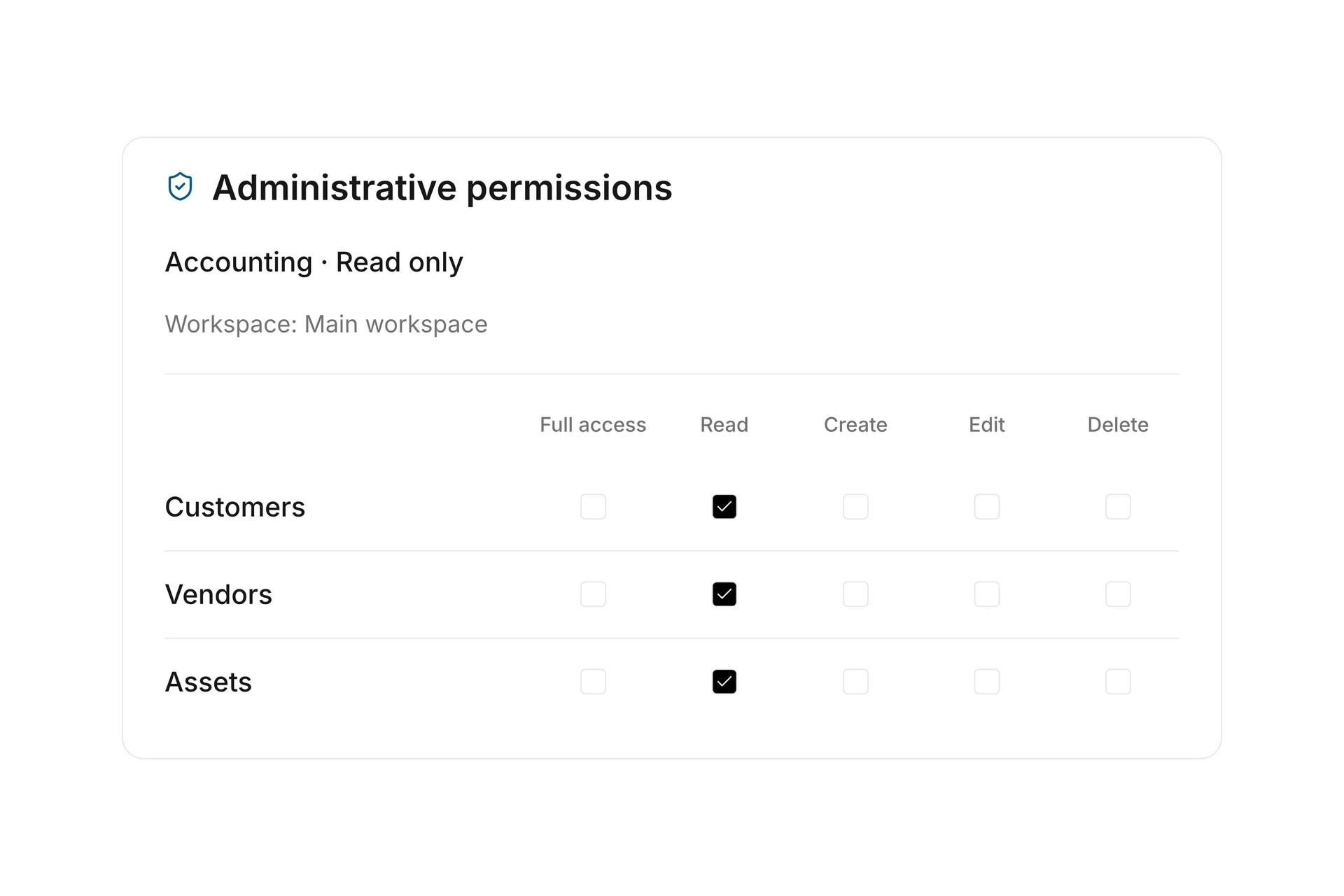
Set permissions by responsibility and choose which records a user may view or edit. When needed, restrict access to assigned applications and tasks, and to folders shared with the user.

Distribute responsibilities through roles and teams. Choose who receives access to shared files; subfolders inherit access from their parent folder.

Match permissions to responsibilities

Route reviews to the right people

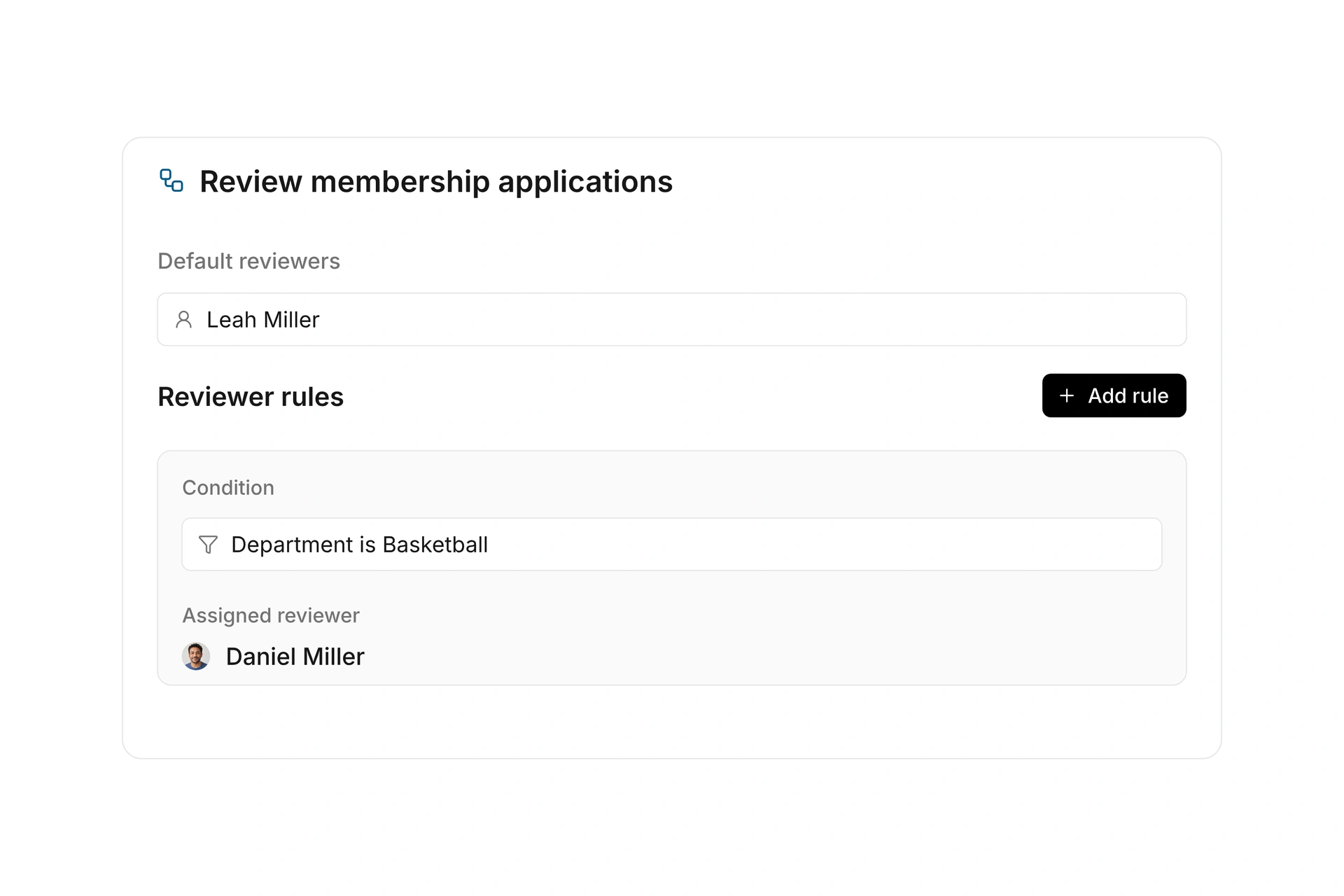
Choose who reviews membership applications, contact-detail changes, and volunteer compensation claims. Depending on the workflow, rules can use form answers or contact information.

When no rule applies, permitted default reviewers are used, with owners as the fallback. Distribute review work while keeping each user’s access limited to the records they are allowed to see.

Route reviews to the right people

Start your day with an overview

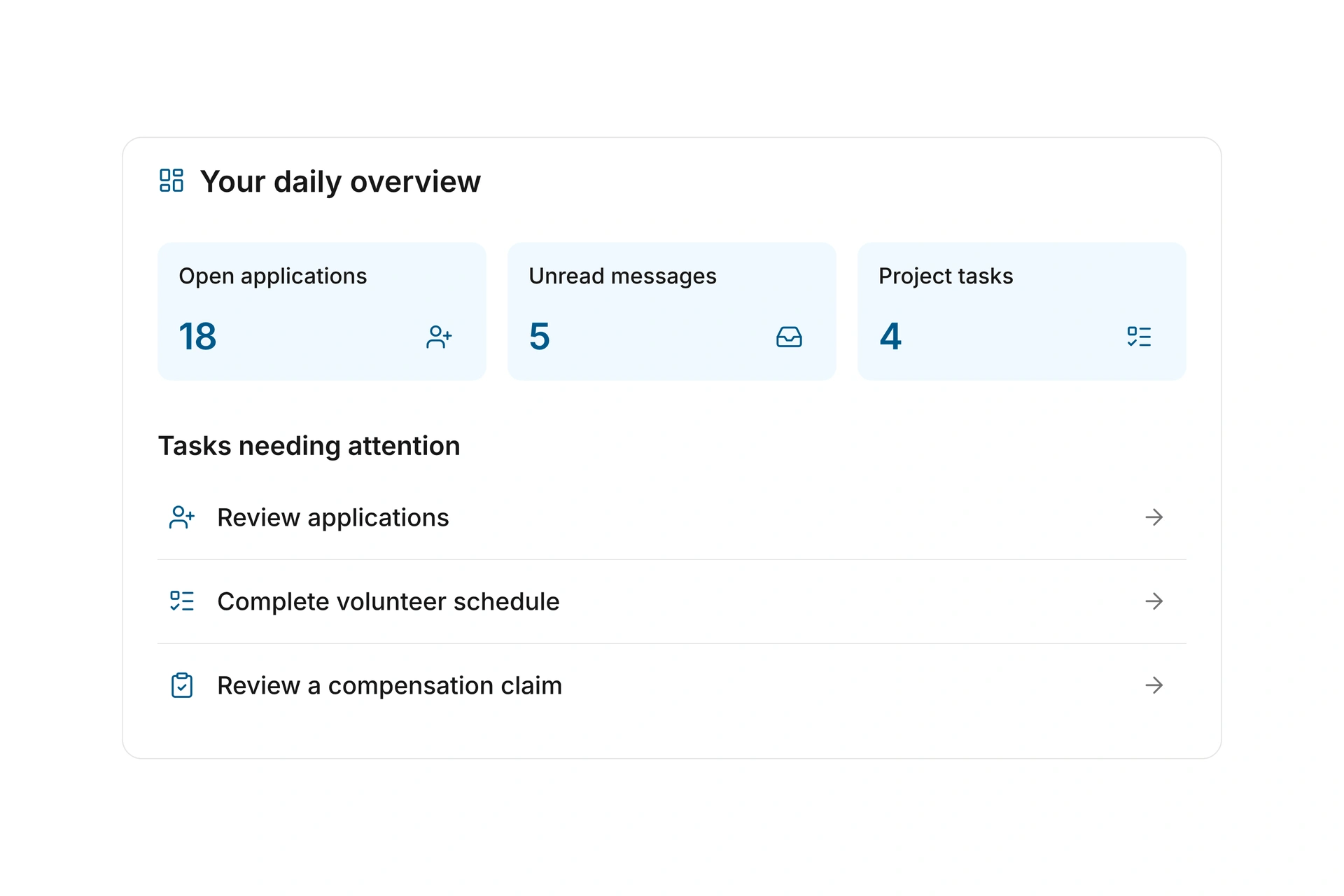
Home brings key figures and outstanding work from several areas together. Compare current figures with the previous month and open records that need your attention.

Review pending approvals, due tasks, sales opportunities, and trends in membership, donations, and bookings. The areas shown depend on enabled features and your access rights.

Start your day with an overview

Keep frequently used pages in your favorites

Save pages you use regularly as personal favorites in the sidebar. Organize them in named folders and choose labels you recognize at a glance.

Open your favorites directly from navigation. Rename or remove entries and folders as your work changes.

Switch between open contacts and events

Open contacts or events in separate tabs within their respective list view. Switch between several records and the list without searching for each record again.

Loaded lists and their scroll positions stay in place while you switch between open tabs. Review the details you need, then pick up where you left off.

Plan setup and work from your phone

Choose your organization’s goals during setup, such as collecting dues or managing donations. Guided steps take you to the settings needed for each goal.

Use the administration interface in a mobile browser for supported views and tasks. Read product updates in campai to keep your team informed about workflow changes.

Plan setup and work from your phone

More time for your community.

See how campai connects member management, finances, and communication. Try the software or book a personal demo.

Explore on your own. Get personal help when you need it.

All collaboration features

Explore teams, task topics and workflows, shared folders, file previews, and permissions.

Teams

  • Teams and subteams

    Organize your community into teams and subteams with their own memberships, feeds, and access permissions.

  • Automatic team assignments

    Assign contacts to teams using contact types, segments, active departments, and tags. Add people manually when needed.

  • Team roles and permissions

    Use team roles to control who can post, create polls, comment, vote, chat, or view shared contact details. Also control access to the team’s todos and permission to view files shared with a main team.

  • Team overview

    Review assigned contacts, linked users, and a team’s latest activity. Check the processing status of automatic team assignments.

Tasks

  • Task topics

    Group tasks into topics with a name, color, and identifier for task numbers. Archive unused topics and restore them when needed.

  • Task types and custom fields

    Define task types within a topic. Add custom fields to the topic to capture the information your tasks need.

  • Statuses and workflows

    Choose the available statuses and permitted transitions for each task type. Add a review step before completion when needed.

  • Task planning and subtasks

    Plan work for projects, teams, events, or resources with assignees, due dates, tags, and subtasks. Use list or board views and keep comments and attachments with each task.

  • Team tasks in administration

    Organize team tasks in the administration workspace. Keep assignments, due dates, and progress in view.

  • Todos, time tracking, and reviews

    Record time spent on a todo and submit it for review. A rejection with a reason reopens the todo, while earlier review rounds remain visible.

Users and access

  • Users

    Review owners, administrators, Community App users, and guests, including account status, activity, and linked contacts.

  • Invitations

    Invite administrators, track pending invitations, and resend them when needed.

  • Management roles

    Group reusable management permissions into roles and assign them to the appropriate users.

  • Restrictions

    Limit access by workspace and supported data scopes. Roles and invitations can further restrict staff to assigned applications, tasks, or shared file folders.

  • Reviewer rules

    Route applications by form answers and compensation claims or self-service changes by contact details to eligible reviewers. Default reviewers and then owners handle cases without a matching rule.

Files and folders

  • Files

    Organize files in folders and subfolders with colors and cover images. Upload multiple files by drag and drop, rename entries, and move selected items together; file permissions control editing.

  • File search and views

    Search files by name, filter by file type, and sort the results. Choose a grid, list, or gallery view for your files.

  • File previews

    Preview supported images, PDFs, video, audio, and text. Browse neighboring files and download an individual file when needed.

  • Share folders

    Share folders with selected users, contacts, segments, or contact types. Subfolders inherit access; users restricted to assigned items see only folders shared with them.

  • Files for teams

    Share folders with a top-level team and use team roles to control who can view the files. Folder sharing with subteams is not supported.

  • Download ZIP

    Download multiple files or folders totaling up to 250 MB as a ZIP archive. The folder structure is preserved, and a notification lets you know when the download is ready.

Daily work and setup

  • Home

    Compare key figures with the same part of the previous month and follow member growth, revenue, donations, and bookings. Open due follow-ups, reviews, and other work needing attention from the dashboard.

  • Quick search

    Find pages and settings or search for contacts from quick search. Open it from the sidebar or press Ctrl+K or Cmd+K.

  • Personal favorites

    Save frequently used pages as favorites in named folders. Open them from the sidebar and rename entries and folders when needed.

  • Record tabs

    Open contacts or events in tabs within their respective list view. Loaded lists and their scroll positions remain in place when switching between open tabs.

  • Setup

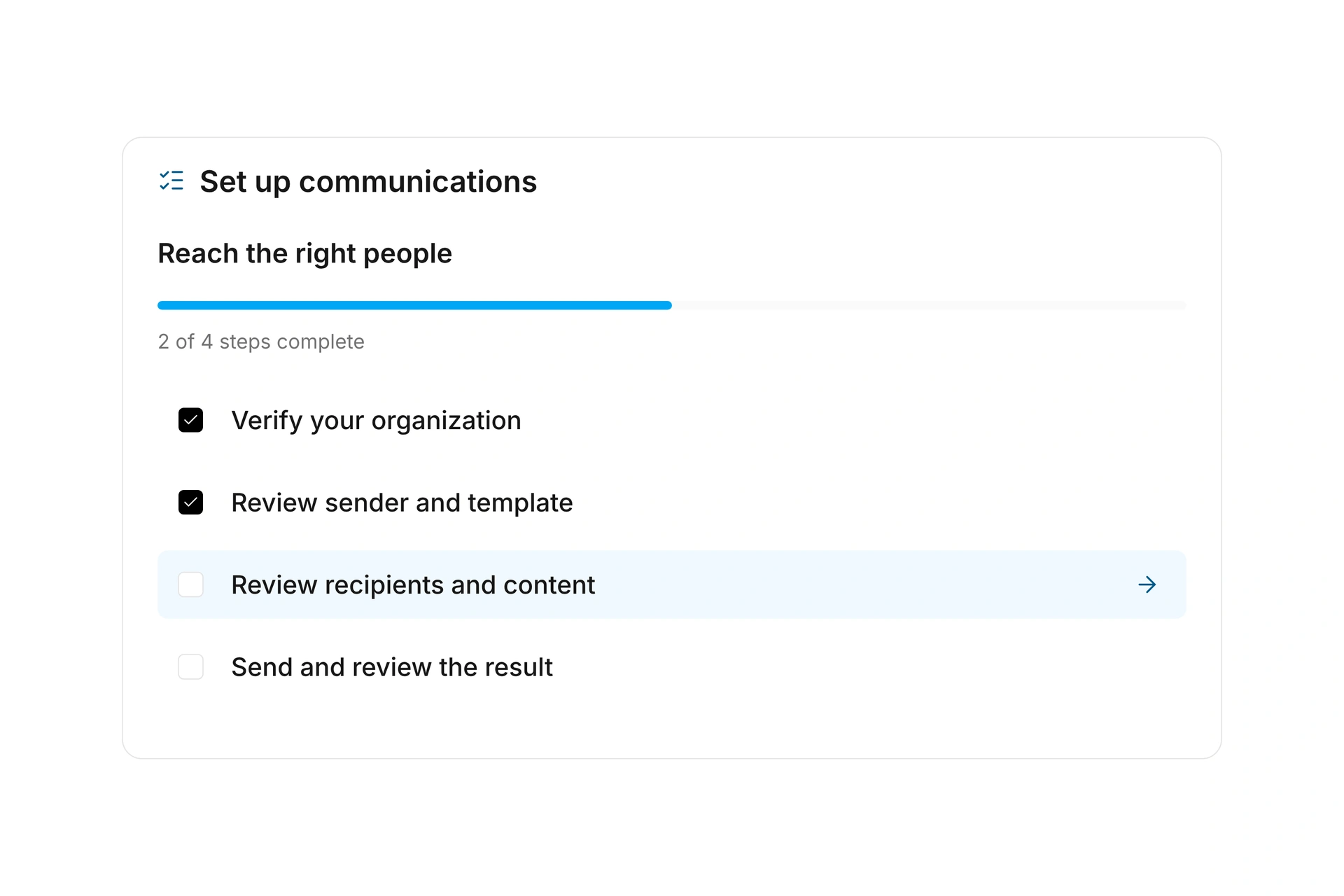
    Set up dues billing and donations with guided steps adapted to your country. campai checks existing settings, shows outstanding work, and lets you skip steps you do not need.

  • Management on your phone

    Work on administration tasks in your phone’s browser with adapted lists, dialogs, and forms. Use the template designer on a desktop.

  • Updates

    Read about new features, improvements, and bug fixes in the admin updates area. A notice lets you know when new entries are available.