
Assign teams
Assign contacts manually or automatically using departments, segments, contact types, and tags. Check assignment status and see separately who has linked their membership to an app account.
Members stay connected, find their next event, and handle everyday requests themselves. You manage teams, access, and approvals in campai.
For iPhone, Android, and Web
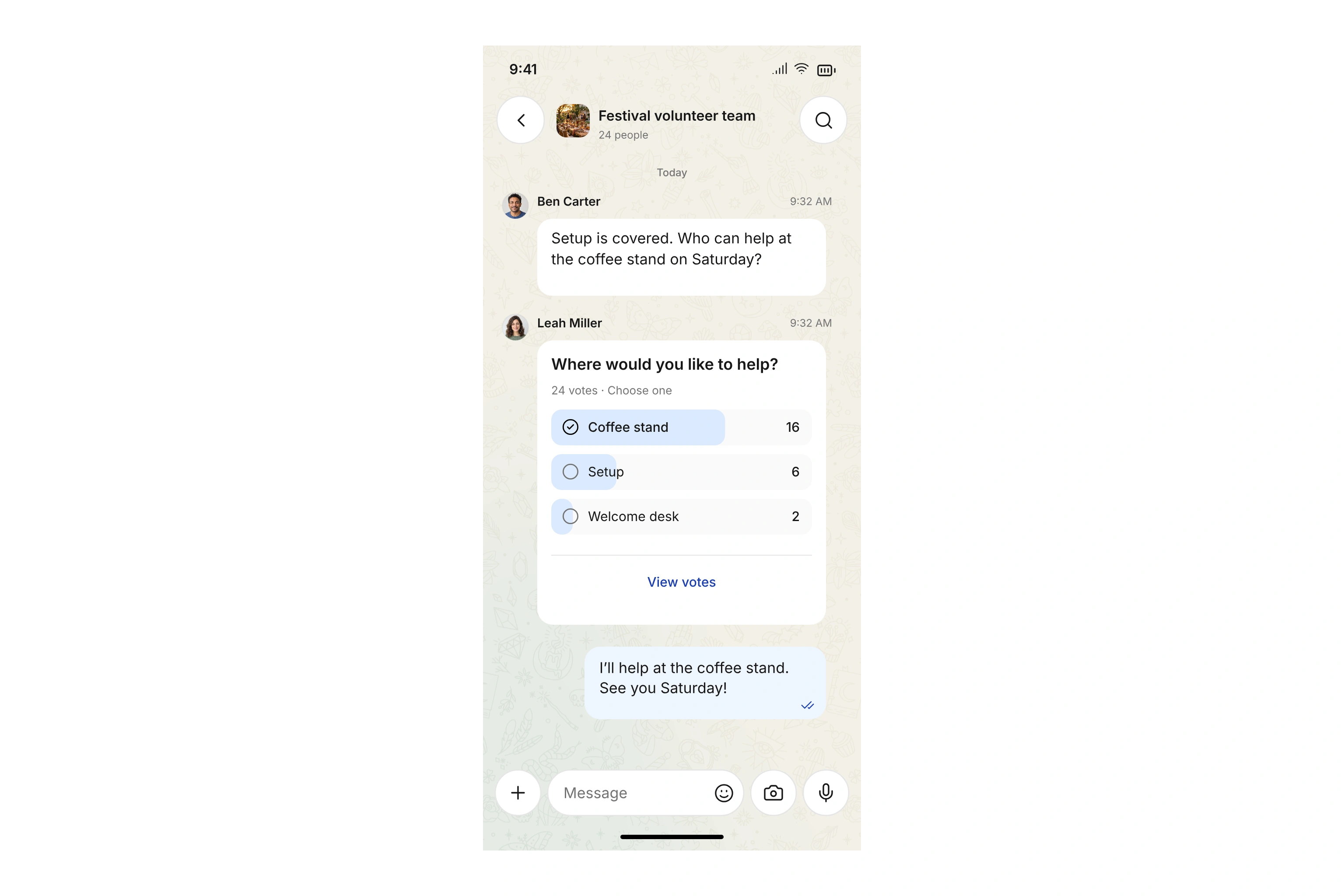
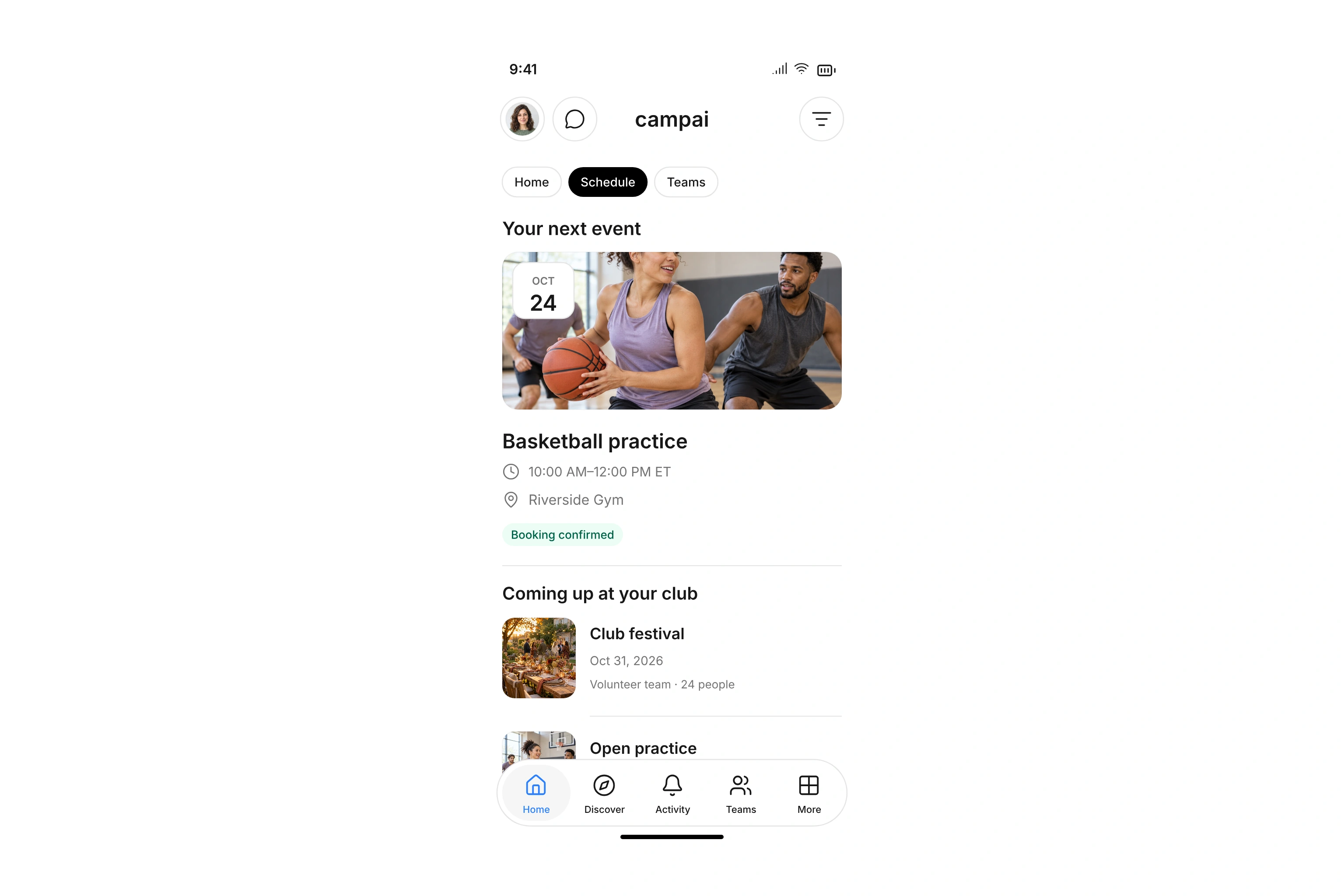
A space for your team, board, and volunteers. Chat, share files, and stay connected.
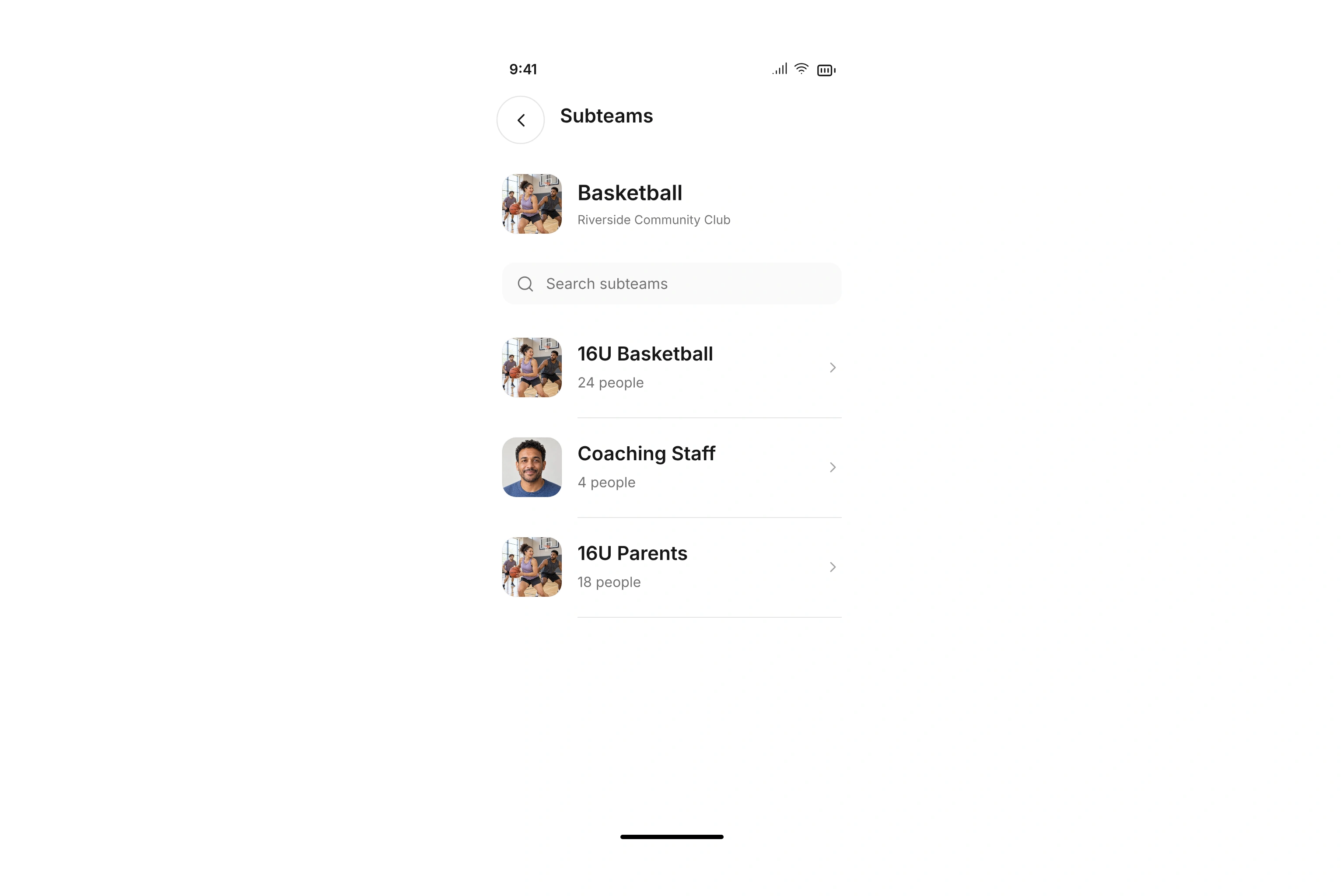
Players, coaches, or parents: teams and subteams reflect your club’s structure. Each has its own information, shared files, and the right access.
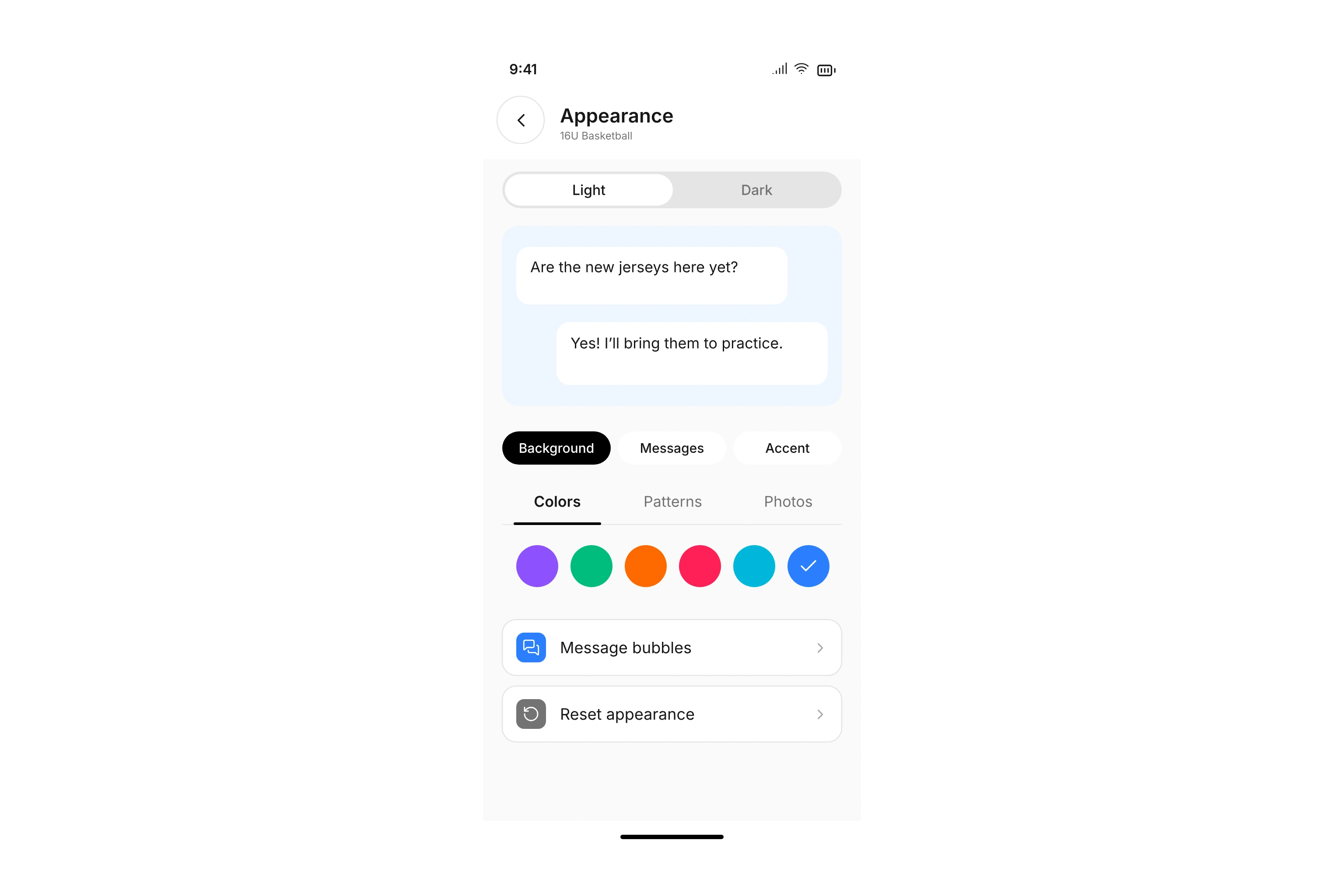
Choose colors, patterns, photos, and message bubbles for your team. Set separate light and dark designs when your role allows it.
Find people in your team’s user list and start a personal chat when your permissions allow it.
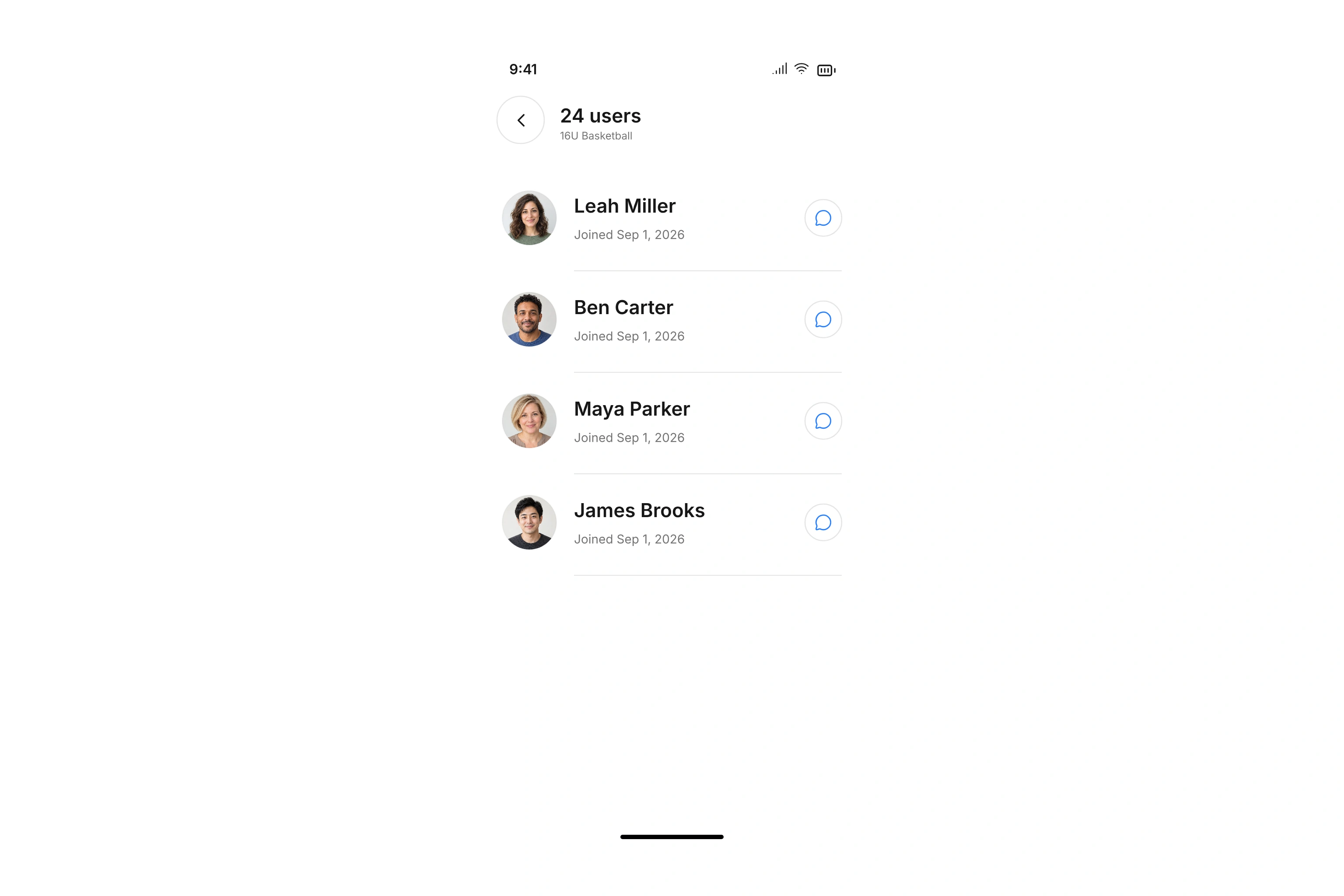
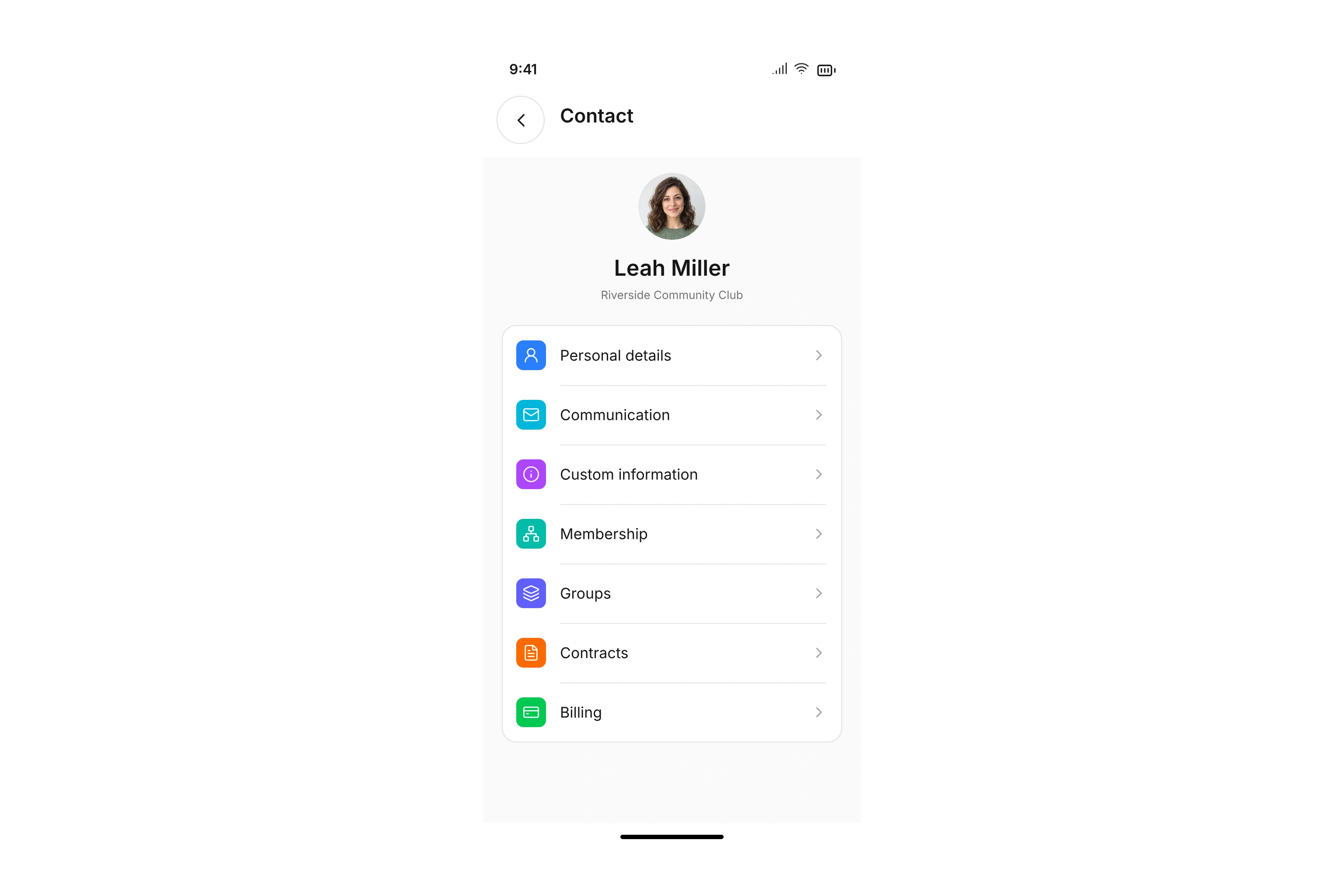
Search your team’s contact list and filter by contact type. Open profiles with personal details, addresses, email, phone numbers, and alternative contacts. Membership, groups, custom fields, contracts, and billing are also available when permitted. Your team role determines which sections you can see, so administrators can give coaches and team leaders the information they need.
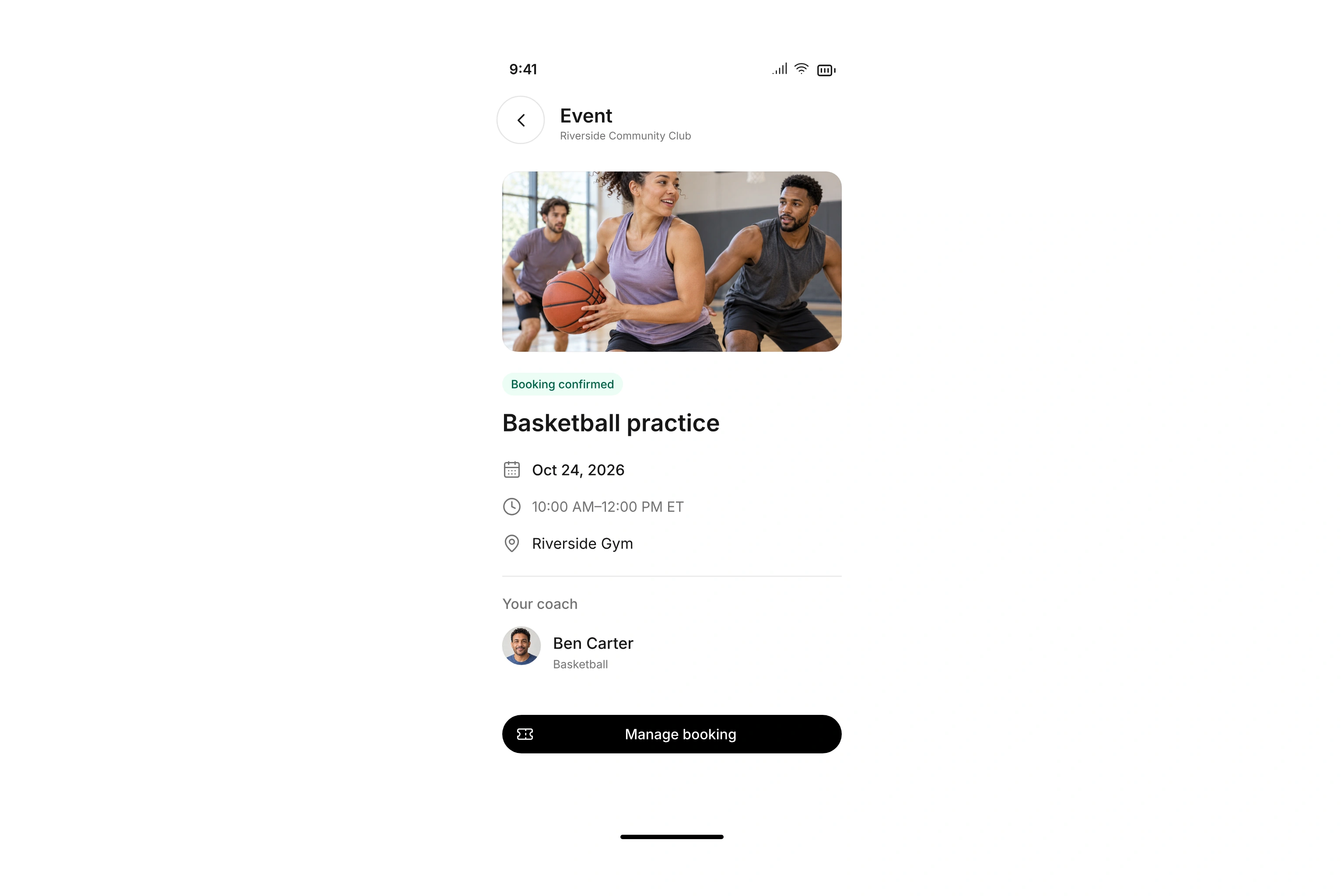
Practices, games, and team events with times, locations, and key details. Book your spot right in the app.
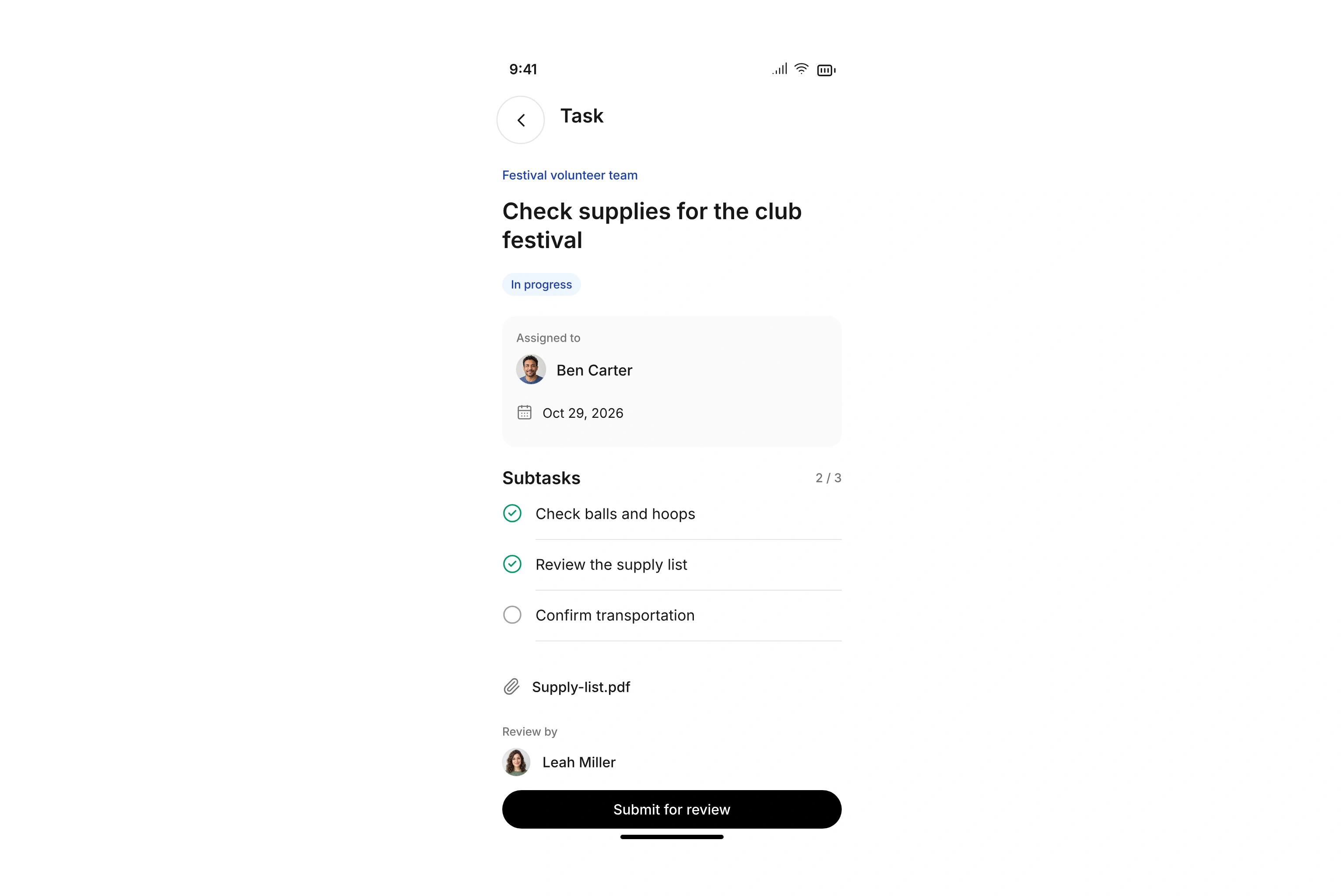
Assign tasks, set due dates, and follow progress. Keep subtasks, files, and approvals together with your team.
Assign contacts manually or automatically using departments, segments, contact types, and tags. Check assignment status and see separately who has linked their membership to an app account.
Choose who can post, participate in activities, or view shared contacts in each team. Give coaches and team leaders the information they need. App access and administration permissions stay separate.
Invite individual contacts or whole groups and follow their progress joining. Members link their invitation to an existing or new account. The same account can hold memberships for several clubs and linked family members.
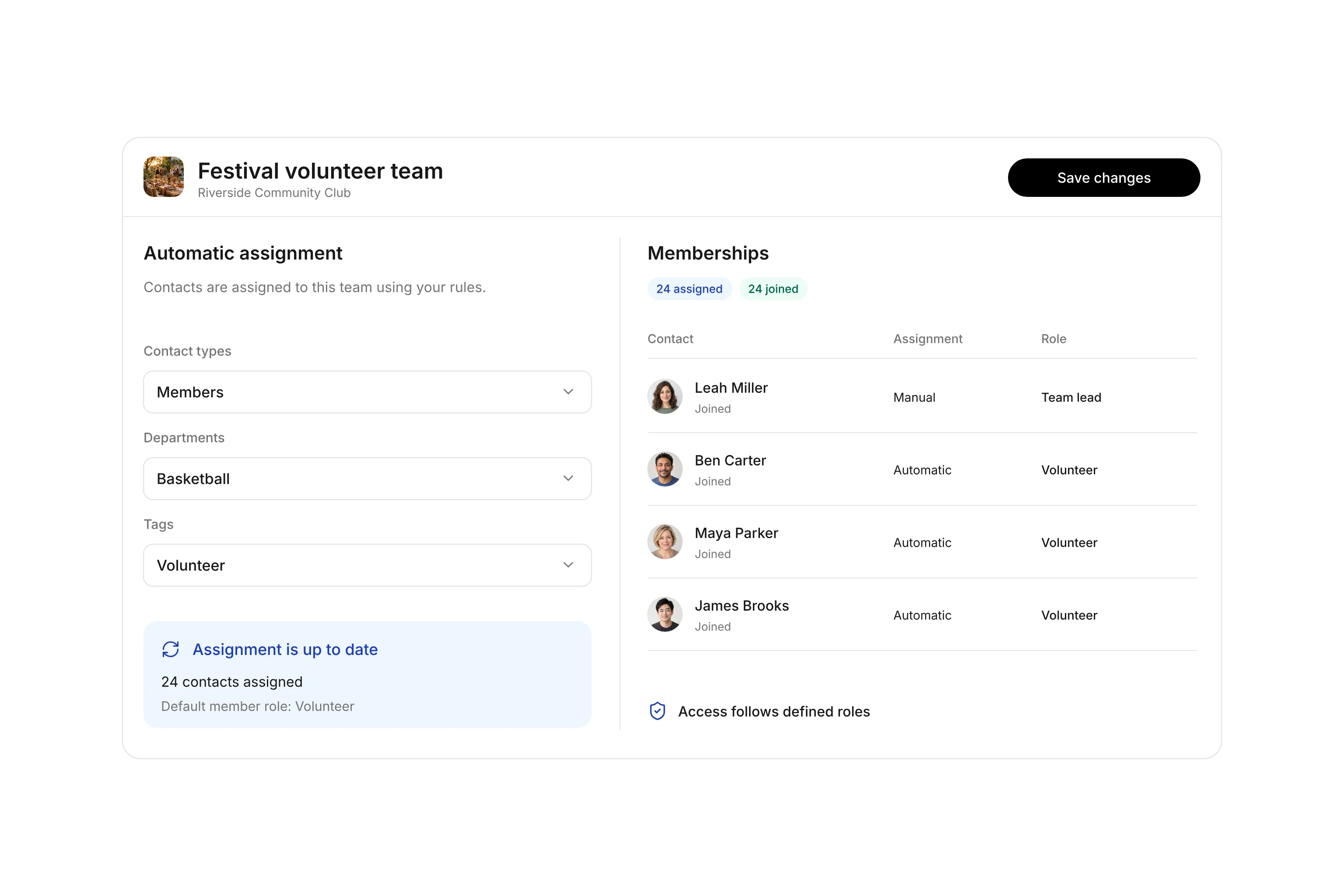
The campai app uses your contacts and team assignments in campai. Set up access and permissions centrally in your browser.
Take a vote, fill volunteer shifts, or collect jersey sizes. Six activities help your team turn conversations into plans.
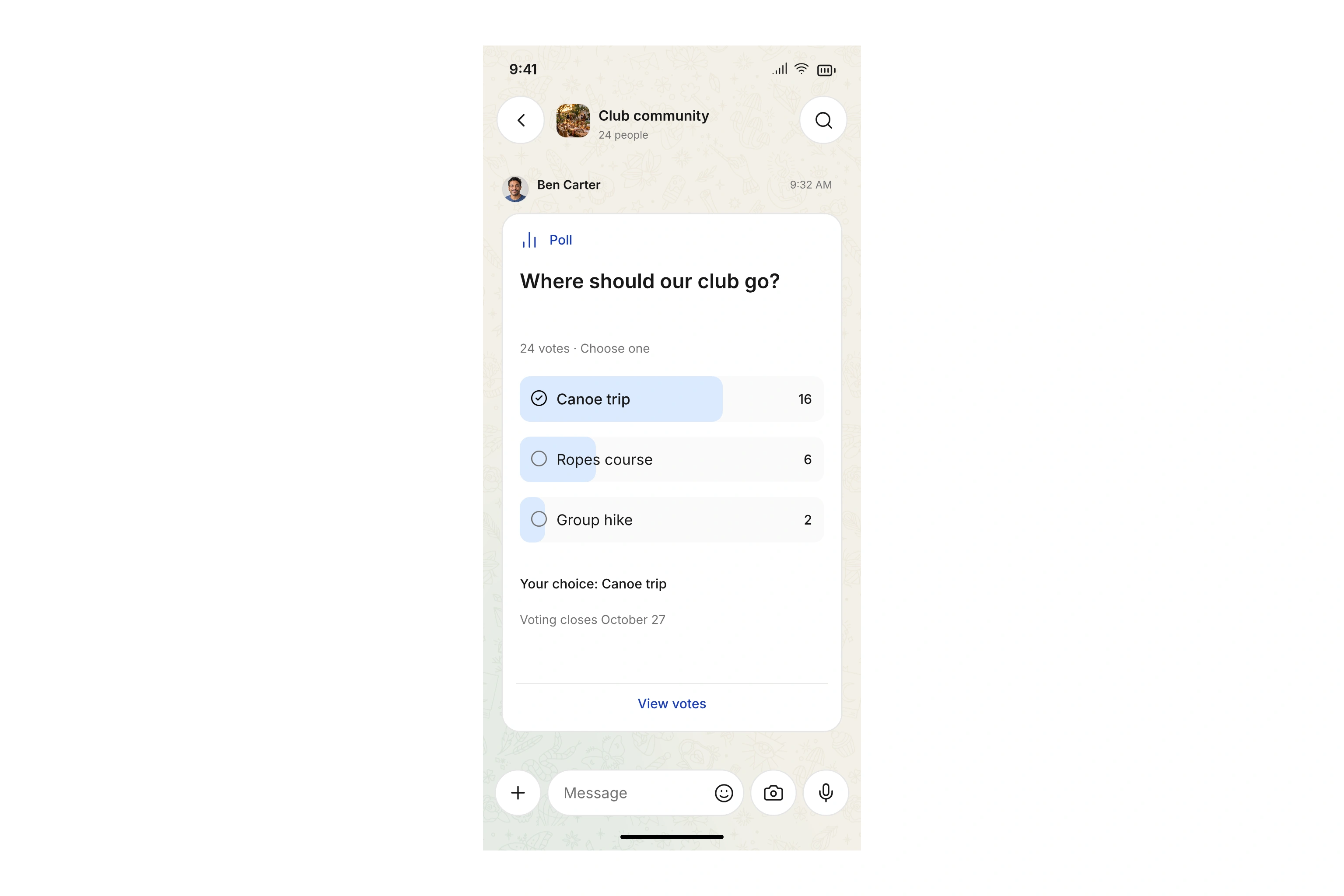
Let your team vote. Set a closing date, allow multiple choices, and choose who can see votes.
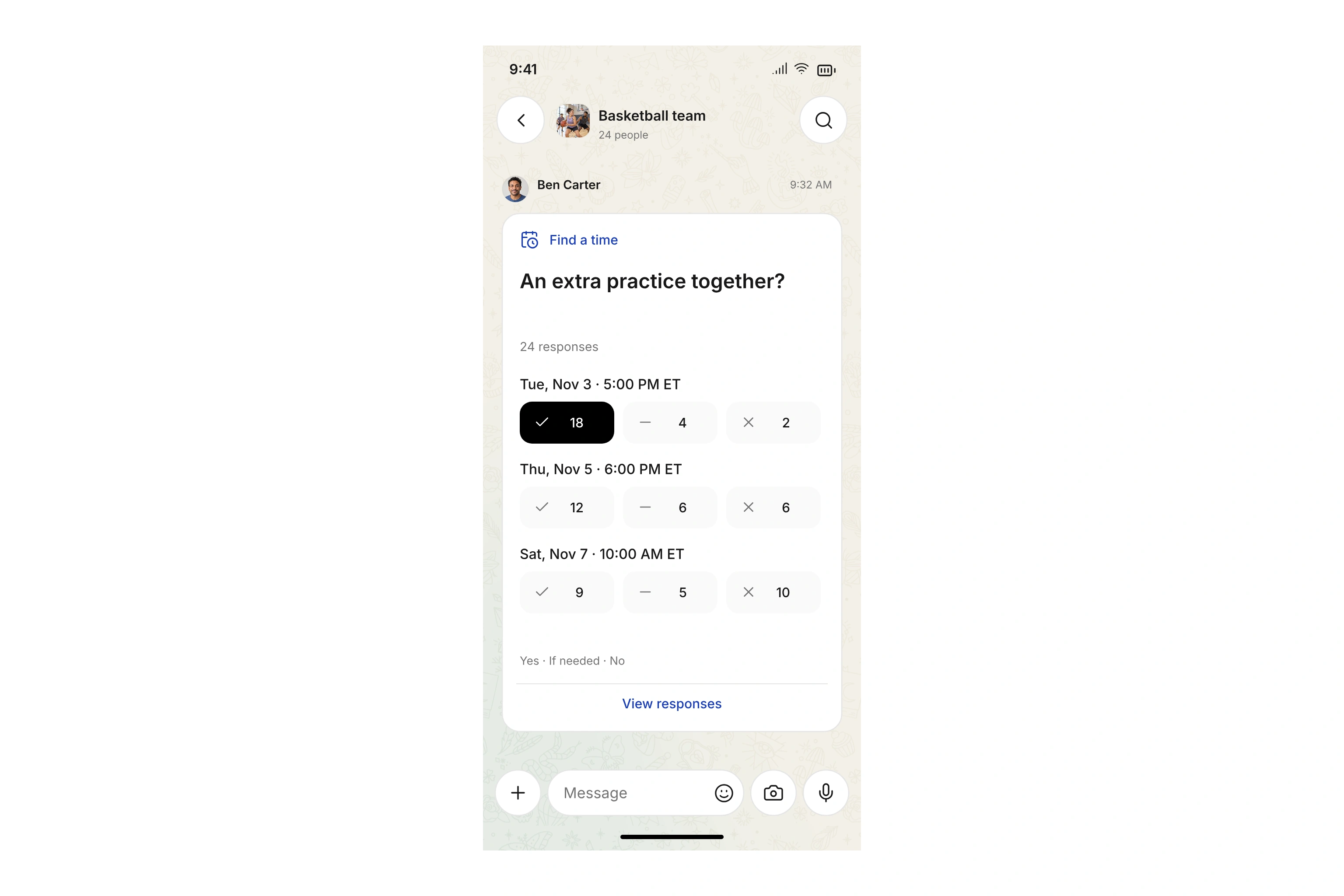
Suggest dates and times. Members answer Yes, If needed, or No. See which time works for the most people.
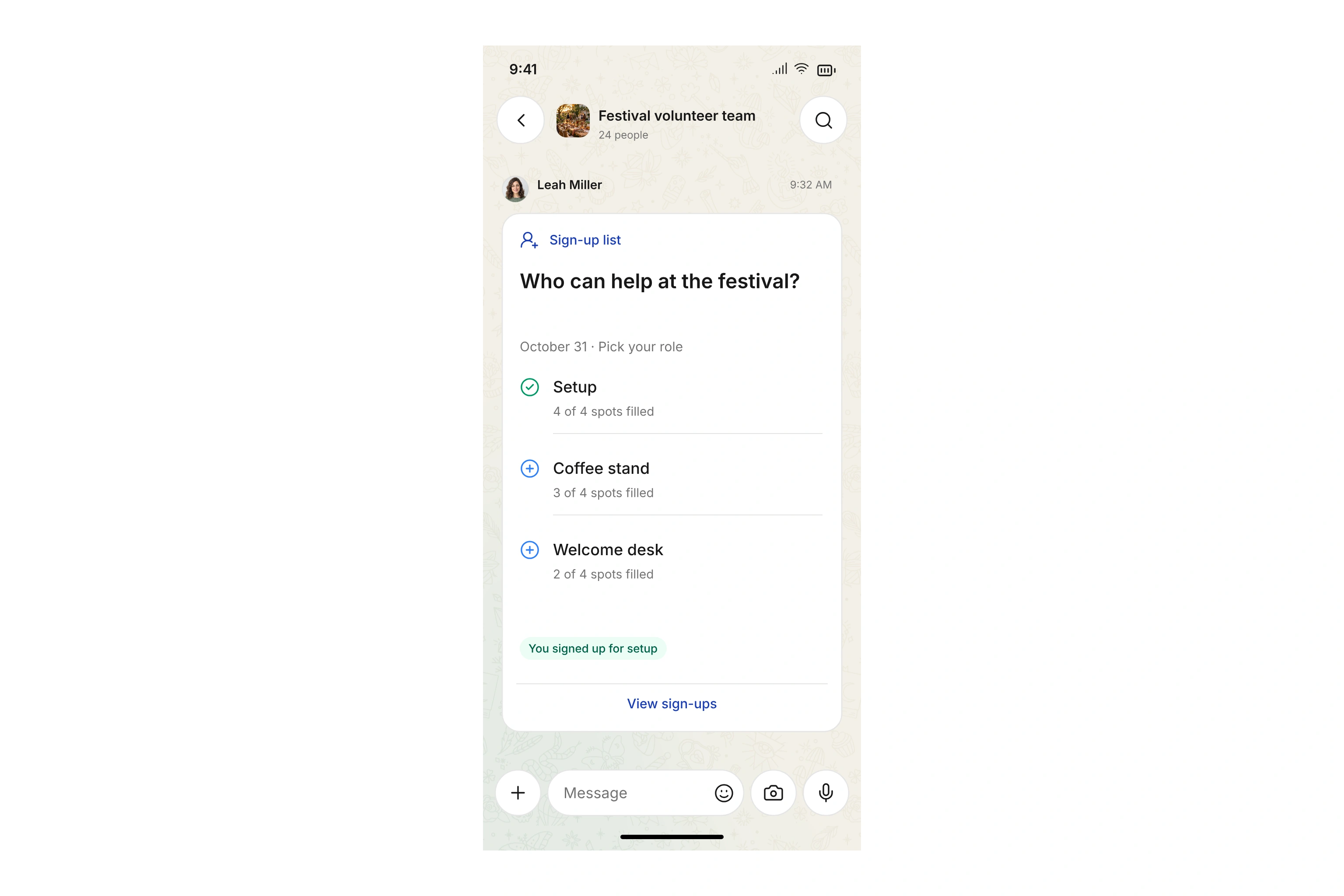
Set up volunteer shifts or a supply list with fixed quantities. Members enter their quantity and see the remaining capacity. Full items stop accepting more sign-ups.
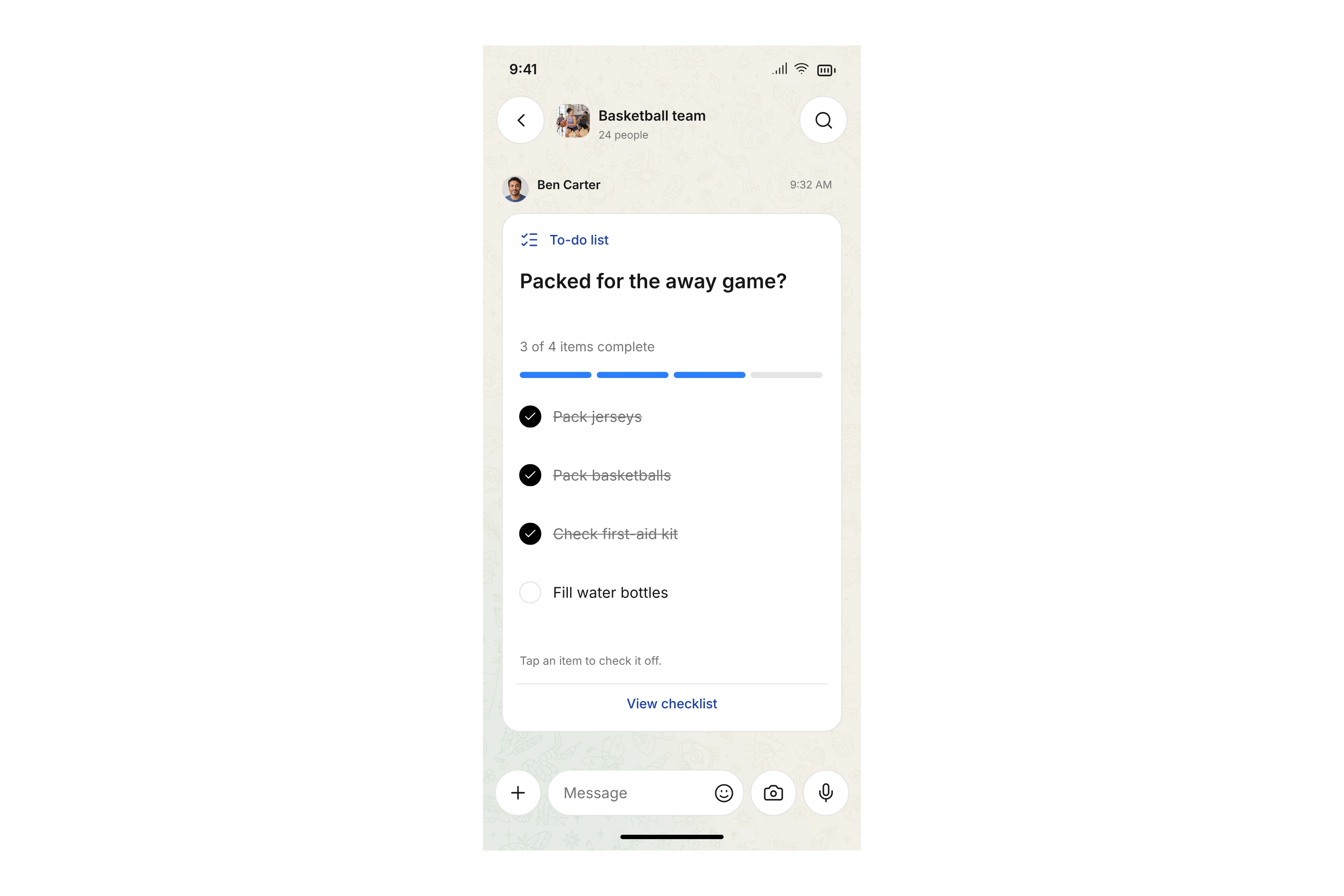
Keep the packing list in the chat. Your team follows progress and sees who completed each item. Reopen items you checked off if something still needs attention.
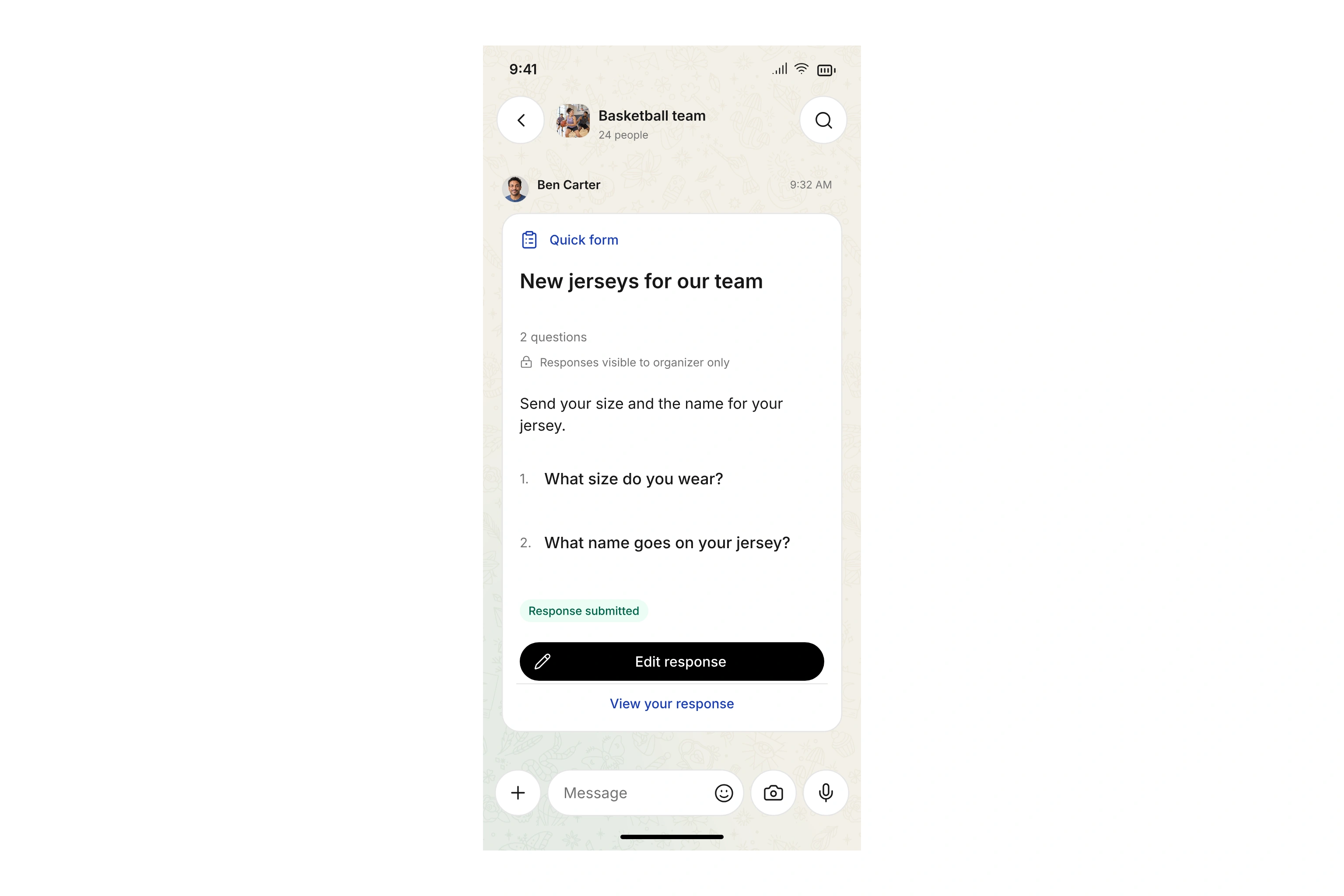
Collect responses with choice, text, number, date, and yes/no fields. Set required questions and choose who can see answers. Linked family members can submit separate responses.
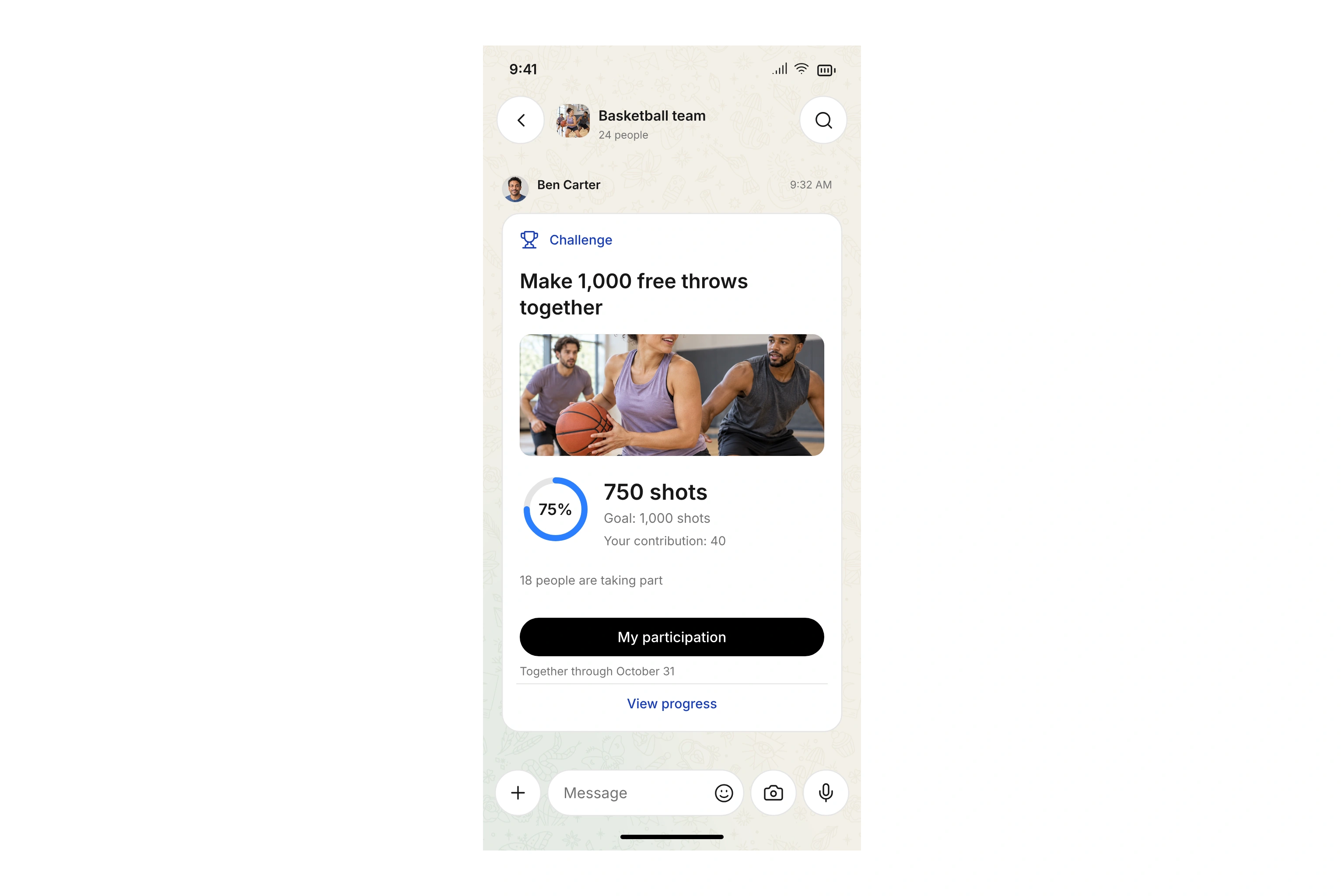
Set a shared goal and follow your team’s contributions. Members can view their personal goal and previous entries. Choose the timeframe, unit, and visibility.
Record ideas, questions, and updates right in the chat.
Share moments from practice, club events, and your next outing.
Share practice schedules, meeting notes, and packing lists in the chat. Find shared files again within the conversation and open them on your device.
Your schedule, bookings, and access in one place. Coaches and event leaders can manage check-in, too.
Find practices, events, and reserved spaces in your personal schedule. Keep track of the sessions you lead, too.
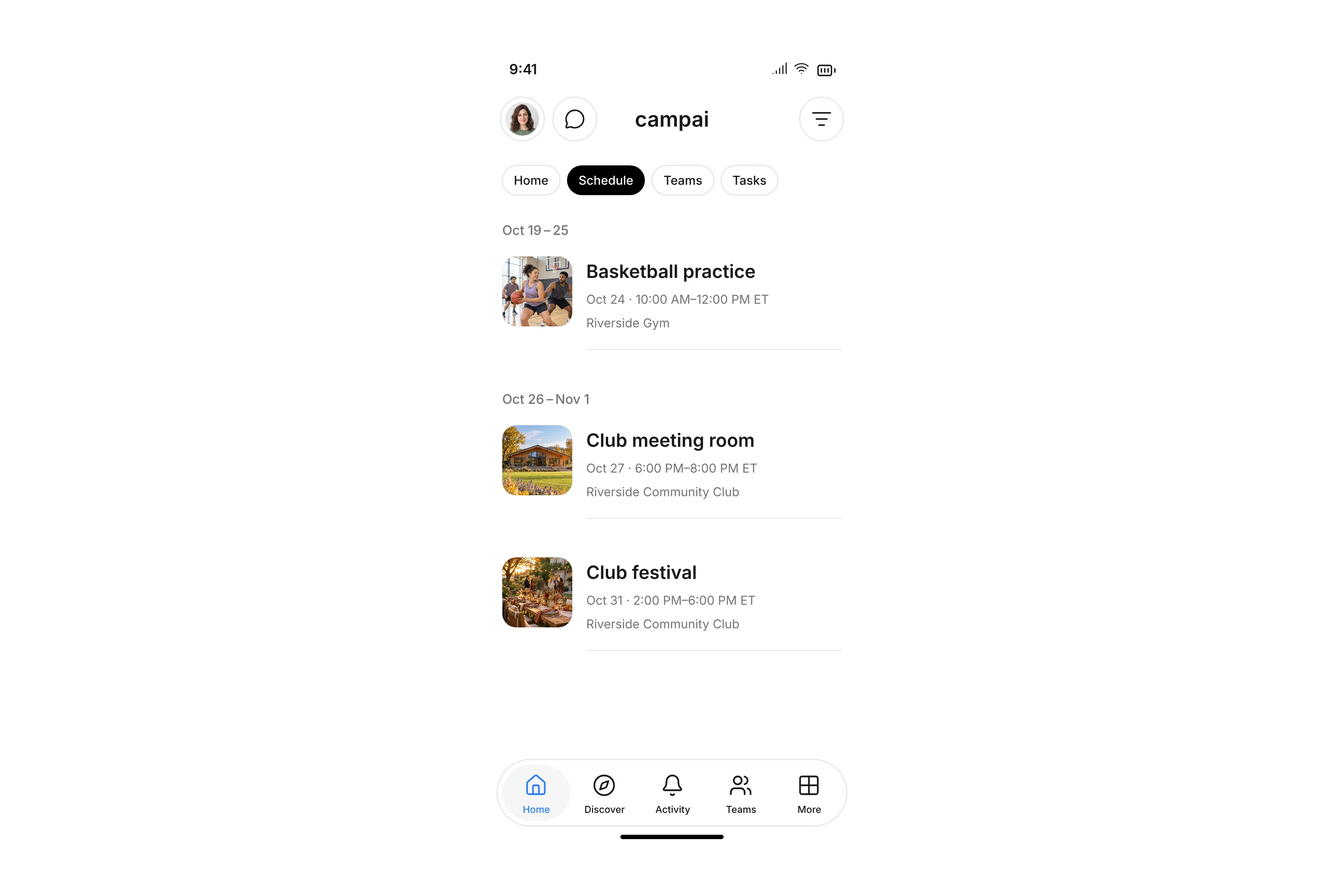
Sign up for events and practices or reserve rooms, courts, and equipment. Find booking details, waitlists, and QR tickets in the app.
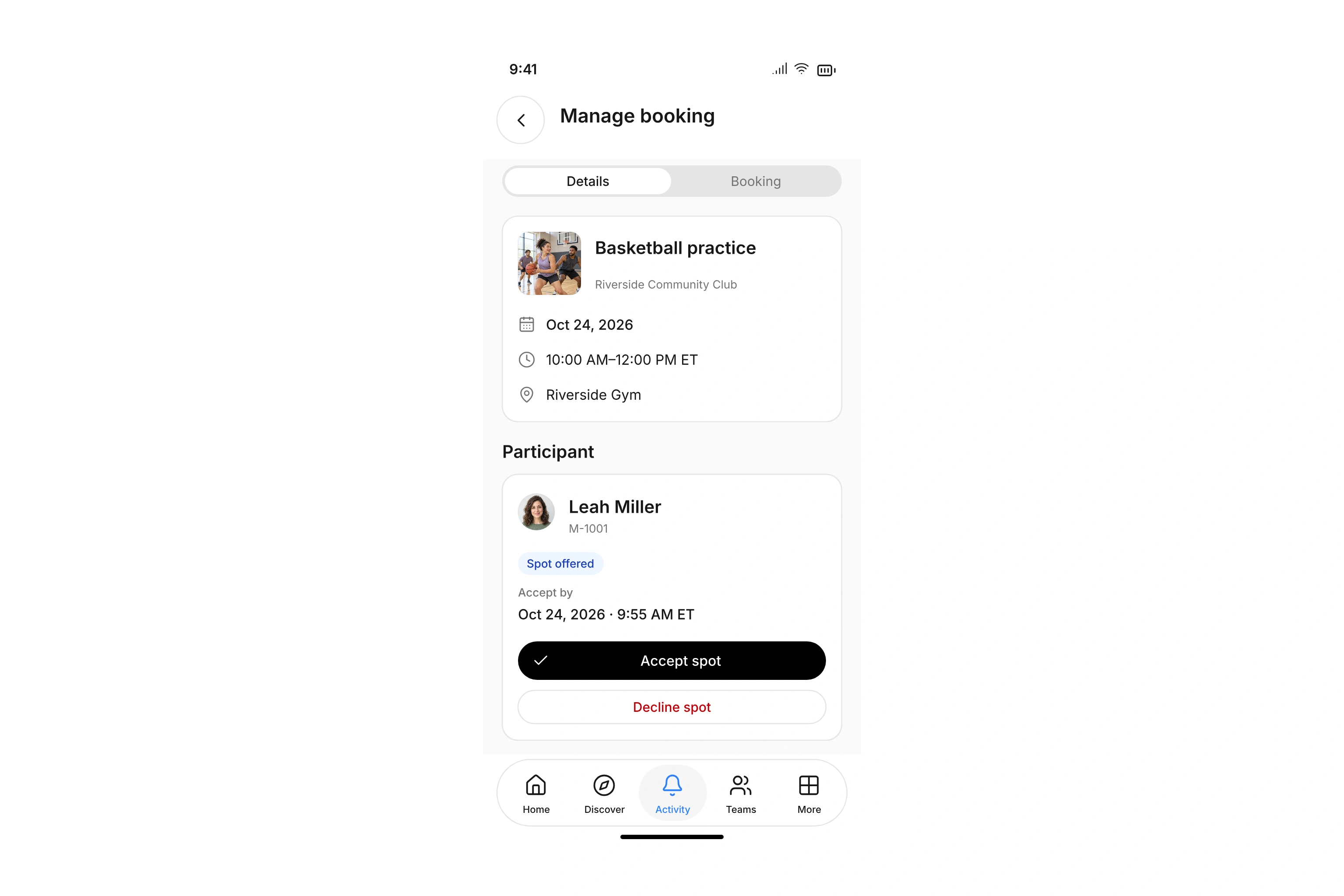
When an offering is full, join its waitlist if one is available. If you receive a spot offer, find the acceptance deadline in your booking. Accept or decline there. Once your attendance is confirmed, you can open your QR ticket if the event uses QR tickets.
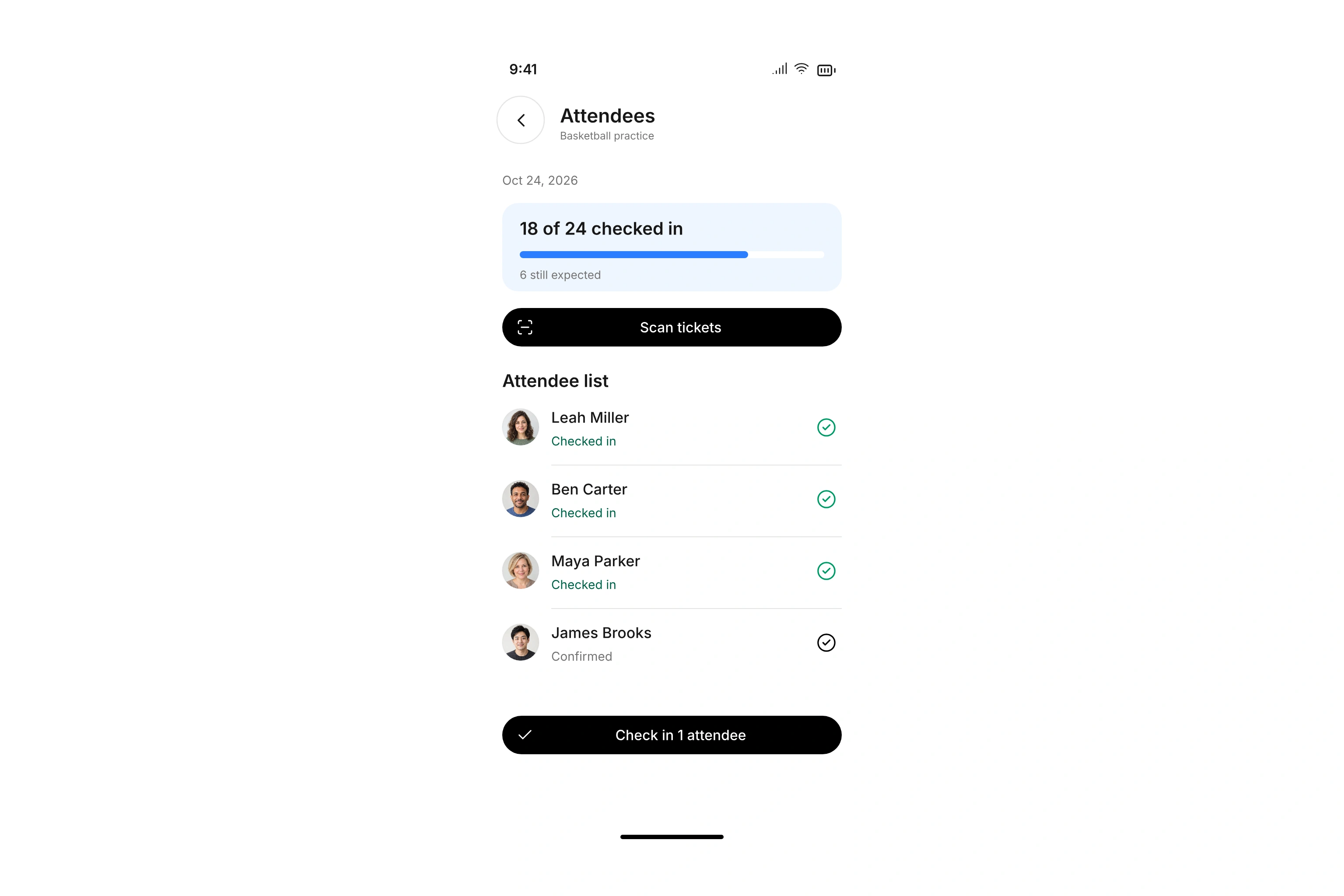
As a coach or event leader, record attendance from the list. Scan QR tickets with your camera or a compatible external USB handheld scanner.
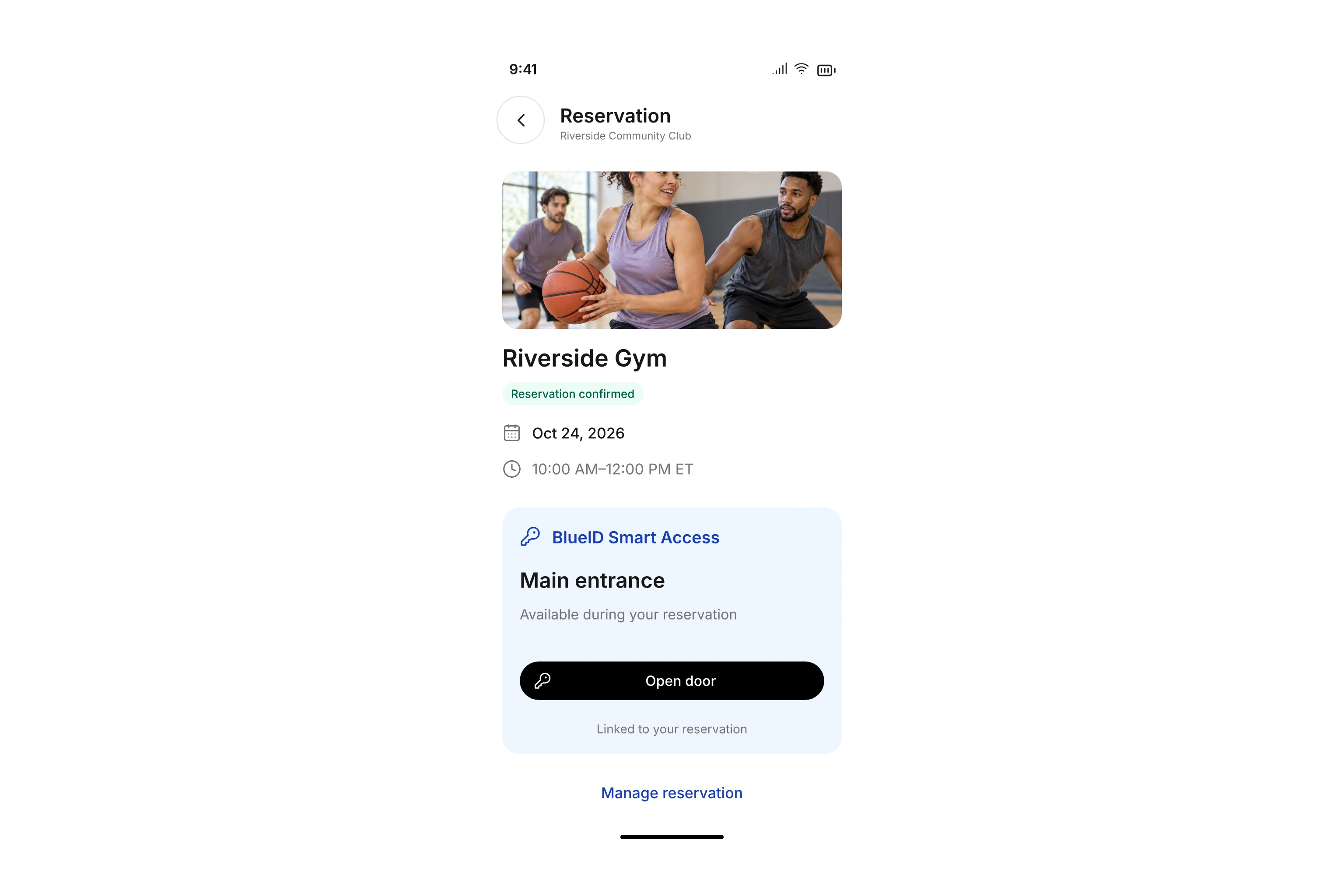
With your club’s BlueID Smart Access integration, enter enabled rooms and sports facilities during your booking. Access stays linked to your reservation.
Your information, documents, and memberships in one place. Handle everyday updates with the access your club provides.
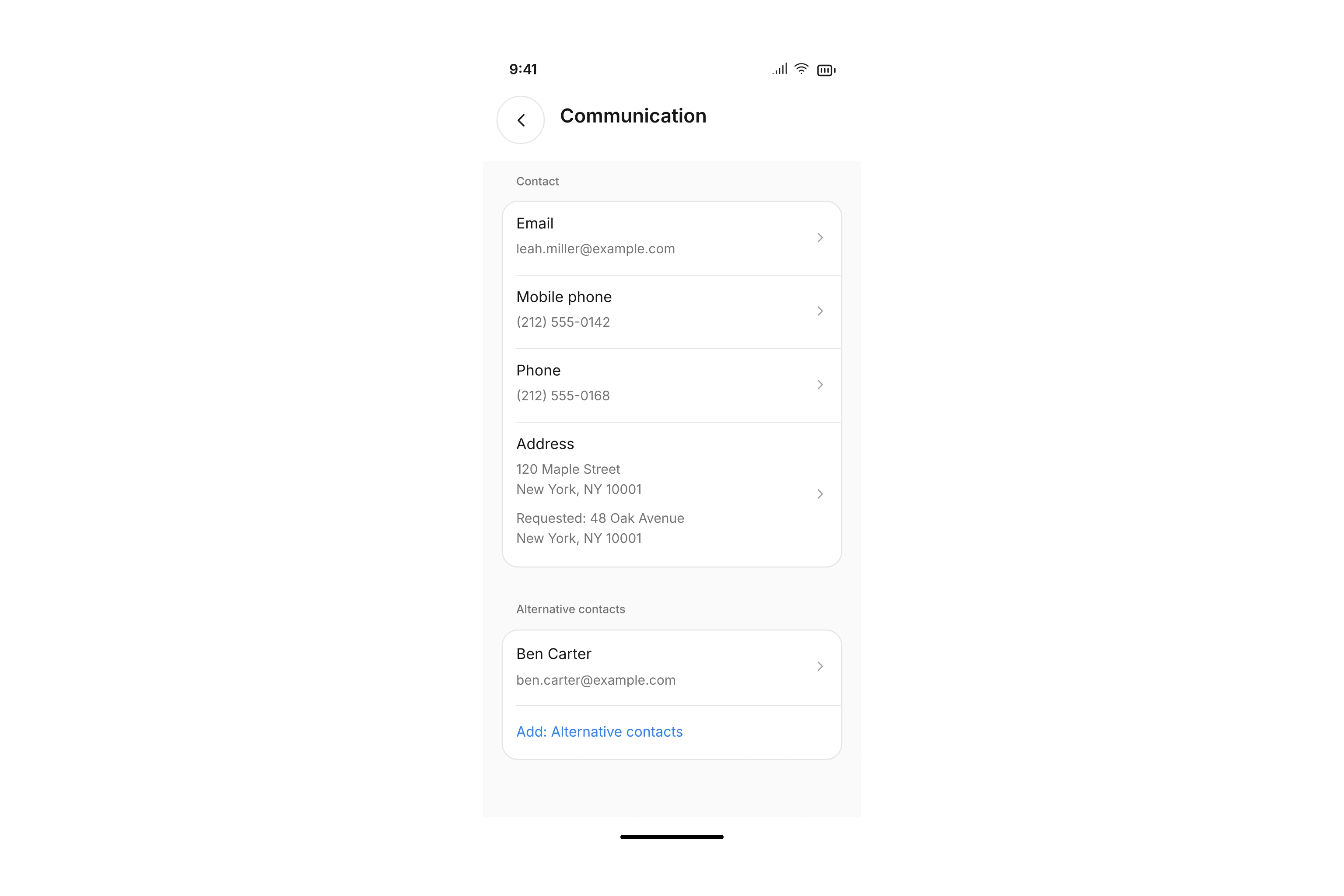
Update enabled personal details, addresses, email, and phone numbers. Find custom fields and alternative contacts in your member area, too.
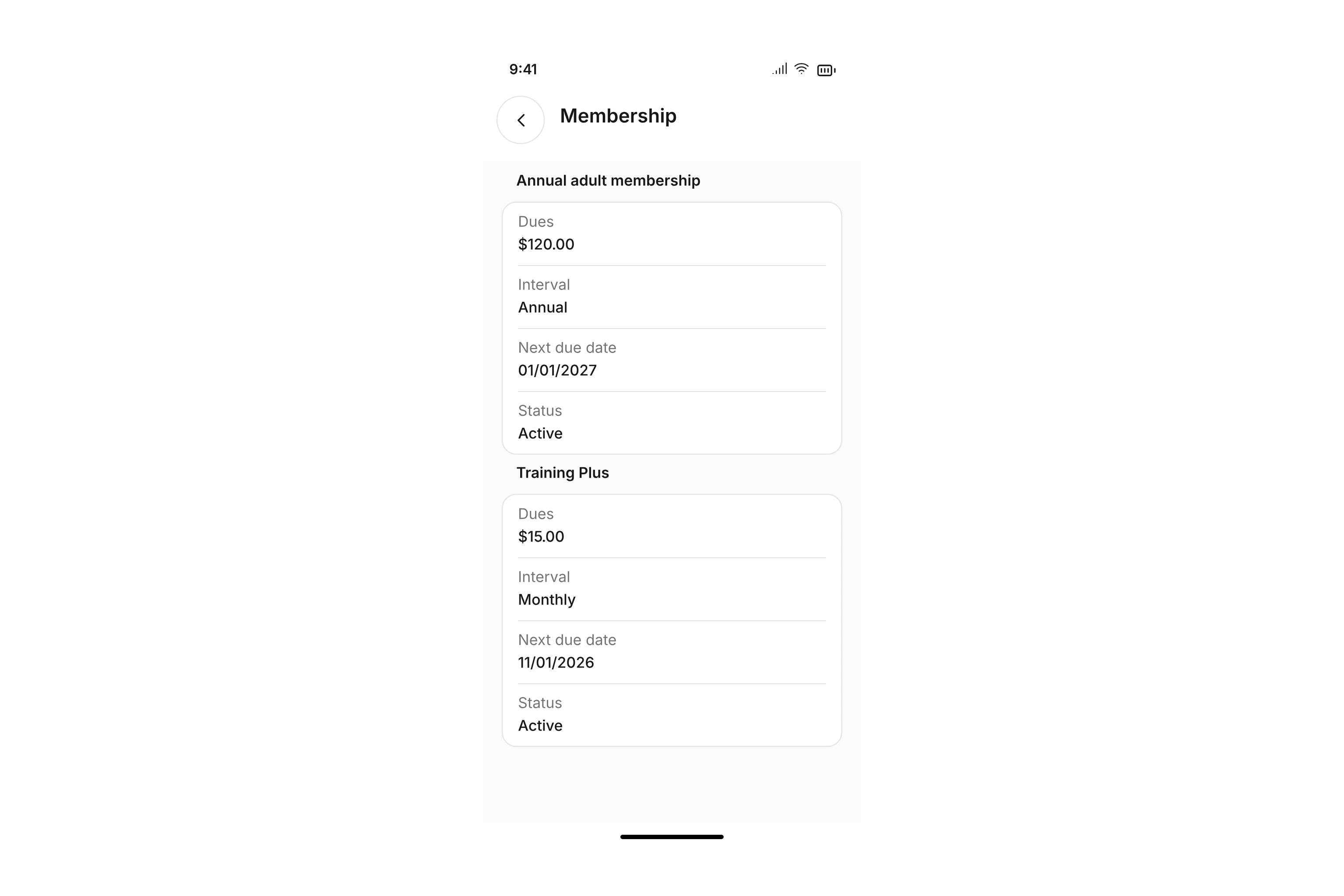
Review membership terms, dues, contract dates, and the next due date. Find the details your club makes available to you.
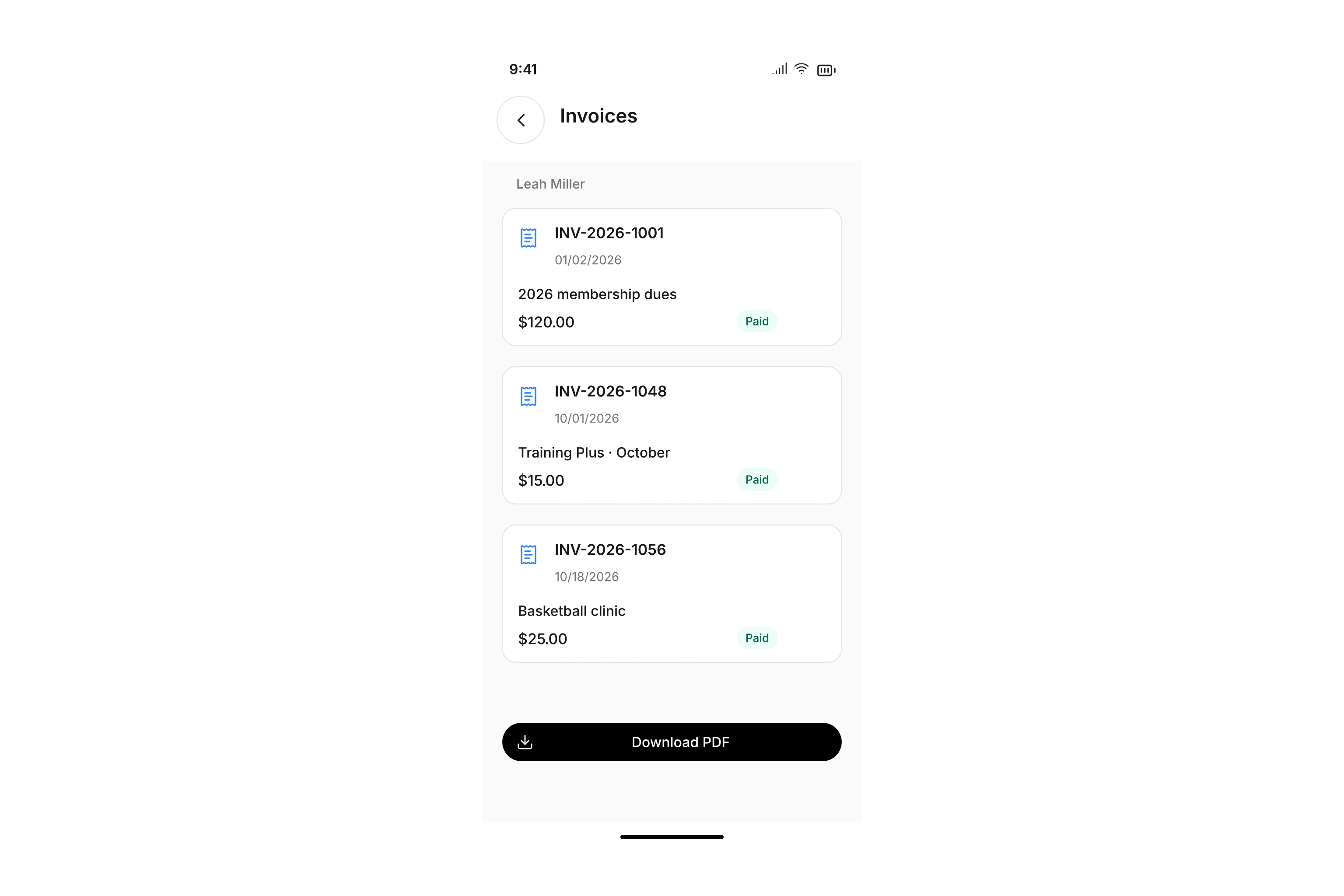
Review invoices and receipts with line items, amounts, and payment status. Download PDFs and pay open booking invoices online when offered. Update enabled billing details and online payment methods yourself.
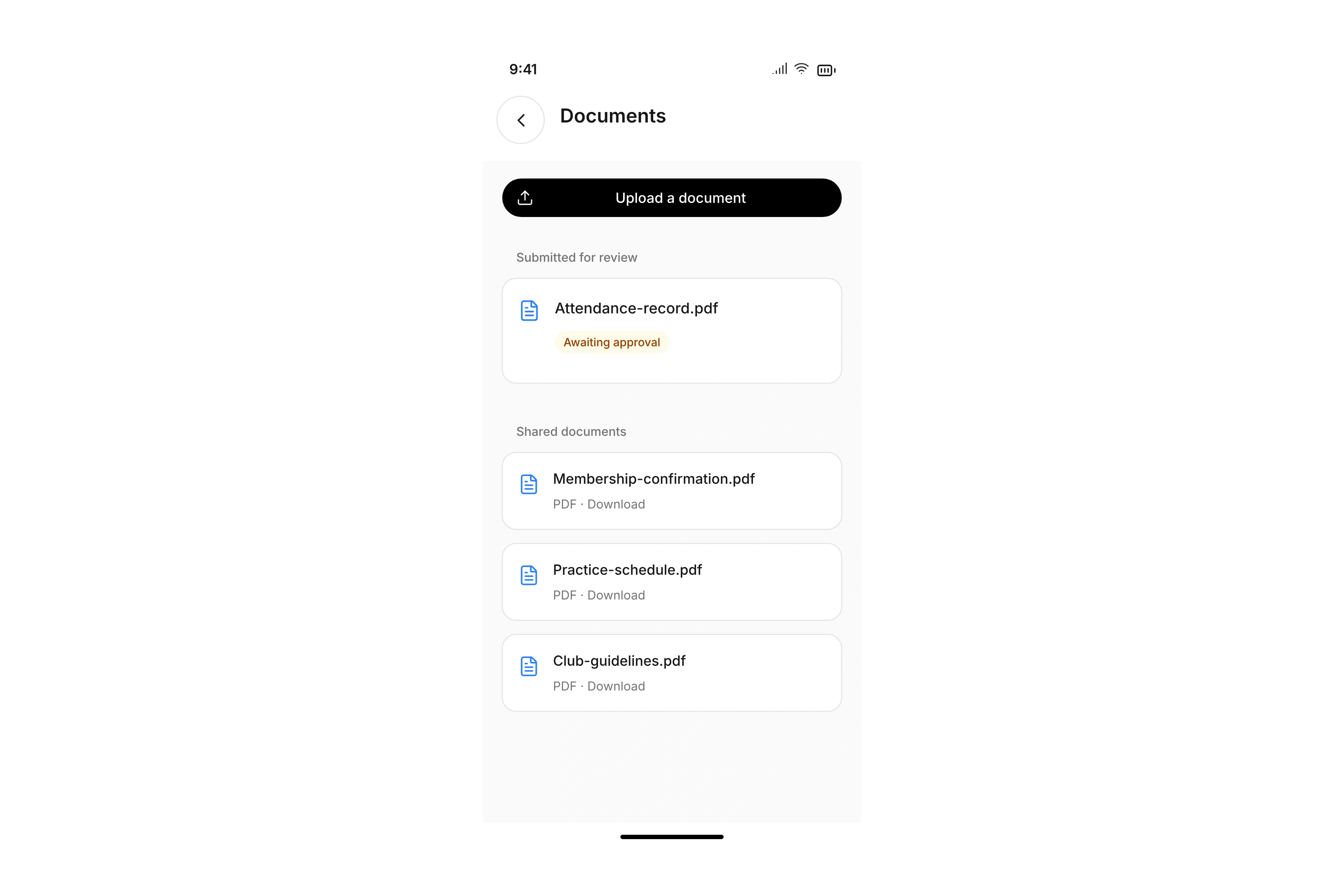
Open shared documents and upload requested files directly. When a review is needed, see the pending request alongside your document.
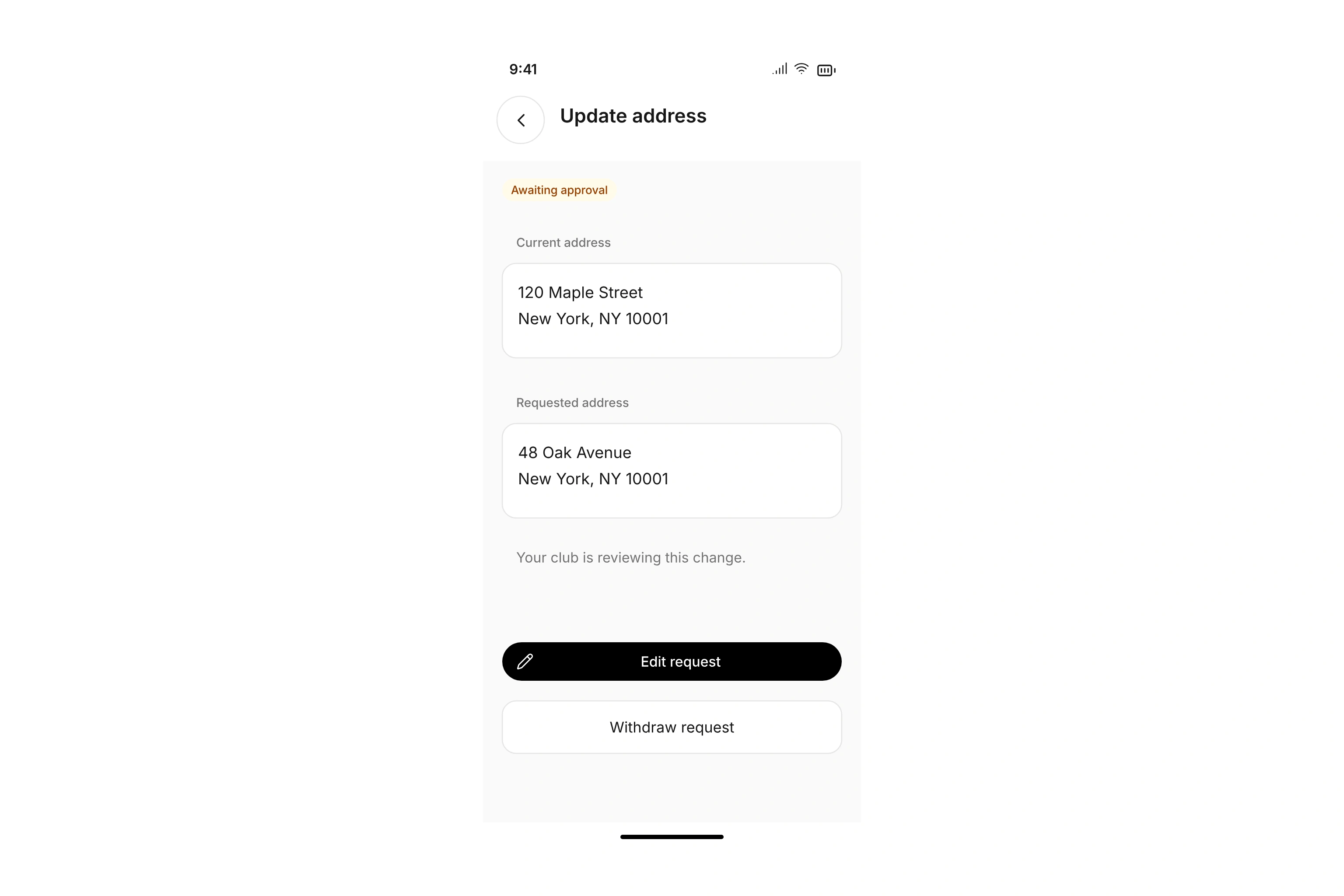
Depending on the field’s permissions, changes take effect immediately or go to a reviewer. Compare current and requested information. Edit or withdraw a request while it is pending.
Switch between your linked memberships, including your child’s. Use one account across multiple clubs and add another membership with a code, link, or QR code.
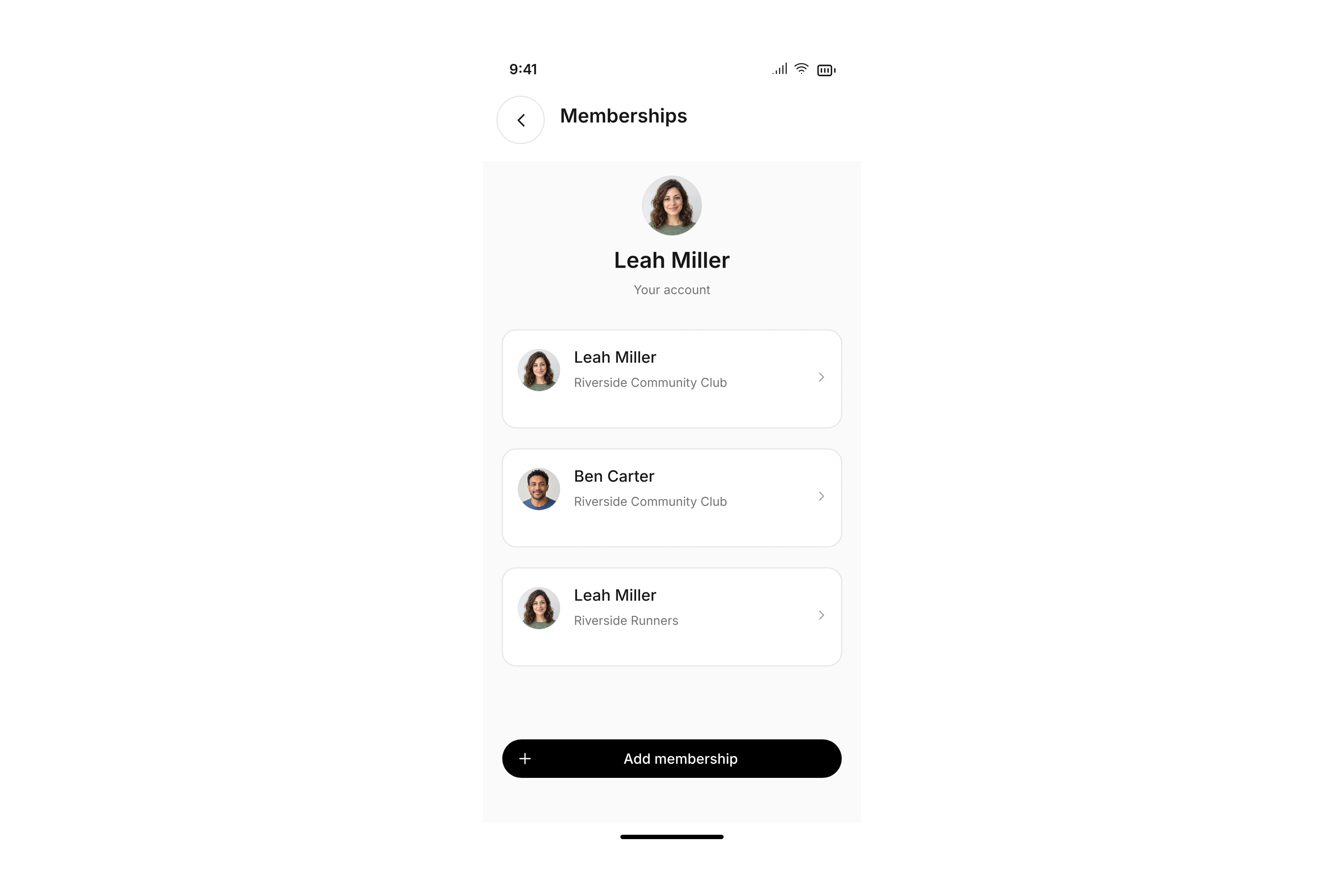
Find fellow members, discover shared interests, and use the contact options they choose to share.
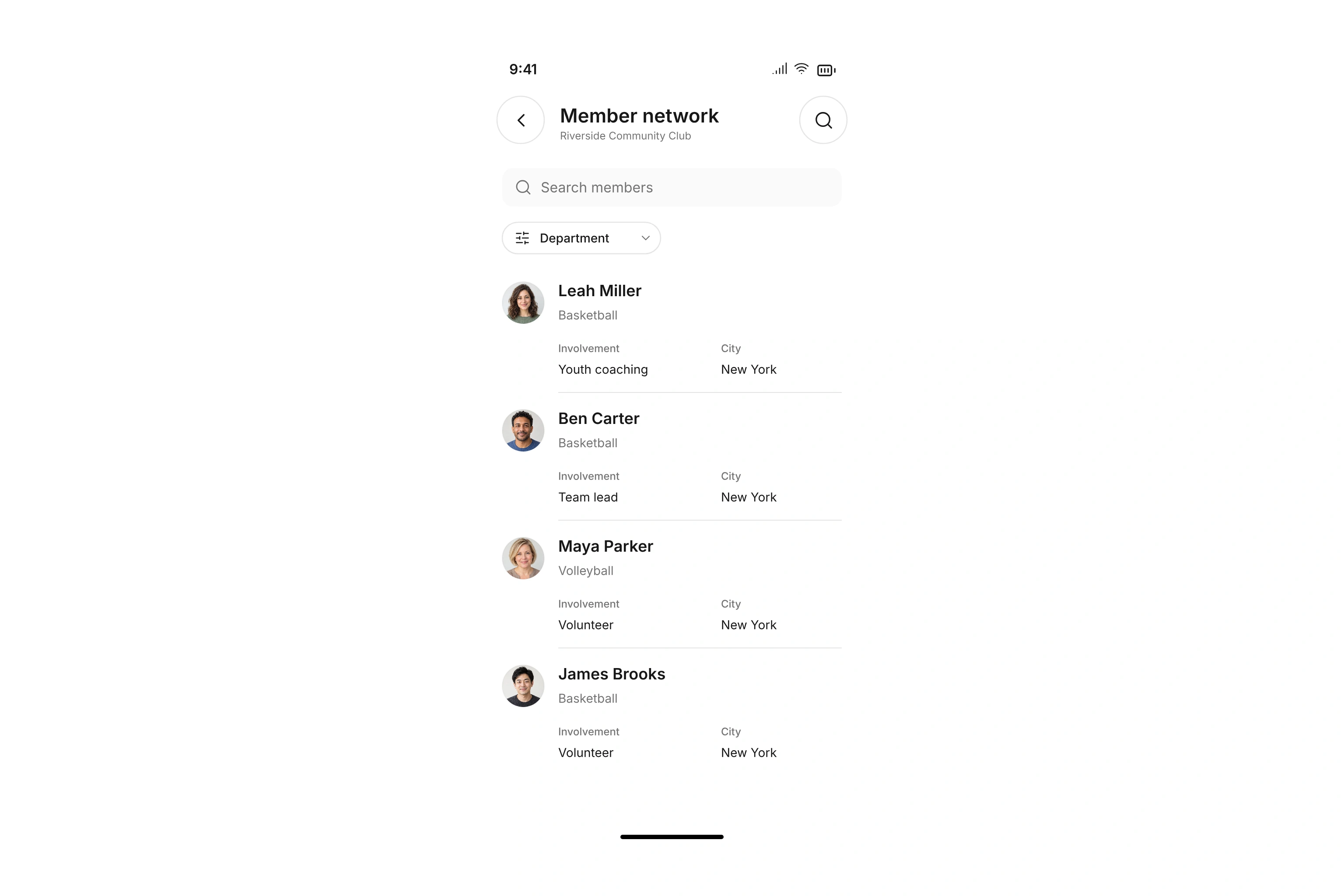
Search the member network by name and filter by enabled fields such as department. Profile photos and summaries help you find relevant people.
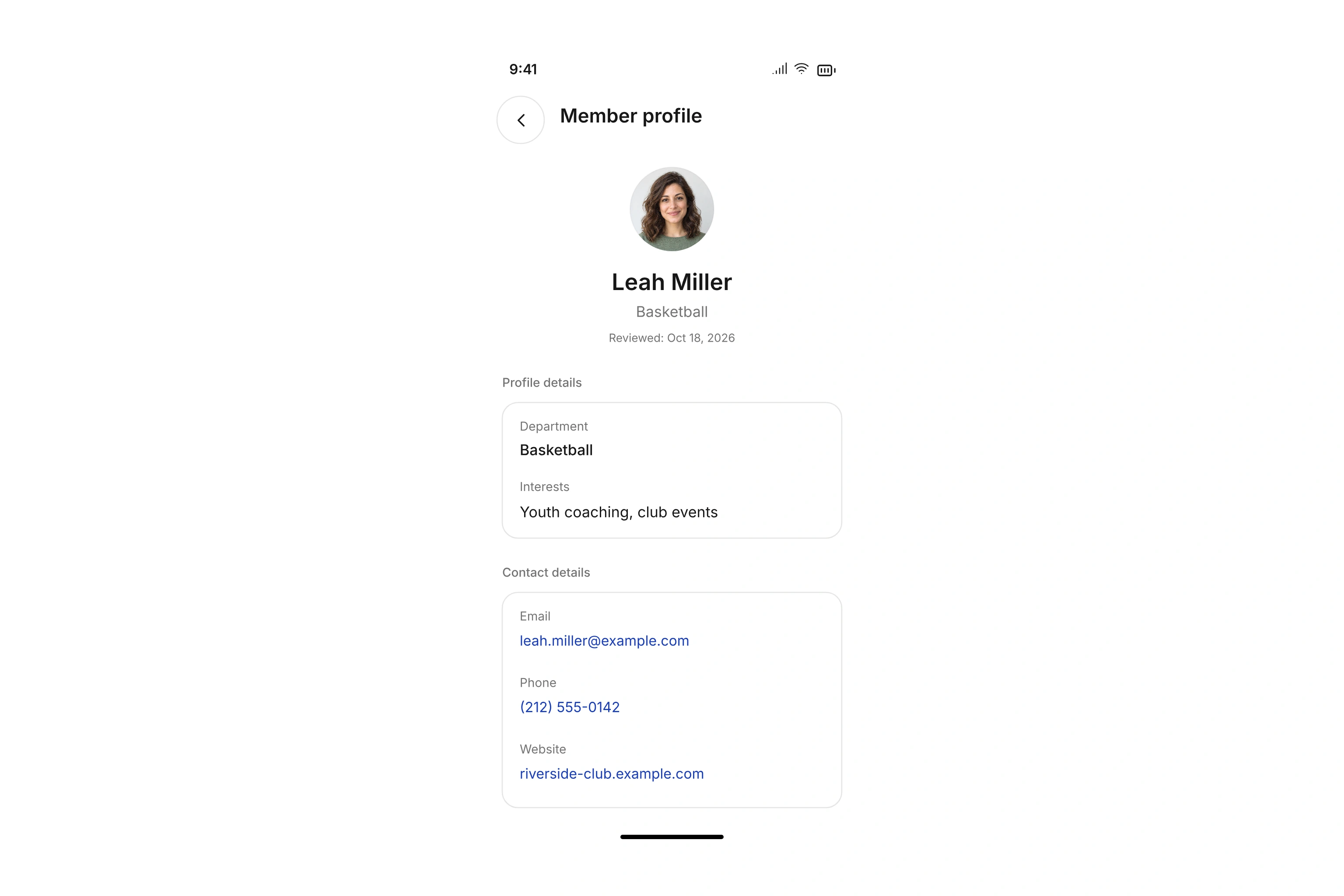
Open profiles with shared interests, departments, and other information. Use shared email addresses, phone numbers, and websites right from the profile.
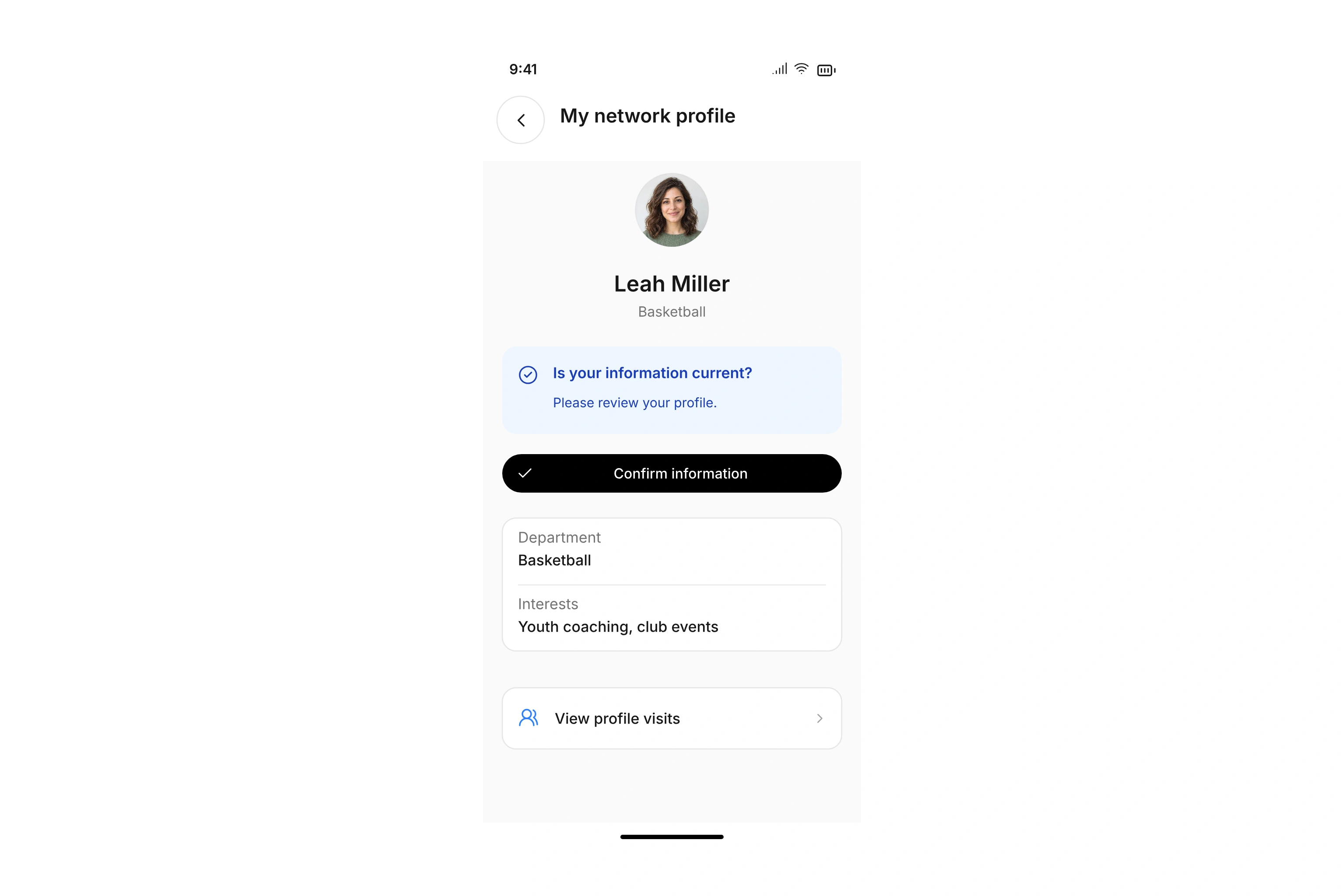
View your own profile and confirm your information when your organization sends a review reminder. When profile visits are enabled, you can also see who viewed your profile.
Control optional profile fields when your organization allows it. Participation, consent, and leaving the network follow your organization’s settings. Reciprocal field visibility is available, too.
Keep your calendar connected, choose which updates reach you, and feel at home in the app—even offline.
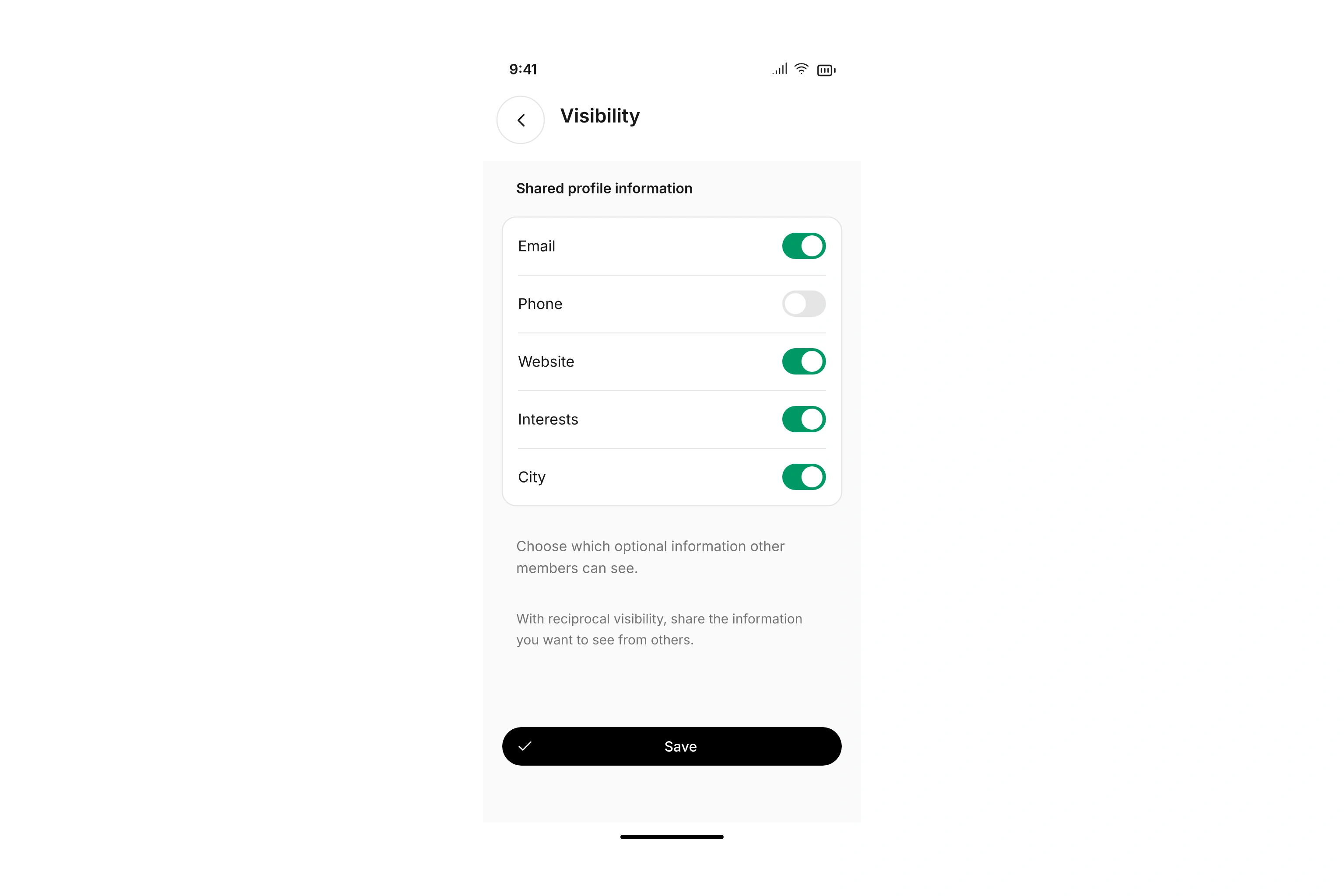
Choose a device calendar on iPhone or Android. Once you grant access, the campai app keeps synced events up to date. Set reminders and check sync status. You can also export individual bookings as ICS files in your browser.
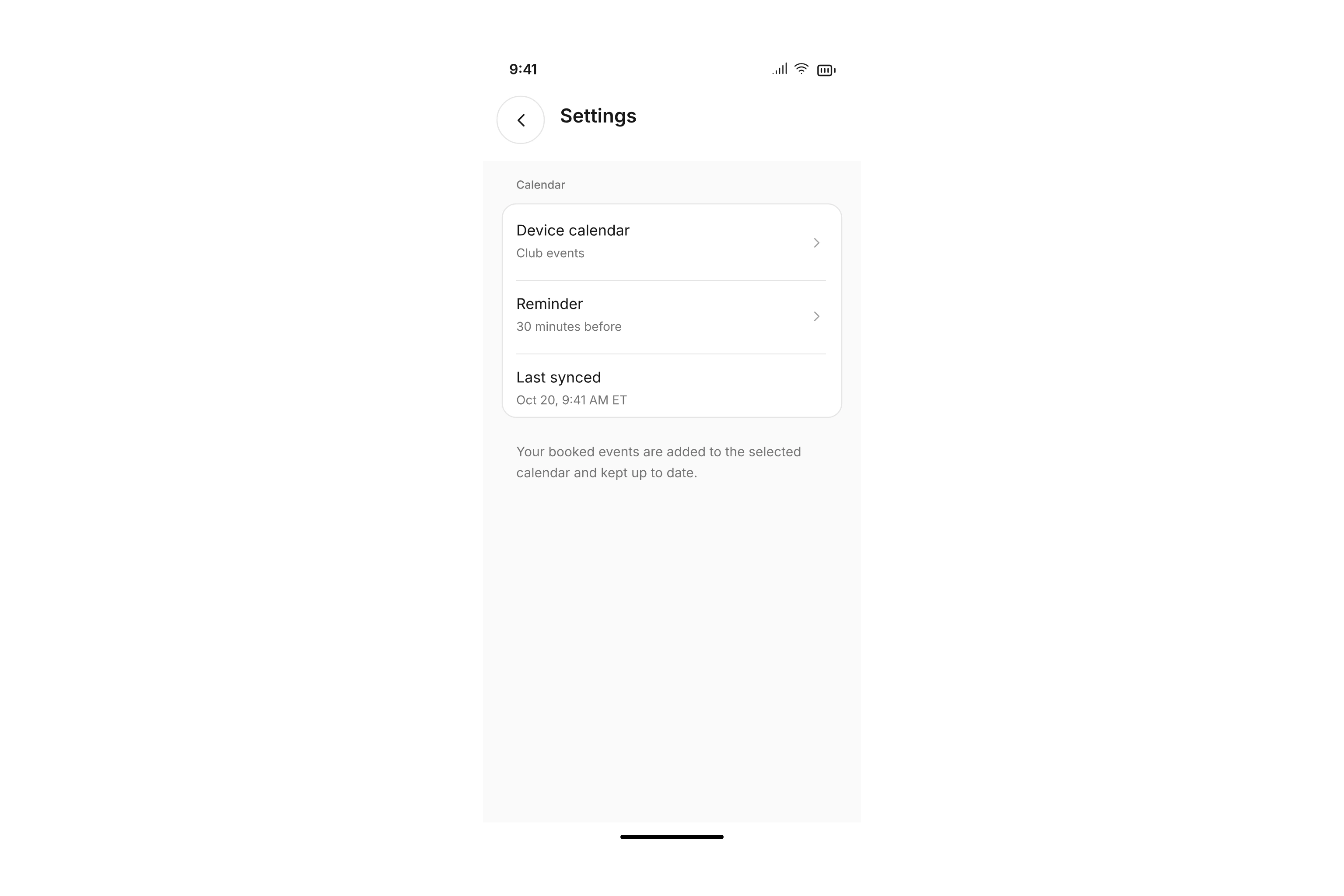
All messages, mentions only, or muted: set defaults and adjust individual teams or chats. Control previews and individual triggers, plus push and email preferences for each notification category.
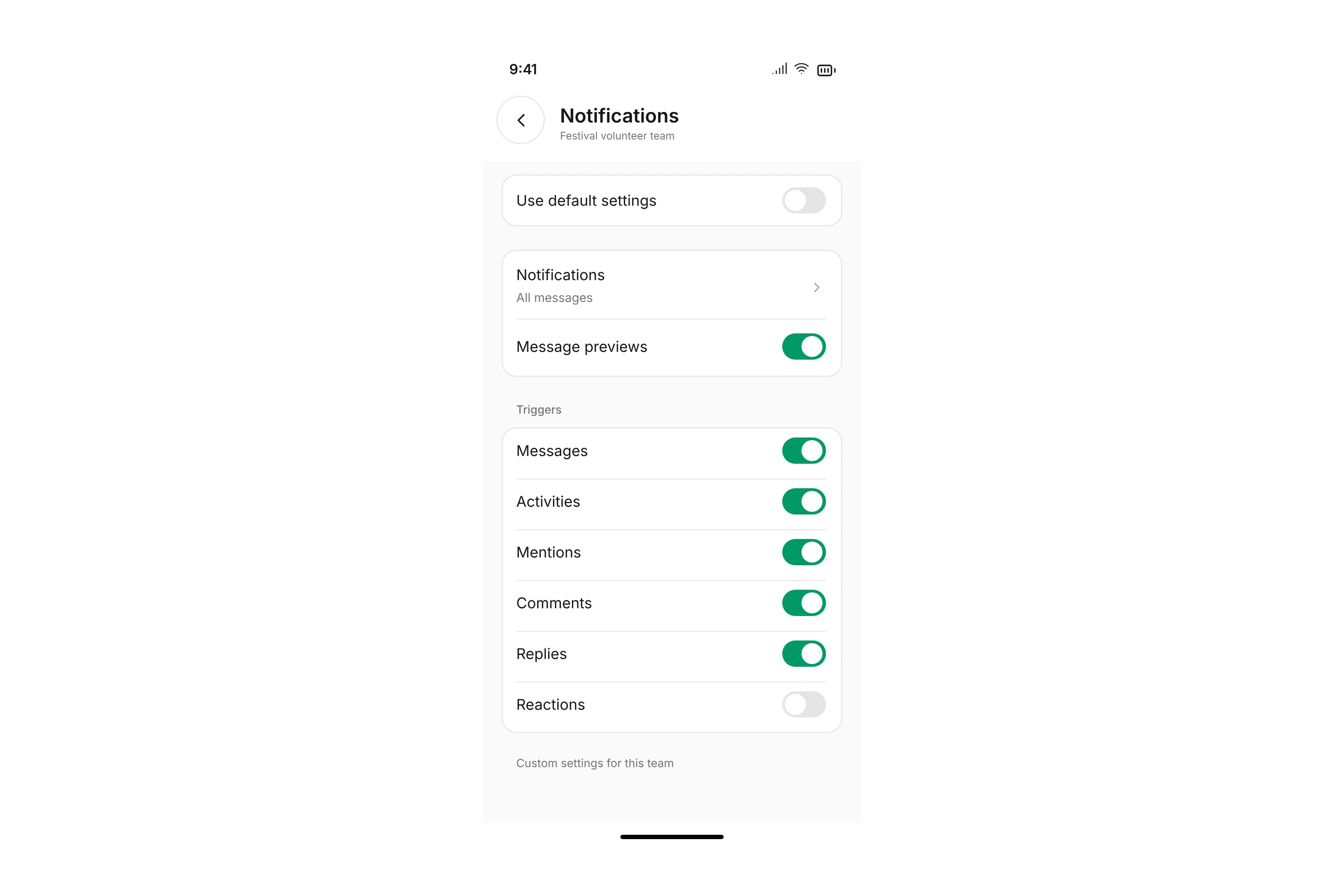
Browse content already saved on your device and keep writing in existing chats without a connection. Messages stay stored locally; once connected, retry pending messages if needed. Private form and challenge responses require a connection.
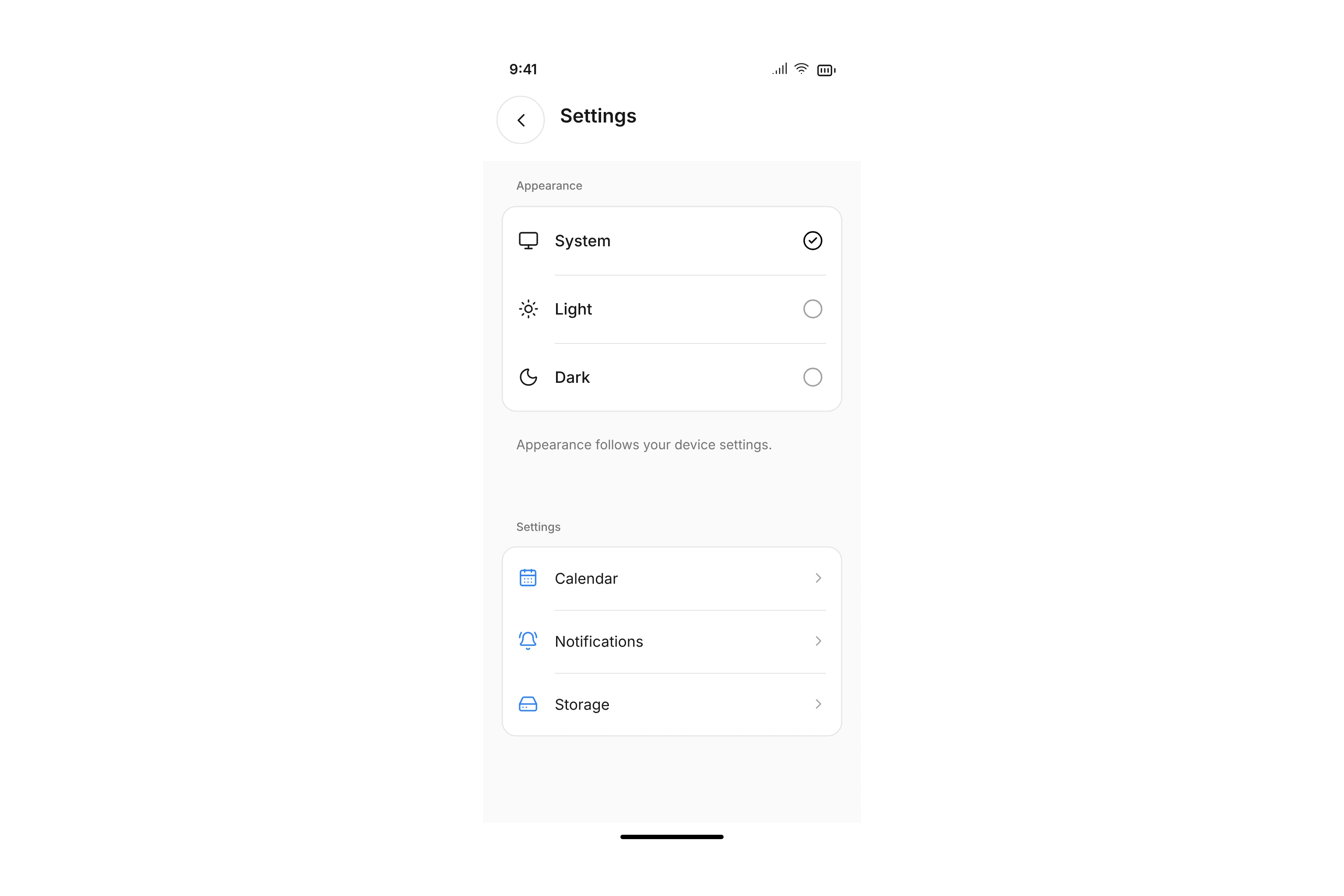
Choose light, dark, or system appearance. Screen reader labels and support for reduced motion help you use the app in the way that works for you.
Your club manages contacts, teams, and permissions in campai. In the app, you use the areas your club makes available to you. Members do not need access to the administration interface.
Your club invites you. Sign in with your existing account or create one, then link your membership using an invitation, code, link, or QR code. If you have not received an invitation, ask your club.
Use the campai app on iPhone or Android, or open it in your browser. You do not need to install anything to use the web version.
Check that your membership is linked to the right account. Your club controls which teams and areas you can access. If something is missing, ask the person who manages your club’s memberships to check your team assignments and permissions.
Check the pricing page or request a quote for your club’s campai setup. Paid practices, events, and reservations are separate: your club sets those prices and booking terms. View pricing
Yes. One account can be linked to multiple clubs and memberships. When your child’s membership is linked to your account, you can access its available information and documents, too. You do not need a separate account.
Yes. Choose all messages, mentions only, or muted for teams and chats. Adjust previews and individual triggers, and choose push or email for each notification category. You also need to allow push notifications on your device.
Other members only see information shared with them. Your club chooses the profile fields available in the member network. You can hide optional fields when your club allows it. Team leaders receive contact information according to their team role.
Yes, when your club enables those fields. Some changes take effect immediately; others go to a reviewer first. You can see the requested value and edit or withdraw a request while it is pending.
Book available practices and events, or reserve rooms, courts, and equipment. Whether you can cancel depends on the rules for that offering. Find your booking details and current status in the app.
Your member area shows available invoices and receipts with amounts and payment status. Download PDFs for your records. You can also pay open booking invoices online when your club offers that option.
On iPhone or Android, choose a device calendar and grant calendar access. The campai app keeps synced events up to date. Set reminders in the calendar settings. In your browser, you can export individual bookings as ICS files.
Messages, events, contacts, and files already saved on your device stay available offline. You can keep writing in existing chats: messages stay stored locally. Once connected, retry pending messages if needed. You need a connection to load new content and private form or challenge responses.
Sign in on the new device with the same account to access your linked memberships. Check notification and calendar permissions on that device. Content you want to use offline needs to be downloaded again on the new phone.
Your app account is separate from your membership in a club. It can also be linked to other clubs. Ask your club when your access to its teams, membership information, and documents will end.
See how campai connects member management, finances, and communication. Try the software or book a personal demo.
Explore on your own. Get personal help when you need it.Explore teams, messaging, tasks, bookings, membership, and app settings.
Give departments, teams, and project groups a space for conversations, files, and activities. Use subteams for players, coaches, or parents within a larger group. Set membership and permissions for each team.
Use contact types, segments, active departments, and tags to assign team memberships automatically. Add people manually and check synchronization status. See which contacts are assigned and which have linked their membership to an app account.
Choose who can post, participate in activities, moderate conversations, or view shared contact information. Assign roles for each team, such as member, coach, or guest with read-only access. Manage app access separately from administration permissions.
Choose colors, patterns, or gallery images. Set backgrounds and message bubbles for light and dark mode, using organization defaults or a team-specific design.
Invite individual contacts or contact groups to the campai app and follow their progress joining. An invitation links a member’s contact record to an existing or new account. Additional family memberships can be linked to the same account.
Post updates and activities in the relevant team. Chat previews and unread counts show new messages while you use the app. Opening the latest messages updates their read status.
Message people directly and share photos, voice messages, or files, such as to ask a question about practice. Team permissions help determine who can start a conversation. Use team chats for shared polls and sign-up lists.
Create a group for a carpool or an upcoming trip. Choose its name and image, and add the people involved.
Ask your organization about membership or available activities directly. Keep the conversation in the campai app.
Send text and voice messages, share photos, videos, and files, and add GIFs or stickers. Find shared content within each conversation.
Discuss posts in comments and replies, react with emoji, and mention people. Control comments and reactions with the appropriate permissions.
Save useful posts, follow discussions, and pin important messages. Return to decisions and keep up with new replies.
As the author or with the appropriate team permissions, see how often a post has been viewed. Individual viewer lists are available for a limited period.
Search chats, mark favorites, and archive conversations. Browse shared media, files, and links together within each conversation.
Check delivery and read status. Edit or delete your own messages when you need to correct something or update a plan.
Choose all messages, mentions only, or no notifications. Adjust message previews and individual triggers; teams can inherit your default preferences.
As a group admin, manage members, the group name, and its image. Let everyone post or limit posting to admins for an announcement channel. Changes to posting permissions also apply in conversations members already have open.
A canoe trip, a ropes course, or a group hike? Let your team vote instead of counting separate messages. Set a closing date, allow multiple choices, and decide who can see votes.
Suggest a few dates and times. Members answer Yes, If needed, or No. See responses for each option and plan practice around your team’s availability.
Set the number of volunteers or supplies needed for each item. Members enter a quantity and see the remaining capacity. Once an item is full, it stops accepting more sign-ups. Members can reduce their own quantity if plans change.
Keep the packing list for an away game in the chat, including jerseys, balls, and first-aid supplies. Your team checks off items and follows the shared progress. See who completed an item and when, and reopen items you completed if needed.
Collect jersey sizes and preferred names right in the team chat. Use choice, text, number, date, or yes/no fields and mark required questions. With private responses, members see their own answers while authorized organizers see the responses available to them. Submit separate answers for linked family memberships, too.
Set a shared goal and choose the timeframe, unit, and contribution visibility. Members log their contributions and follow the group’s progress. Their participation view shows a personal goal and previous entries, which they can edit when needed.
Manage team tasks in the campai app with assignees, due dates, lists, boards, and approvals.
Assign tasks to the right team contacts and set due dates. Use descriptions to clarify what needs to be done before a tournament or club event.
Follow work in a list or board. Custom statuses, tags, and subtasks help you organize larger projects.
Keep files and feedback with each task. Assign a reviewer when needed and record approvals and decisions.
Find your booked events, resource reservations, and sessions you lead in a schedule organized by week. Each entry shows its date, time, and location. New bookings made in administration also appear while your schedule is open.
Add your events to a calendar you choose on iPhone or Android. Once you grant access, the campai app keeps those calendar entries up to date. Check sync status and retry when needed.
Choose how many minutes before a synced event your device calendar reminds you. You can also turn reminders off.
Add a booked event or reservation to your calendar with an ICS file, including when you use the campai app in your browser.
Set your preferred channels for each notification category. Enable push notifications on your device or in a supported browser.
Find booking, team, and change-request notifications in your activity feed. Filter by category or show unread entries only. Open the related item from a notification, such as a waitlist offer or a requested update.
Choose a practice, class, or club trip and book your spot in the app. Check the date, time, and location in the event listing. After booking, open your current attendance status, booking details, and available tickets.
Find available times for rooms, courts, or equipment and choose the right location. Reserve a time slot in the app. Review your reserved times in booking management and cancel when the offering’s rules allow it.
When an offering is full and has a waitlist, you can wait for an opening. A place offer shows the deadline for accepting it. Accept or decline in the app. Once attendance is confirmed, your QR ticket becomes available if the event uses QR tickets.
Book for your group when an event supports team bookings. Adjust your team size within the event’s booking rules.
Link an existing booking using its booking number and email address. Review details, attendance status, and booked participants, or cancel when the booking rules allow it. The updated status appears with the booking after cancellation.
Open your QR ticket from a confirmed booking. When QR check-in is enabled for the event, the event leader scans it on arrival. For bookings with several participants, find each available ticket within the booking.
Confirm your attendance in the app when your organization enables self-check-in. Check-in is available during the event’s configured time window.
As an assigned event leader, view the attendee list and check in individuals, a selection, or all confirmed attendees.
Check QR tickets with your camera or a compatible USB handheld scanner. The campai app shows scan results and counts of checked-in and remaining attendees.
With event leader access, review booking details, manage internal notes, and message individual, selected, or all attendees.
Update enabled personal details, addresses, contact information, custom fields, and alternative contacts. Your club chooses what you can view or edit for each field. A phone number can take effect immediately while a new address goes to a reviewer first.
Compare current and requested information and see which updates are awaiting approval. Edit or withdraw pending requests. Approved information appears in the member area; if a request is rejected, the previous values stay in place.
Download shared documents and submit requested files when uploads are enabled. Your organization can require a review before accepting them.
Find available membership terms, dues, and the next billing date in your member area, so you can look up the details yourself.
Open available billing documents to review line items, amounts, and payment status. Download a PDF for your records.
Pay outstanding booking invoices using the online payment options offered. Check payment status on the invoice and view available payment details in your member area.
Enable the member area for the right contact types, segments, departments, or tags. Share information with the intended people.
Hide information, make it read-only, or allow changes immediately or after review. Include supported custom fields and documents.
Assign reviewers using contact type and conditions. Reviewers compare current and requested values, then approve or reject the update. Approved information carries through to member management and the personal member area.
Update enabled billing details and manage saved online payment methods where available. Review outstanding amounts and credits in your member area.
Search and filter participating members in your organization’s network, using names, cities, or enabled departments. Open profiles for shared information and contact options. Network settings and visibility choices determine which people and fields you can see.
Choose whether to participate and which optional profile fields to share within your club’s settings. For example, share your city while hiding your phone number when your club allows that choice. Review the configured consent and privacy notice before joining.
Confirm that your profile information is current when prompted. If your organization enables it, you can also see who viewed your profile.
Search and filter public organization profiles, events, and resources. Find published locations and contact information on an organization’s profile.
Use one account for multiple clubs and linked family memberships. Switch to your child’s linked membership to open available information and documents or submit a separate form response. Add further memberships with a code, link, or QR code.
Choose eligible contact groups. Restrict visibility to people who share departments, segments, tags, or contact types when needed.
Choose profile fields, summary information, and searchable details. Set which fields are shared and which members may hide.
Set consent wording and a privacy link. Configure joining, leaving, reciprocal visibility, profile visitors, view limits, and profile review reminders.
Use the campai app on iPhone, Android, or in your browser. Sign in with an existing account or create one, then link your membership through your club’s invitation. The web version needs no installation, and members do not need access to administration.
Update your name, profile photo, bio, and account email. Choose your language, time zone, and light, dark, or system appearance.
Read content already saved on your device without a connection. Messages in existing chats stay stored locally during an outage; once connected, you can retry pending messages if needed. Check storage use in settings and remove saved files or app data.
