
Skip to content

Manage volunteer compensation through a complete claim process.

Volunteers record their work and expenses in the Community App. Your team reviews the entries and supporting documents, resolves questions, and approves the claim in campai. Each reporting period keeps individual entries connected to the resulting expense record.

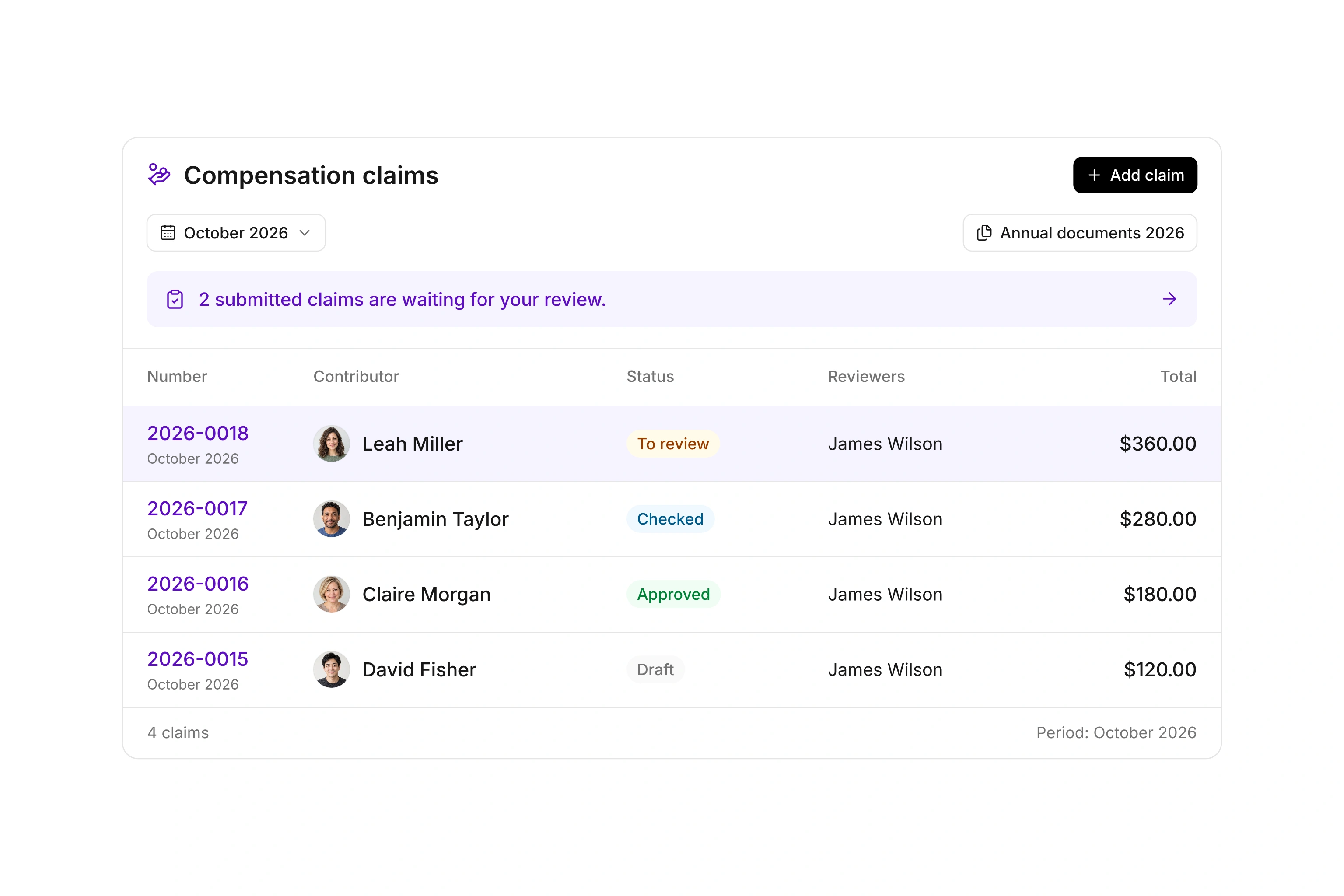
Volunteer compensation claim with work entries, expenses, review status, and total amount

Keep work and expenses in one reporting period.

Set reporting periods and the rates your organization uses. Volunteers record hours, flat rates, mileage, and expenses in their claims and attach the required supporting files. You can review the different entry types without collecting separate spreadsheets and receipts from several email threads.

Configure compensation for each volunteer so the relevant rates and entry options are available. A defined period also helps your team distinguish the current claim from a correction for an earlier period. Mileage uses the distance and rate configured for the applicable workflow.
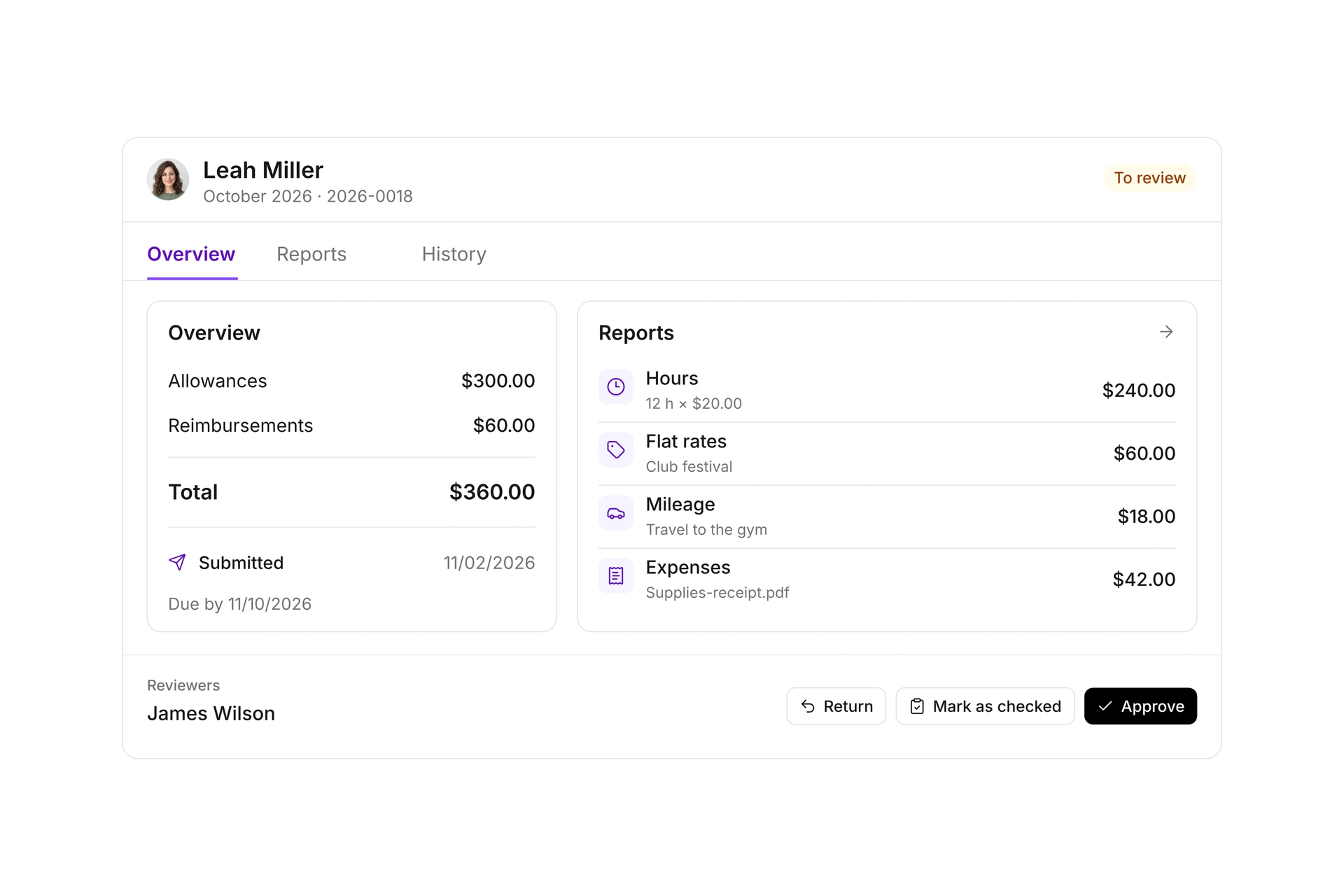
Separate review from final approval.

Route claims to administrative reviewers using rules based on the volunteer’s record. For example, a rule can direct a department’s claims to its responsible reviewer. When no rule applies, configured default reviewers are used, with eligible organization owners as the fallback.

A reviewer can mark a claim as checked before someone with approval rights gives final approval. Return an incomplete claim with a clear note and a new deadline. The volunteer can make the requested corrections and submit again. Users cannot approve their own claims.

Separate review from final approval.

Keep approved claims connected to expense records.

Approval creates an expense record for the payable amount using the configured accounting settings. Your team can follow the amount and its supporting claim through the finance workflow. For a US organization, complete the payout outside campai and record it against the expense.

At year end, export totals by person, download approved claim documents as a ZIP file, and create annual statements. These documents bring the periods together for your organization’s records.

Complete a monthly claim

Agree on the work and expenses volunteers should record, who reviews the details, and who has final approval rights.

  1. Configure periods and rates

    Choose the reporting cycle and set up the rates and expense options your organization uses. Assign the appropriate configuration to each volunteer. Define reviewers and accounting settings before collecting the first period’s entries.

  2. Record and submit entries

    The volunteer enters hours, flat rates, mileage, and expenses in the Community App. Supporting files accompany the relevant expenses. The volunteer submits the completed period for review by the agreed deadline.

  3. Review and resolve questions

    Check entry dates, descriptions, amounts, and attachments. Return an incomplete claim with a specific correction request. The volunteer can update and submit it again. A review mark records that check without giving final approval.

  4. Approve and follow the expense

    An authorized person approves the completed claim. Review its resulting expense record and follow the applicable payment process. Use the annual overview and document exports to prepare your year-end records.

Example: Four entries in a volunteer’s claim

A volunteer records work sessions, a flat-rate activity, a trip, and a purchase in one month. Amounts come from your configured rates and the expenses actually submitted.

EntryWhat to reviewIf information is missing
HoursDate, activity, duration, and selected rateAsk for a clearer description or corrected duration
Flat rateThe activity and agreed flat rateClarify which assignment it covers
MileageTrip description, distance, and configured rateConfirm the recorded distance
ExpenseAmount, purpose, and supporting receiptRequest the missing supporting file

These are review steps for an operational example. Your organization determines its arrangements and any applicable requirements; the example does not prescribe a reimbursement rate or tax treatment.

Frequently asked questions

Do volunteers need access to administration?

Volunteers use the Community App to record and submit their own claims. Review and approval take place in administration under the relevant permissions. Recording a claim does not require access to other volunteers’ claims.

Can a reviewer request corrections?

Yes. Return the submitted claim with a note explaining what needs to change and, if needed, a new submission deadline. The volunteer can see the request in the Community App, edit the claim, and submit it again.

Does approval mean the volunteer has been paid?

No. A payable amount creates an expense record at approval. For a US organization, payment takes place outside campai and is recorded against the expense. Approval and completed payment are separate steps.

Can someone approve their own claim?

No. When the claim pays a contact linked to the current user, another person with approval rights must approve it. This keeps the volunteer’s own submission separate from its final authorization.

Which annual documents are available?

Export totals by person, download approved claim documents in a ZIP file, and create annual statements. Statements are made available to the relevant volunteers in their Community App documents. They are records of the claims, not a promise of tax eligibility.

Map your volunteer claim process

Bring your current work logs and review responsibilities to a consultation. We can walk through a period, a correction request, and final approval.

Explore on your own. Get personal help when you need it.