
Skip to content

Plan the work and follow it through to completion.

Event preparation, a team assignment, or a request from the inbox: campai keeps responsibility, due dates, and results with the task. Choose the workflow and review step that fit the work your team needs to complete.

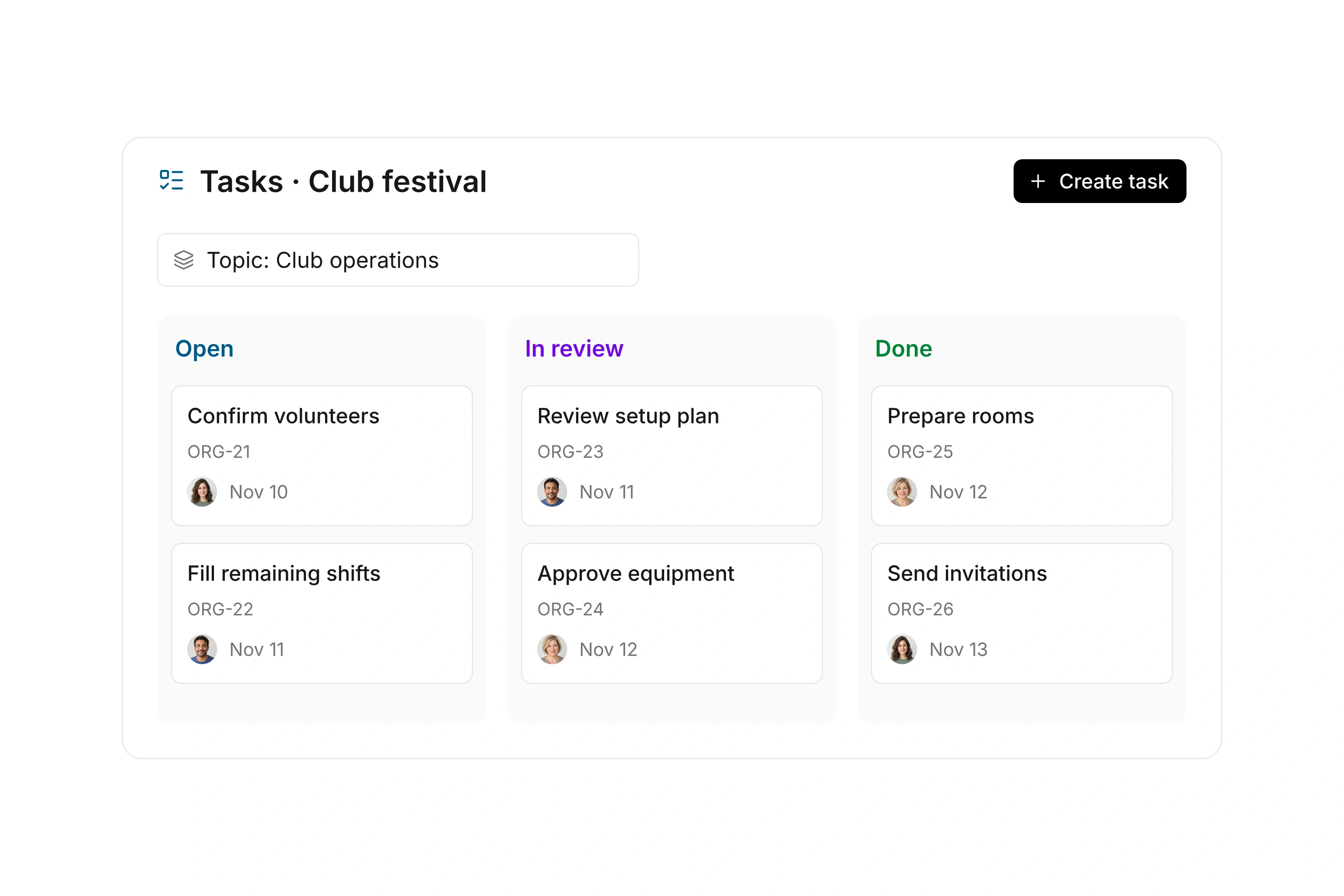
Task planning view with assigned people, due dates, and current work statuses

Give different kinds of work an appropriate workflow.

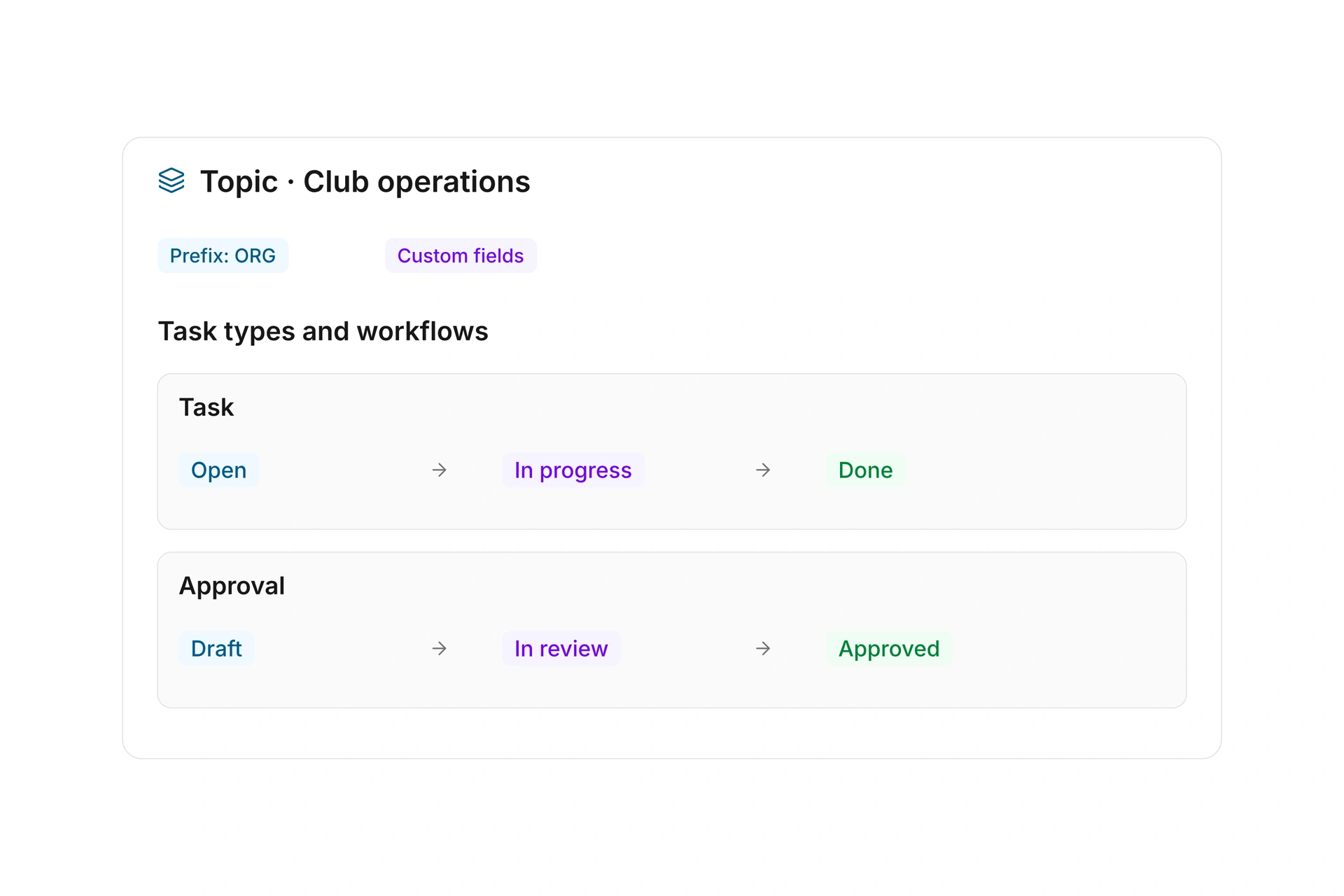
Organize tasks into topics. Within a topic, define task types, custom fields, and the statuses available to each type. Choose the allowed status transitions so a task follows the steps your team actually uses.

An organizational request can then have a different process from work that requires someone to review the result. Clear topic names and a manageable set of statuses help people understand where a task belongs. Add fields for a specific need rather than making every task collect the same extra information.
Give different kinds of work an appropriate workflow.

Plan owners, dates, and manageable pieces of work.

Assign tasks to the appropriate people and set due dates. Break a larger job into subtasks so its individual steps remain visible. Comments and attachments keep questions and supporting files with the work they describe.

In administration, use a list or board to review tasks. A task can belong to a project, team, event, or resource, and a conversation can provide its starting point. Keep that context attached so someone returning later can understand why the work was created.

Review the result before completing the task.

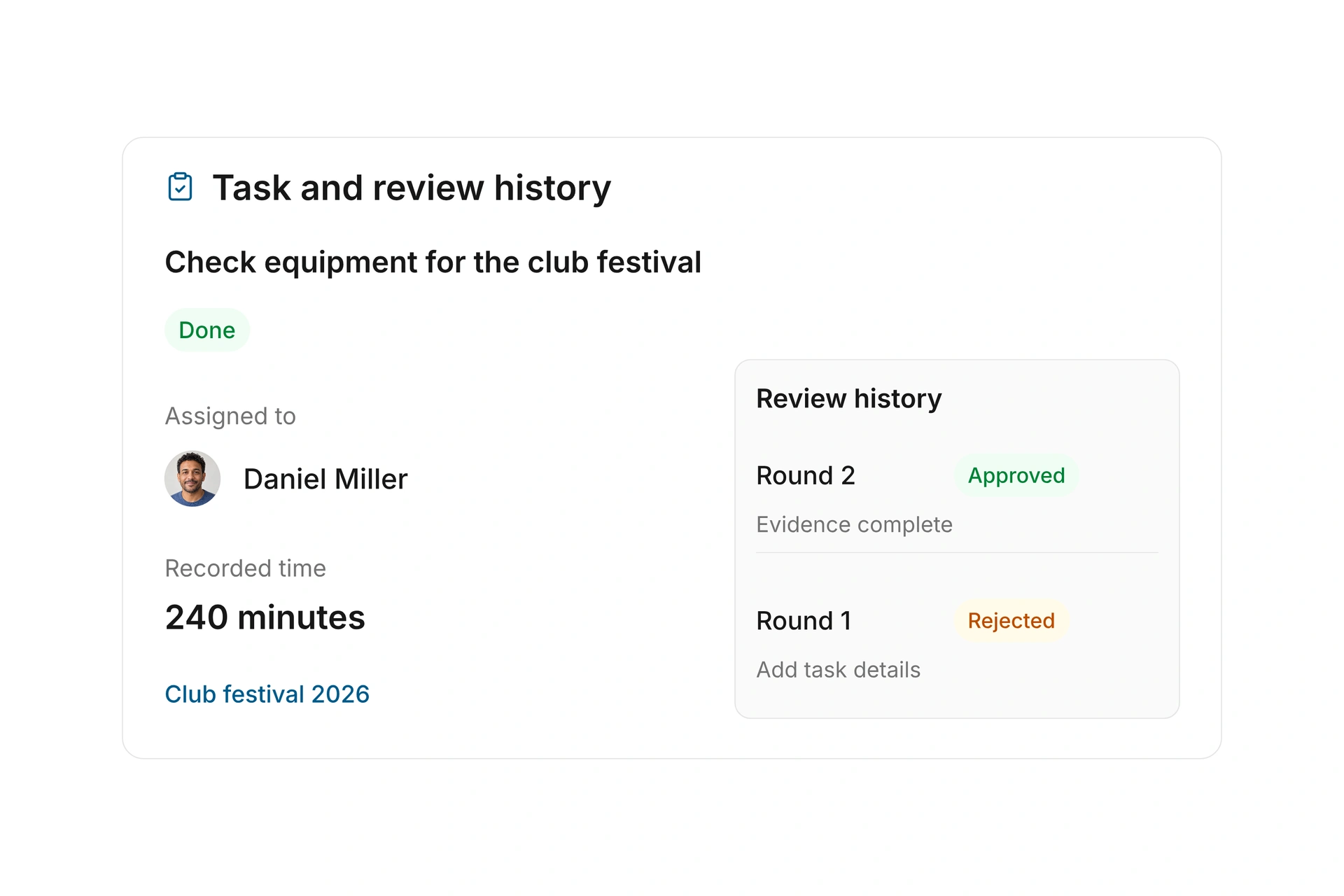
A task with a review round sends its result for a decision before completion. The reviewer can accept it or reject it with feedback. A rejected task reopens for further work, and earlier review rounds remain visible.

Record time spent when your process needs it. This keeps the effort, discussion, and outcome together. Tasks in the Community App support participation away from the administration screen; the board view and workflow configuration remain in administration.

Review the result before completing the task.

Turn a project into work people can complete

Choose a specific project and define how the people involved will recognize that each part is finished.

  1. Choose the topic and workflow

    Use an existing task topic or create one with suitable types and statuses. Include only fields that the work needs. Decide whether a reviewer should check the result before the task can be completed.

  2. Divide and assign the work

    Create the task with its relevant context, such as a team or event. Assign responsibility and a due date. Split a larger job into subtasks with understandable outcomes so the people involved can follow their part.

  3. Keep discussion with the task

    Add supporting files as attachments and resolve questions in comments. Update the status as work progresses. Record time when it belongs to your process so the next person can understand both progress and effort.

  4. Finish or request a review

    Complete finished work or submit it to the configured review. If the reviewer rejects it, address the feedback and begin the next review round. The previous response remains attached to the task.

Example: Prepare an event day

You are organizing an event and dividing preparation into work that can be checked. A parent task and its subtasks keep the overall plan connected.

Work itemResult recorded with the taskAppropriate responsibility
List the required equipmentAttachment with questions in commentsEvent organizer
Prepare setupSubtasks with due datesAssigned team members
Review the supporting documentsFeedback in a review roundNamed reviewer
Complete follow-up workUpdated result and completed taskAssigned person

The task plan records organizational work. Book rooms and equipment through their booking workflows; creating a task does not reserve a resource.

Frequently asked questions

Can I use custom statuses and task types?

Yes. Task topics can contain their own types, fields, and workflows. Define which statuses a type can use and which transitions are allowed. This makes the process reflect the work your team actually performs.

Can I split a large task into smaller parts?

Yes. Use subtasks and record responsibility and due dates. Give each part an understandable outcome. Comments and attachments help the people involved discuss details without moving the conversation away from the task.

What happens when a review is rejected?

The task reopens for further work. The feedback and previous review rounds remain visible. After the changes, the task can go through another review round while retaining the earlier decision.

Does the Community App include the board view?

The board and list views are available in administration. Authorized people can work with tasks and follow their status in the Community App, which does not include a board view. Custom workflow setup also takes place in administration.

Can an email conversation become a task?

Yes. Create a task from an inbox conversation and keep its connection to the thread. This lets your team track the work required by the request, then continue the response in the original conversation.

Set up your team’s task process

Bring a typical project and its responsibilities. We can map the topic, statuses, subtasks, and appropriate review step together.

Explore on your own. Get personal help when you need it.