
Skip to content

Give your team one place to handle incoming requests.

A membership question, a missing document, or a response about a class: campai keeps the conversation connected to the contact. See who is handling it and what needs to happen next.

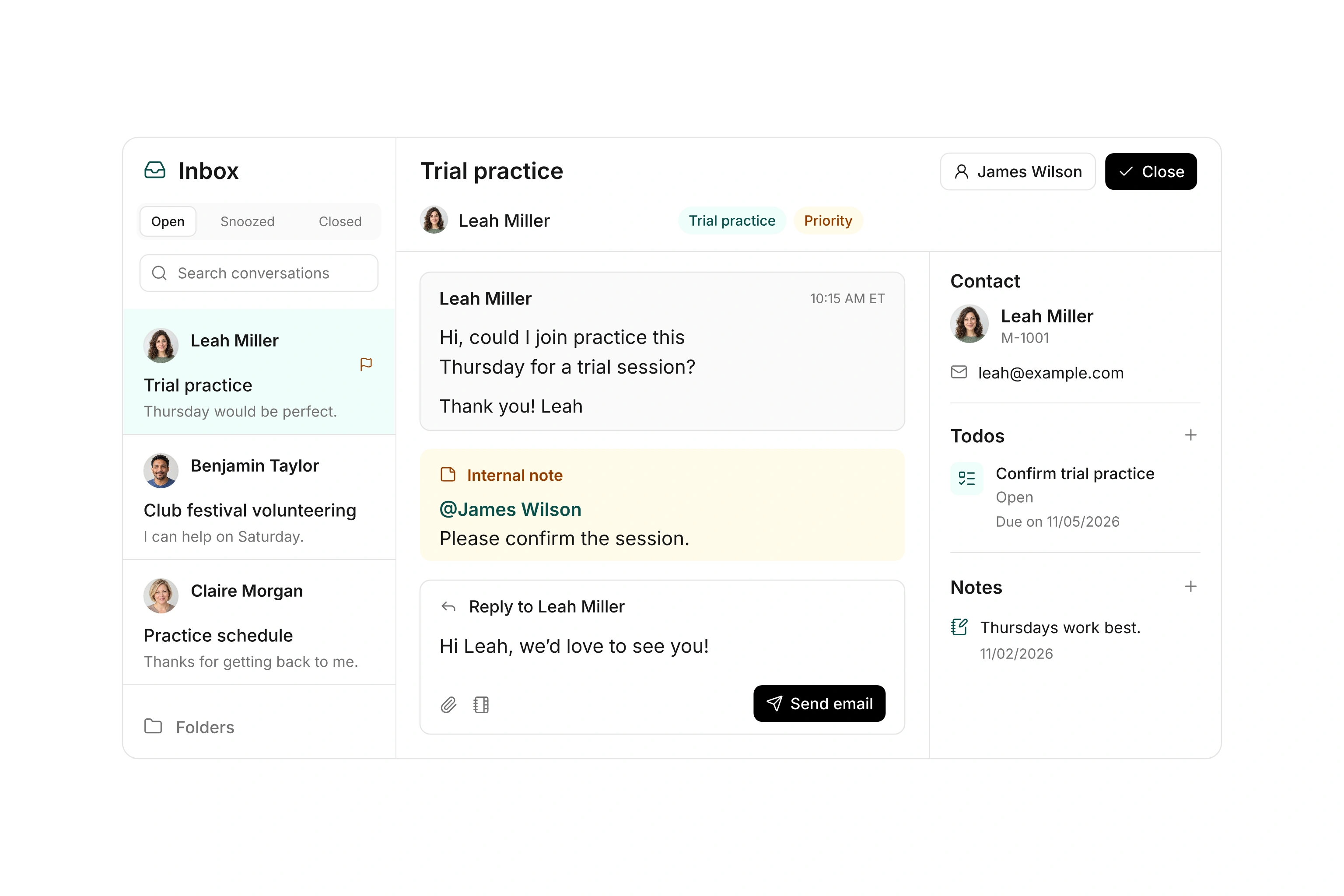
Shared inbox showing an assigned conversation, internal discussion, and linked contact details

Make responsibility visible for every conversation.

Take a conversation yourself or assign it to an administrative user. Views for your assigned conversations, unassigned requests, and all conversations help you choose what to work on. Use folders and tags to organize subjects such as membership or class questions.

Mark a conversation as a priority when it needs attention. Assignment shows who is responsible; its status shows whether the request is still open. When someone covers for a colleague, they can continue from the existing thread instead of piecing together forwarded messages.
Keep the contact’s background beside the reply.

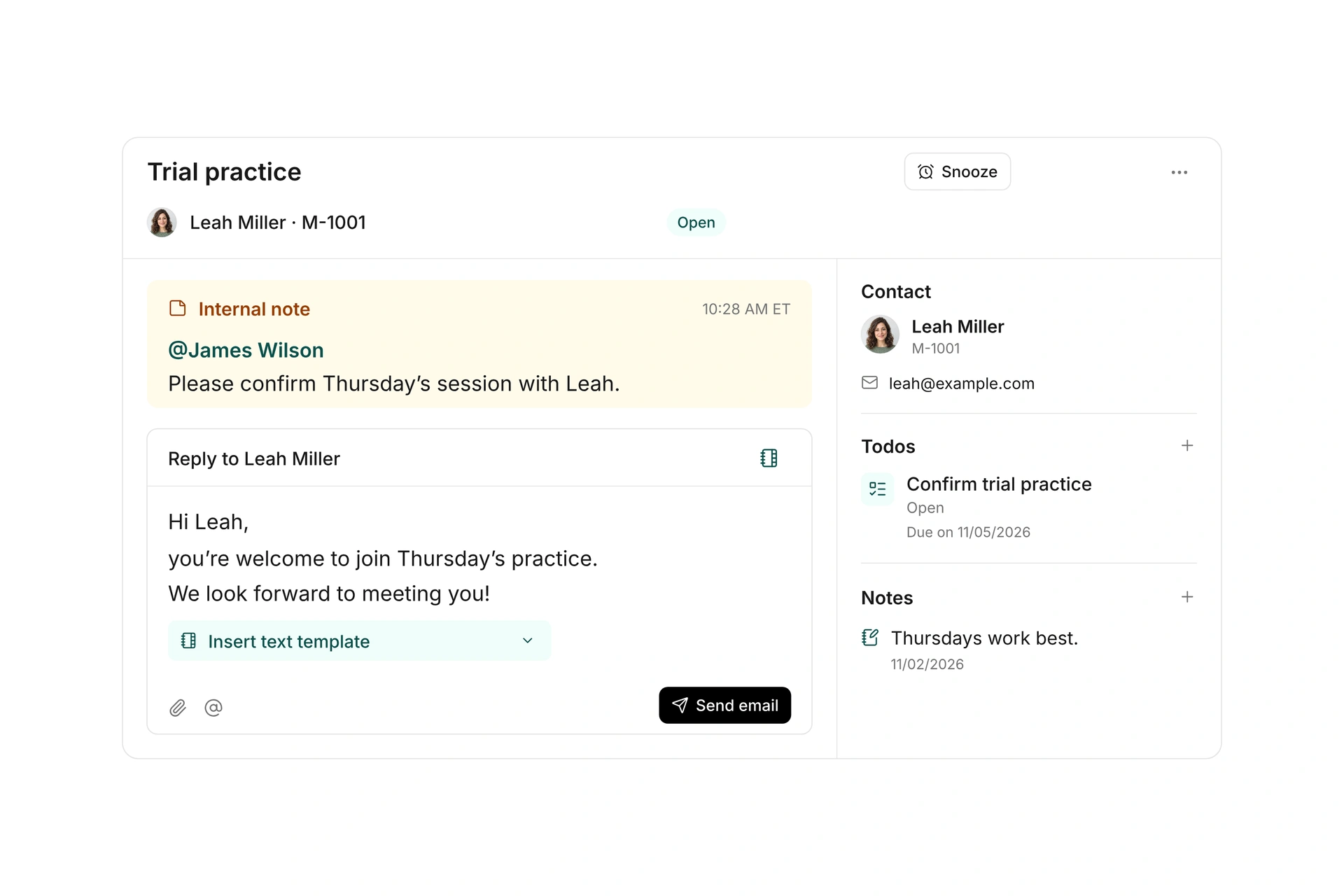
Open linked contact details, notes, and other conversations beside the current thread. Check that history before asking a member to repeat information they have already provided. Add a contact note when a detail will matter beyond this particular conversation.

For an internal question, add a note and mention the person who can help. Internal discussion stays separate from the email reply. Insert a text template for a recurring answer, then review the wording, recipients, and attachments before sending it.

Keep the contact’s background beside the reply.

Connect the request to its next action.

Create a task from a conversation when answering requires additional work. The task retains its connection to the thread, so someone can prepare a document and you can send the response in the original conversation.

Snooze a conversation until a chosen time when you need to revisit it later. It counts as open again when that time arrives. Close a completed request; a new incoming reply reopens the conversation. Assignment and status changes remain visible in the thread’s history.

Work through an incoming request

Agree on who checks unassigned conversations and what your team considers a completed request.

  1. Review the message

    Read the subject, sender, and existing thread. Link the recipient to the appropriate contact if needed. Select a folder or tag that describes the request so colleagues can find related work.

  2. Choose who handles it

    Take the conversation or assign it to the appropriate colleague. Use an internal note and mention for a question within the team. Include the specific point that needs an answer.

  3. Prepare the response

    Write the reply and attach the relevant documents. Create a linked task if someone needs to complete other work first. Snooze the conversation when you need to return to it at a later time.

  4. Close the completed request

    Review the recipients and send the response. Close the conversation when the request is handled. A later incoming reply lets you continue in the same thread with the earlier context available.

Example: A member needs a document

A member asks for a missing document. You manage incoming requests, while a colleague can prepare the file. The conversation records who is handling each step.

SituationInbox actionWhat happens next
New email arrivesLink the contact and take the conversationIdentify the missing document
A colleague has the informationMention them in an internal noteWait for the team’s response
The file needs preparationCreate a task linked to the conversationSnooze until the agreed time
The document is readyReply with the attachment and closeA later incoming reply reopens the conversation

Keep folders focused on a manageable set of subjects. Tags can add another way to find work while assignment and status retain their own purpose.

Frequently asked questions

Are internal notes sent to the member?

No. Internal notes support work inside the administration and are not sent as email replies to the recipients. Use the email reply when you want to send information outside the team.

What happens when a snooze ends?

You choose when to revisit the conversation. Once that time passes, it counts as open again. This lets you set work aside until a useful time without marking the request as completed.

Can I update several conversations together?

Yes. Select multiple conversations to apply available actions such as assignment, moving, or snoozing. Check that the same owner or return time makes sense for the selected requests before applying the change.

Does reading a conversation mark it as read for everyone?

Read state is tracked for each user. Whether you have read a conversation is separate from its shared assignment and status. An open request therefore remains open after someone reads it.

How does the inbox relate to mailings?

Mailings organize outgoing messages to selected recipient groups. The inbox handles incoming conversations and replies. Your reply-address settings determine whether replies arrive in the campai inbox.

Walk through your team’s inbox process

Bring a typical request to your consultation. We can follow its assignment, internal discussion, linked task, and response together.

Explore on your own. Get personal help when you need it.