
Skip to content

Schedule social media posts for your club

Announce your next open house across your club’s channels. Write the invitation once, choose a photo for each audience, and set a time for the post to go out.

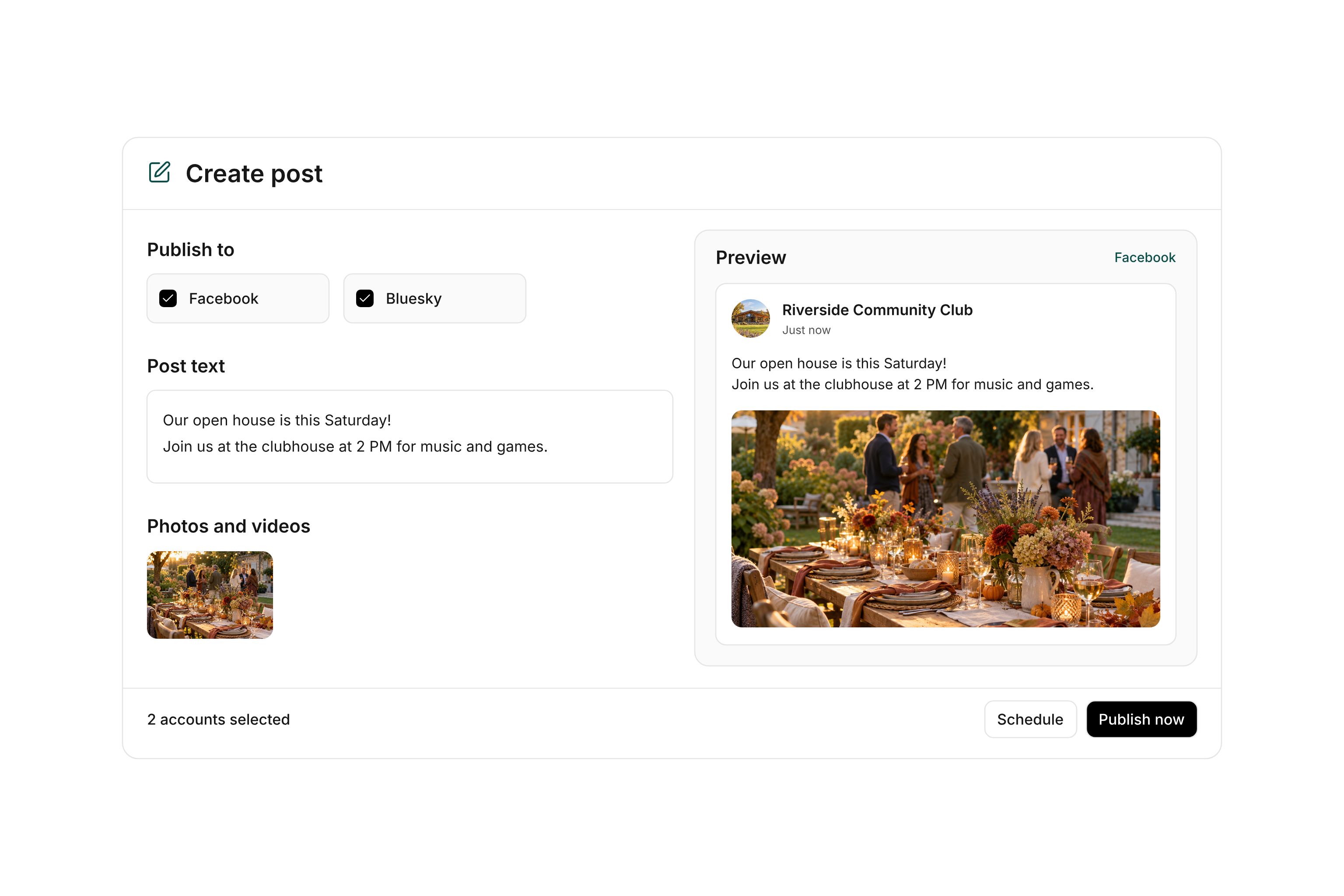
Club open house announcement with shared post text, an event photo, and a preview for the club’s Facebook page

Give each channel its own version of the invitation

Connect your club’s accounts under Integrations. When you create a post, select the accounts where you want it to appear. Each channel starts with the same text, photos, and videos.

Use Customize per channel to add parking details for Facebook or shorten the announcement for Bluesky. The preview shows how each version might look. If a channel needs a title or a different media format, you can make that change before you publish.
Find an open day on the publishing calendar

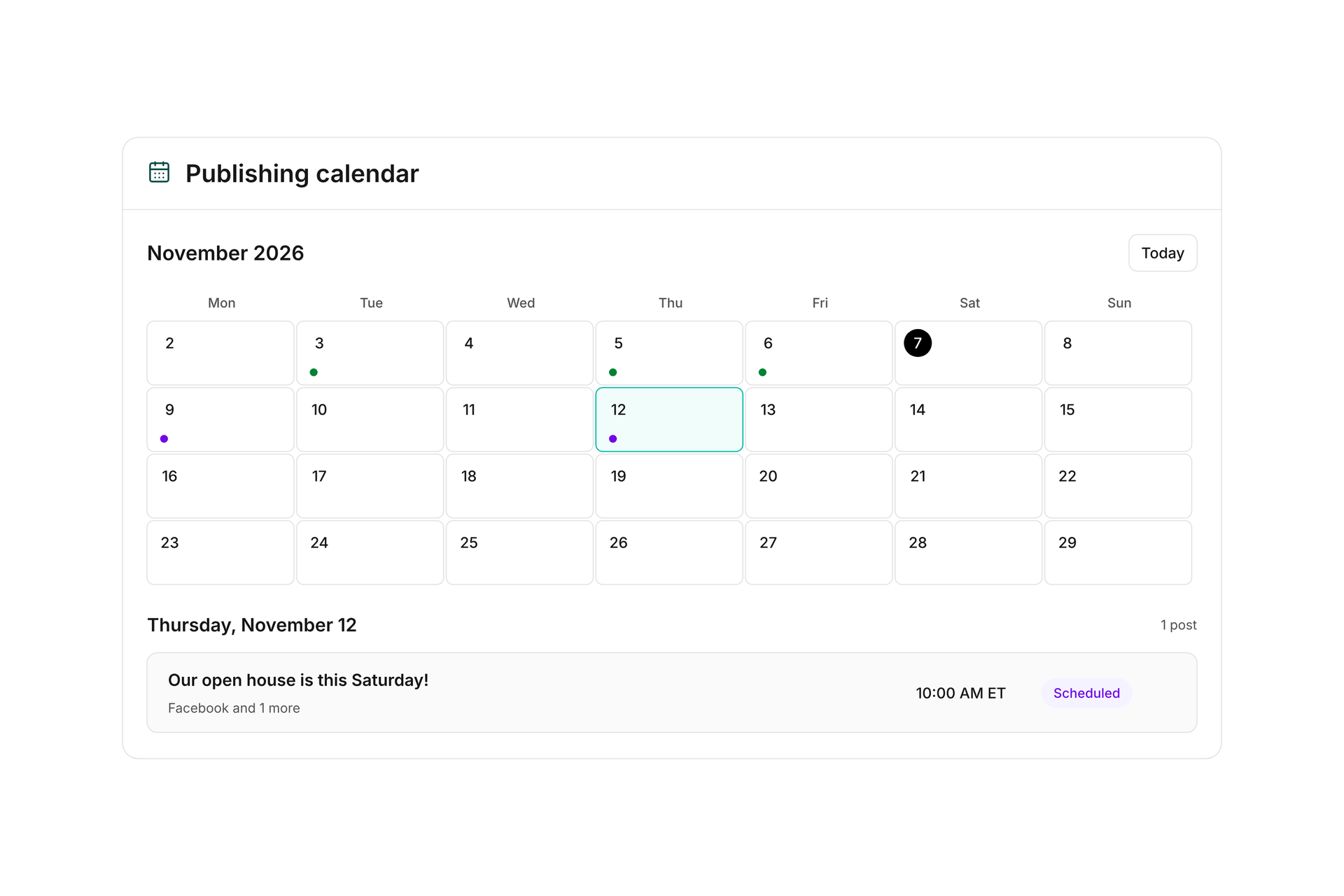
Select a day to see its posts. You can give the open house announcement its own slot and schedule a reminder closer to the registration deadline.

Publish right away or choose Schedule to set a date and time. If plans change, someone with edit access can open a scheduled post, update the invitation, or move it to another time.

November publishing calendar with marked post dates and the open house invitation scheduled for the selected day

See where the invitation went live

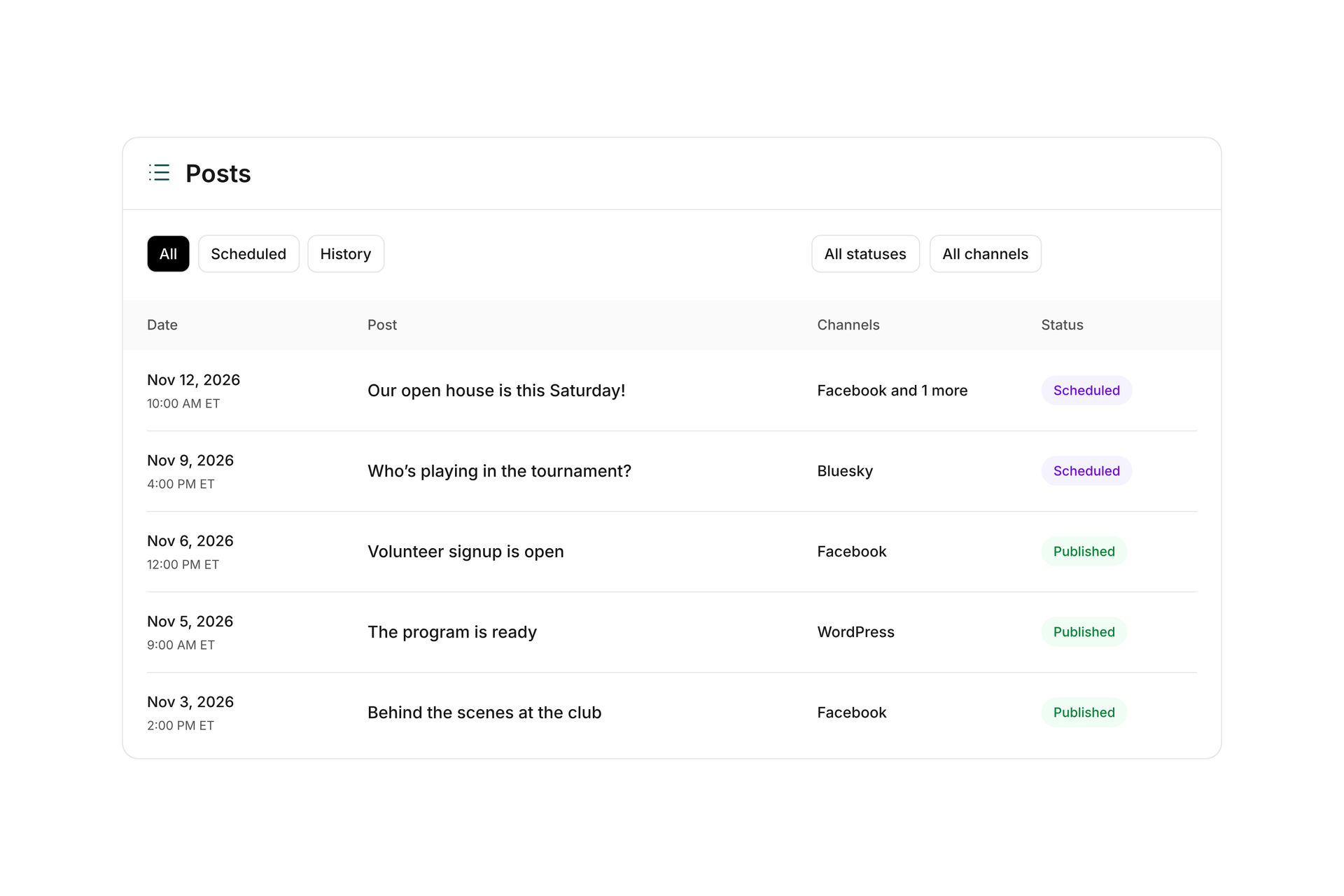
Filter Posts by channel or status, then open a post to see the result for each account. If Facebook published the invitation but another channel failed, the post details show both outcomes.

If a connection expired, reconnect the account under Integrations. If delivery is unconfirmed, check the platform before publishing again so your audience sees the invitation only once.

Club posts with scheduled and published statuses and filters for channel and status

Schedule your first open house announcement

You’ll need permission to publish in campai and access to the club accounts you want to connect.

  1. Connect an account

    Open Integrations under Social media. Choose an available platform and connect the account you want to use.

  2. Write the invitation

    Choose Create post, select the accounts, and add the event date, meeting place, and photo.

  3. Check each version

    Preview each channel. Adjust the text or media and fill in any fields the platform requires.

  4. Set the time

    Choose Schedule and enter the date and time. Afterward, open the post to see the result for each account.

One open house, three versions of the invitation

The event details stay the same. Each channel gives you a different way to share them.

ChannelPostChannel-specific edit
FacebookInvitation for neighborhood familiesAdd directions to the clubhouse and a photo from last year’s event.
BlueskyA quick reminderKeep the date, meeting place, and signup link.
WordPressThe full program for your club websiteGive the article a title and list the activities visitors can try.

Frequently asked questions

Which channels can I connect?

Integrations shows the platforms available to your organization. Options can include Facebook Pages, LinkedIn, Instagram, YouTube, Bluesky, Threads, WordPress, and Google Business Profile. Select the account, page, or location you want to publish to.

Can I use a different photo on each channel?

Yes. Select the channel and turn on Custom media for this channel. The other channels keep the shared media. Each platform has its own requirements for photos and videos.

What does publishing activity measure?

It counts successful publications per channel over the last 30 days. If the same invitation goes live on three channels, it counts as three publications. You can find the original post by date on the calendar.

Plan your club’s next announcement

Bring the channels you use to a demo and walk through connecting an account, scheduling a post, and checking the result.

Explore on your own. Get personal help when you need it.