Skip to content

Make your courts, gyms, and rooms bookable

Show when a court, gym, or meeting room is available. Set booking times and rates, then keep public bookings, team reservations, and closures in the same facility schedule.

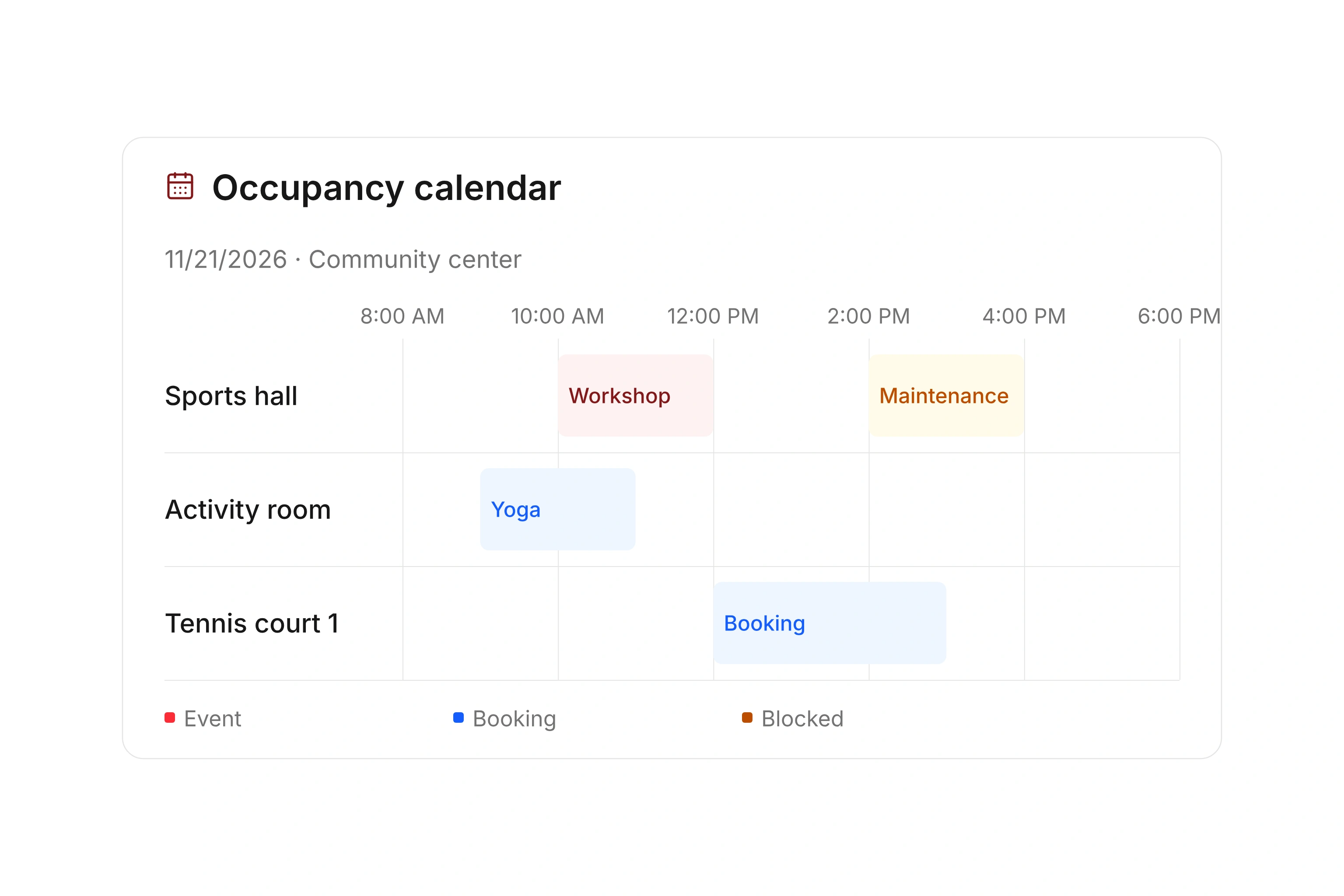
Review occupancy and unavailable times

Offer facilities and equipment for booking

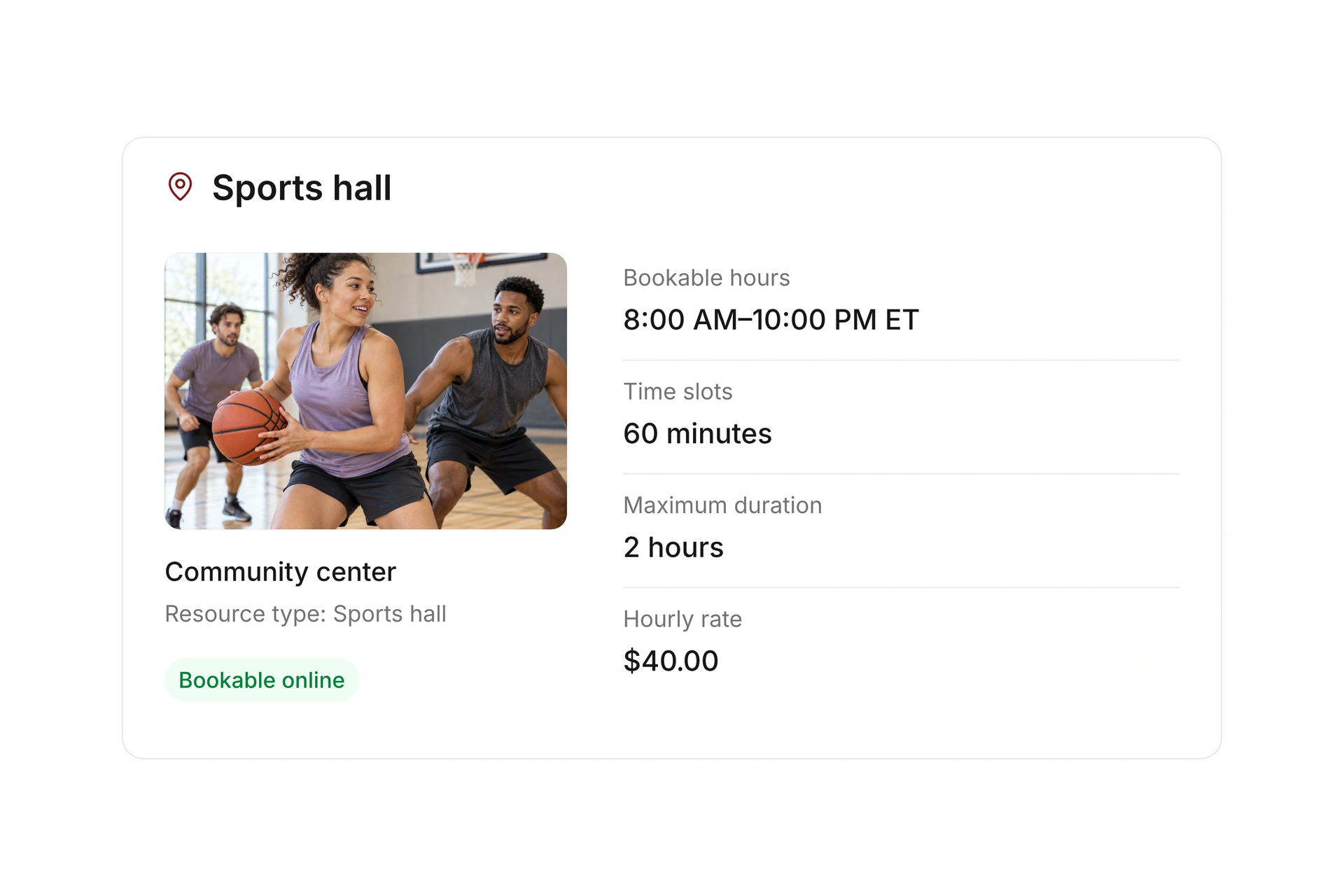
Create resources with a location, type, and available quantity. Enable a public booking offer and choose individual time slots or longer blocks. Use the booking format that fits a practice session or an extended room rental.

Attach extra resources such as a side room or equipment and specify which are required. Internal reservations let you hold space for your organization’s own activities.
Offer facilities and equipment for booking

Keep availability and closures in one schedule

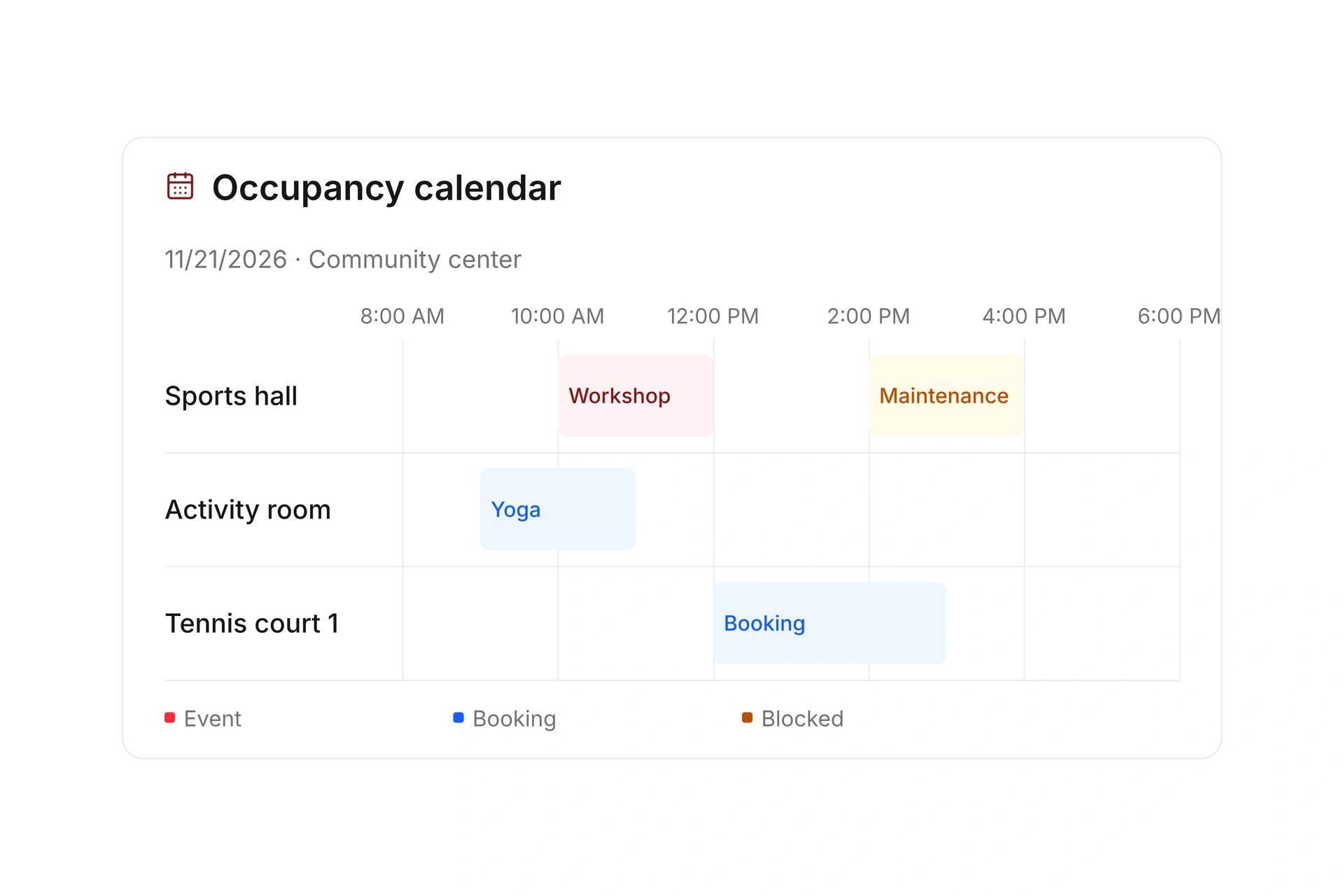
Compare several resources on a timeline or open the calendar for one facility. Filter by location and date range, then open the related booking or reservation.

Set opening hours, slot length, advance booking rules, and maximum duration. Include maintenance and closures in the schedule. When an event moves, check its resource reservation and resolve any conflicts.

Keep availability and closures in one schedule

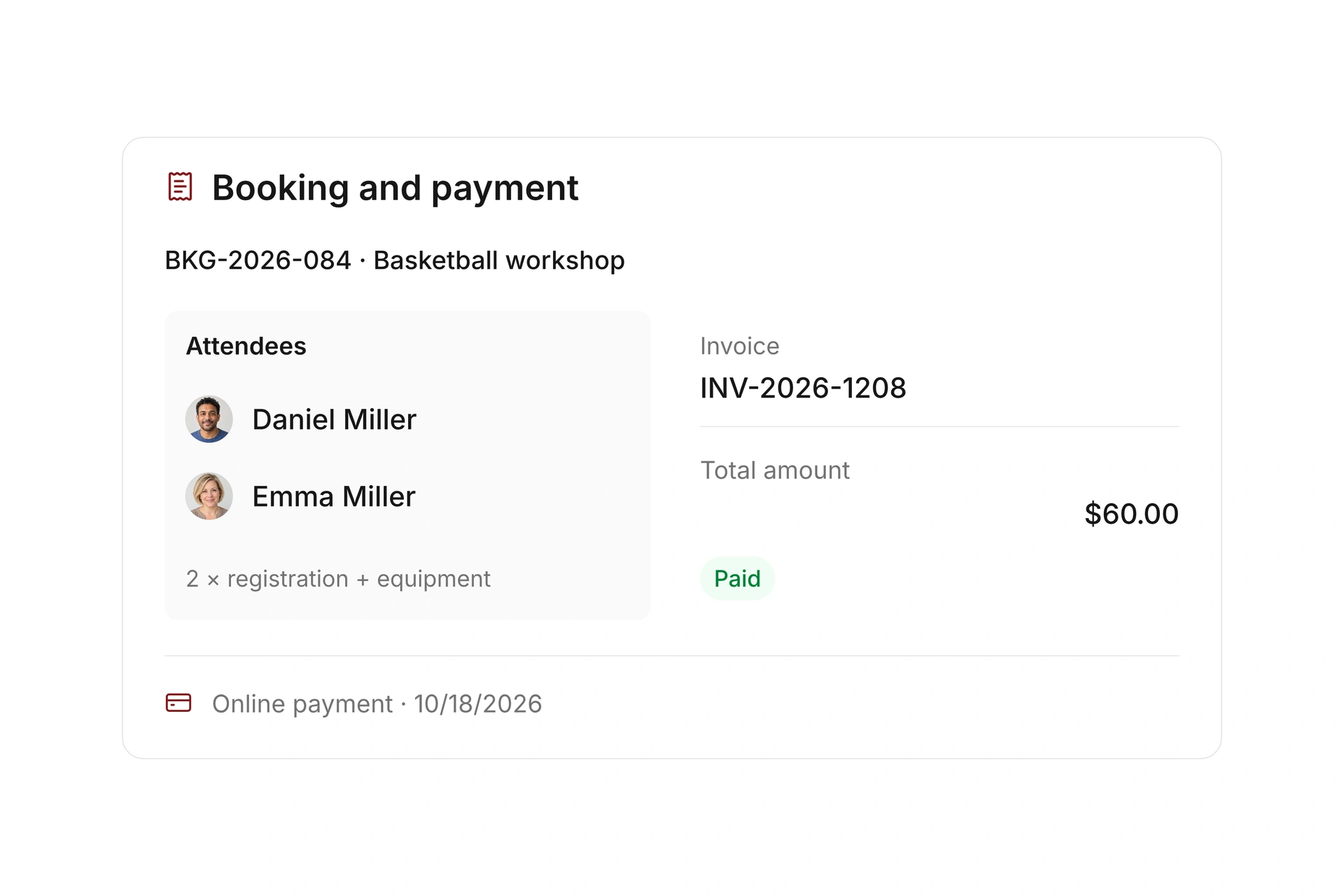
Track fees, cancellations, and recorded use

Set rates and optional extras for paid facility bookings. Configure the payment process, cancellation deadlines, and refund rules for the offer.

Review public bookings, internal reservations, and blocked time when assessing use. Resource check-in and check-out can add a record of the visit, including an extra identifier such as a key number.

Track fees, cancellations, and recorded use

Choose booking rules that fit the resource

A court, a meeting room, and a piece of equipment need different rules. Define what a reservation covers and which extra resources are necessary for its use.

ResourceTypical decisionCheck before publishing
Tennis or padel courtPlaying time, practices, and maintenanceDo public time slots fit around fixed internal reservations?
Clubhouse or meeting roomHourly use or a longer rental blockHave you included setup, cleanup, and any side rooms?
GymInternal allocations or public rentalsAre team reservations and closures current?
Rental equipmentItem identification, quantity, and accessoriesWhen will the equipment be available after its return?

Prepare one resource for booking

  1. Define use and ownership

    Record the location, resource type, and available quantity. Assign a person to maintain availability and handle short-notice changes.

  2. Add existing reservations

    Enter internal use and closures first. Then configure booking times, duration, rates, and required additional resources.

  3. Test a change and cancellation

    Check booking, confirmation, and payment where applicable. Change the time, cancel a booking, and review all affected resources.

What does the booking system cost?

Class and event registration, equipment lending, and space bookings are included in campai’s core features. US pricing is $40 per month plus $0.20 per active member.

Payment processing and optional services are billed separately. The US pricing page explains the calculator and additional charges; your quote confirms applicable taxes and services.

Explore US pricing and payment fees

Start with your own offer

Create a resource during the free 14-day trial. Add existing reservations and test booking times, rates, pickup, and return with your team.

Use a consultation to review migration and setup needs. Assisted setup and training are optional paid services.

Plan setup and migration

Frequently asked questions

Can I use campai for room reservations?

Yes. Rooms, gyms, courts, and equipment can be managed as resources with their own availability and booking offers.

Can I close a facility for maintenance?

Yes. Use internal reservations and blocked times for maintenance, closures, or your organization’s own use. Review any existing bookings affected by a new closure.

Can a booking include equipment or another room?

Yes. Attached resources and optional extras can supplement an offer. You decide which additional resources are required for the booking.

How can I find unused capacity?

The resource calendar shows occupancy for your selected period. Reports and the utilization heatmap help you identify busy and quieter times for further review.

See facility booking in action

Bring opening hours, existing reservations, and rates for a court or gym. We’ll use them to review a complete booking process.

Explore on your own. Get personal help when you need it.