Skip to content

Show bookable classes and spaces in one calendar

Let visitors find an offer and continue to its booking page. Build a calendar for your whole organization or a focused view for a program, department, or facility.

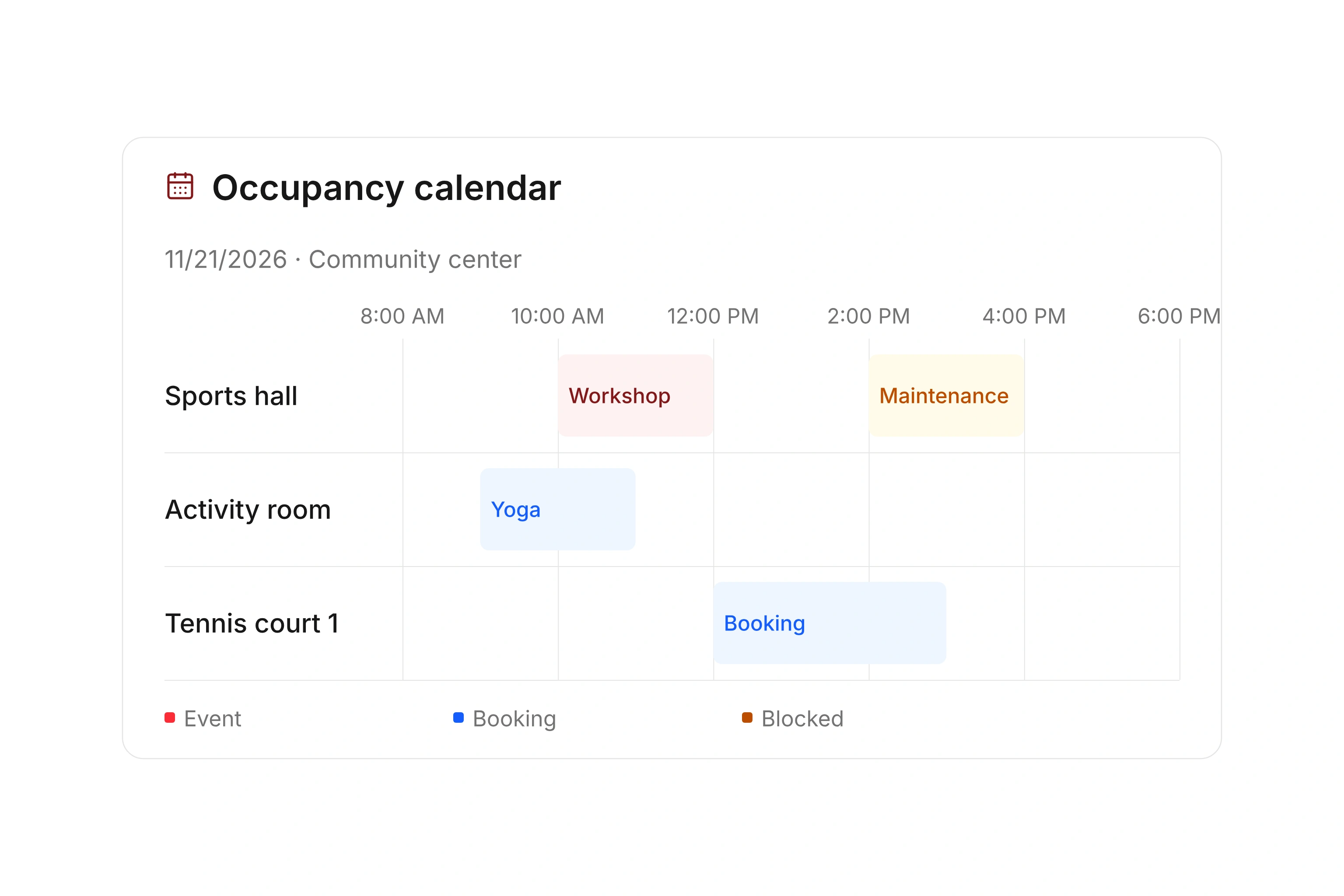
Review occupancy and unavailable times

Choose the events visitors should see

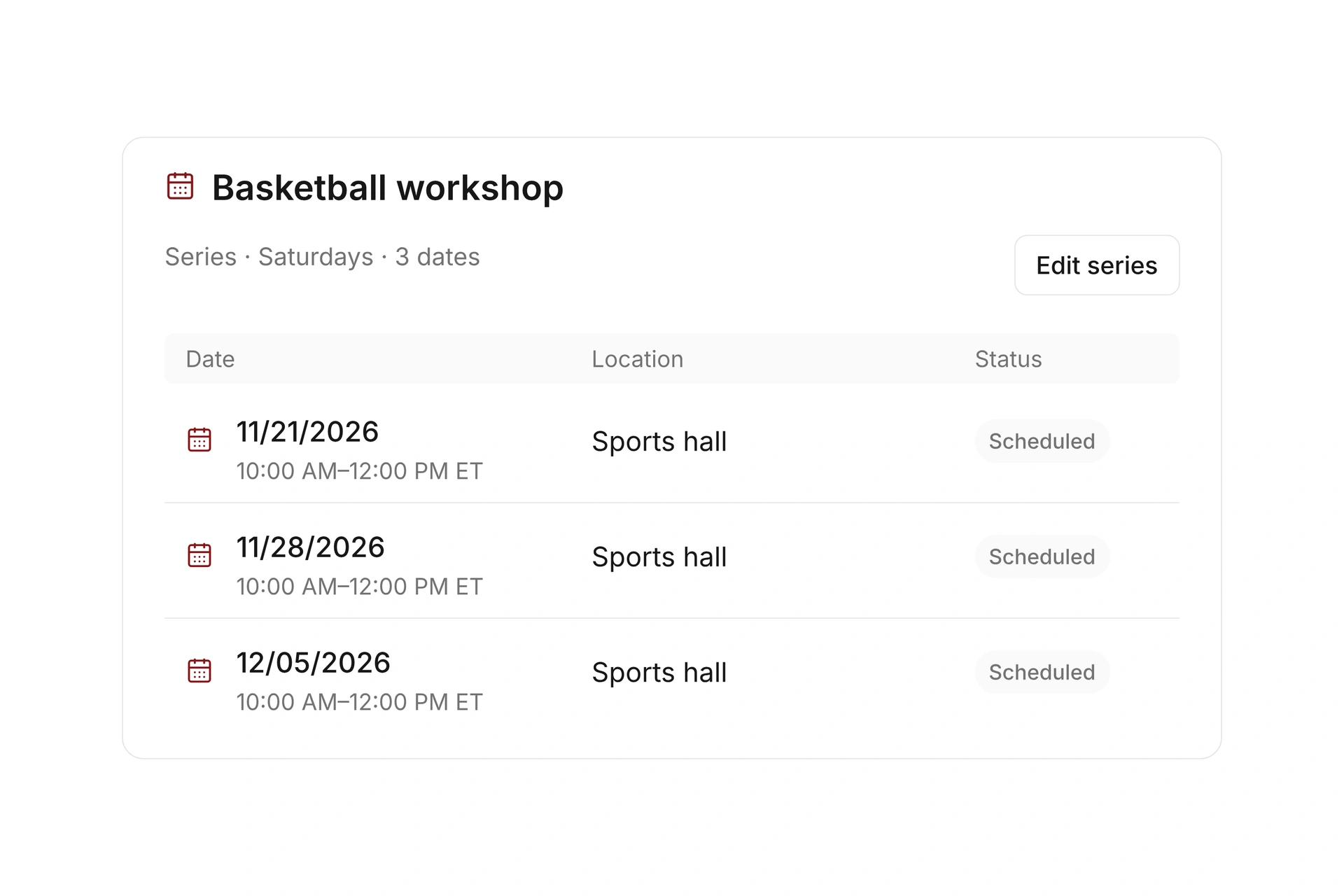
Create reusable public views of events or resources and limit the selection with tags. A program-specific calendar can help visitors find the relevant classes without browsing the full organization.

Check which offers are visible and when they become bookable. The calendar is the visitor’s starting point; the offer’s registration rules determine the next step.
Choose the events visitors should see

Keep facility availability aligned

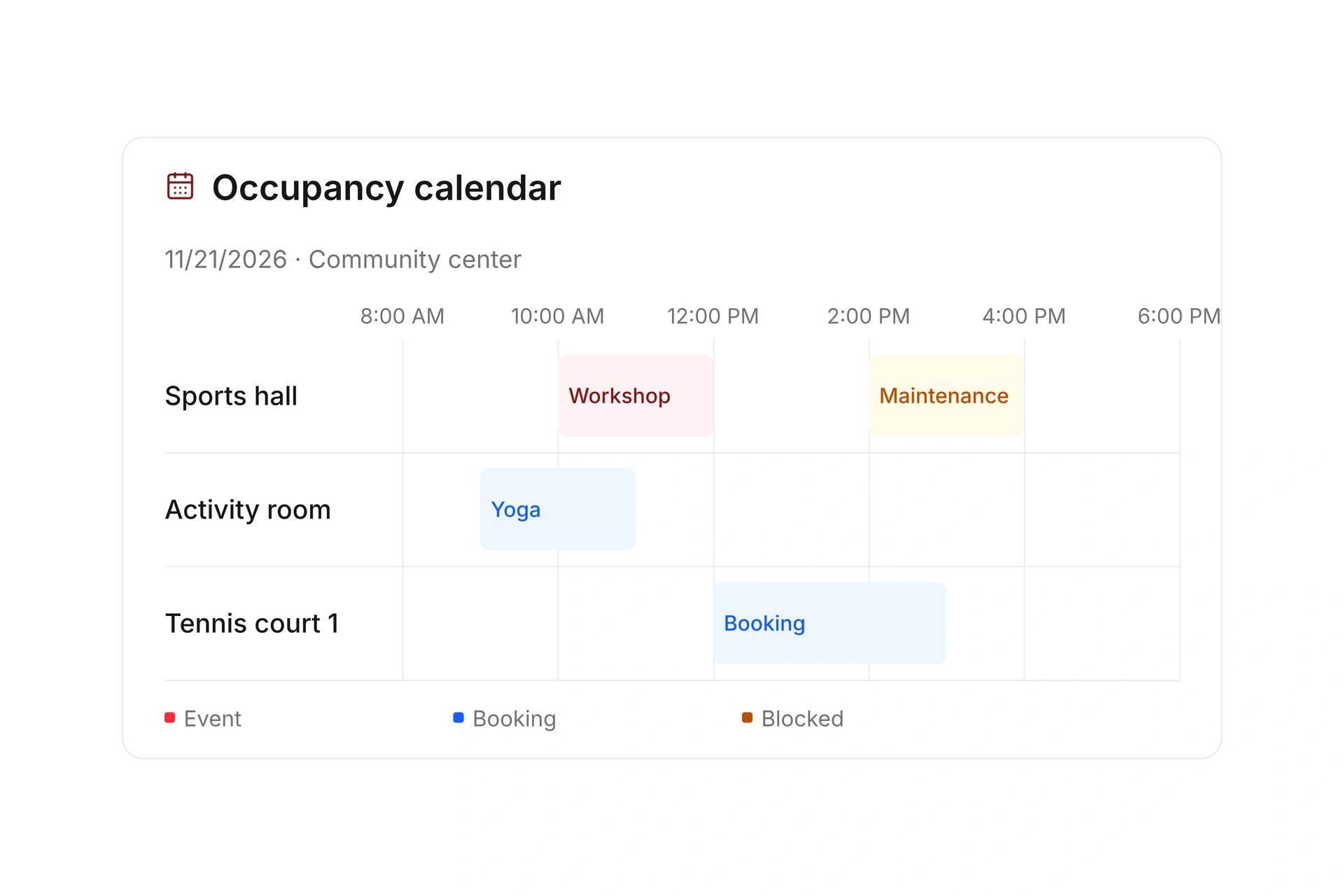
Use the resource calendar to review public bookings, internal reservations, and blocked times. Filter by location and period or compare several resources on a timeline.

Review your public resource view after an internal reservation or closure changes. A public booking calendar and the organizer’s occupancy plan serve different tasks and should agree on availability.

Keep facility availability aligned

Connect the calendar to registration

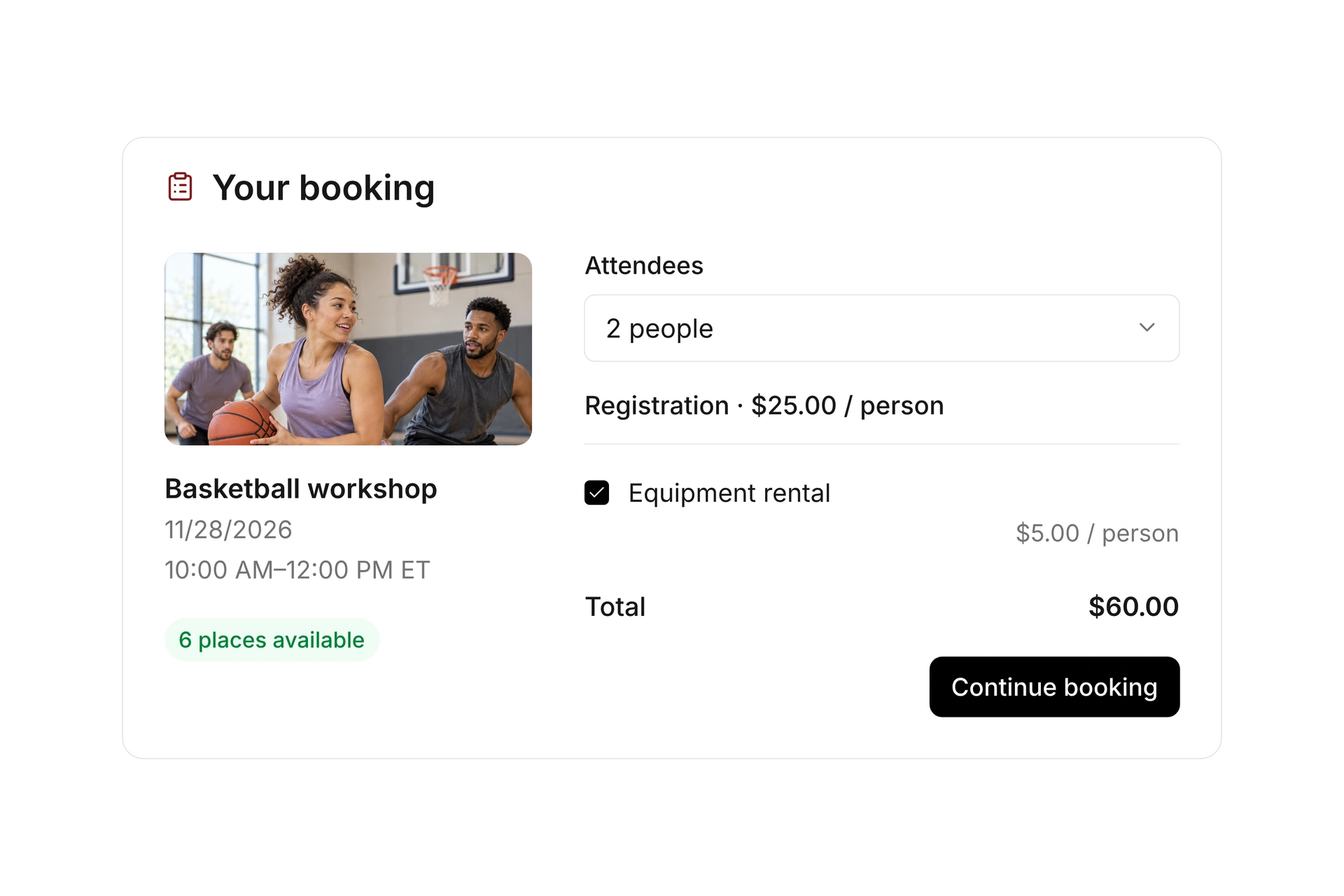
Share a public view or embed it in your website when the platform allows it. Visitors can choose a relevant offer and continue through its registration process.

Test an available class, a full class, and a resource booking. Verify the dates, rates, required fields, and confirmation messages from the visitor’s point of view.

Connect the calendar to registration

Choose the public calendar that fits your visitors

Decide who the calendar is for before choosing its offers. A club-wide calendar, a department page, and a single facility need different selections, even though they share the same underlying bookings.

Public viewSelectVisitor test
Whole organizationThe public offers visitors should browse togetherCan a new visitor find a relevant activity?
Department or programEvents with the relevant tagsAre unrelated offers excluded?
FacilityBookable rooms, courts, or equipmentDoes availability reflect current reservations and closures?
Single campaign or eventA focused offer or direct booking linkCan the visitor reach the correct registration without searching?

Verify the calendar after a change

  1. Review the selected offers

    Check the public view’s filters and compare its contents with the intended program.

  2. Check changed availability

    Review an offer affected by an internal reservation, closure, or full class. Confirm that the visitor sees the appropriate booking options.

  3. Complete the booking path

    Open an offer from the published calendar and test registration, payment requirements, and confirmation on a phone.

What does the booking system cost?

Class and event registration, equipment lending, and space bookings are included in campai’s core features. US pricing is $40 per month plus $0.20 per active member.

Payment processing and optional services are billed separately. The US pricing page explains the calculator and additional charges; your quote confirms applicable taxes and services.

Explore US pricing and payment fees

Start with your own offer

Create a class or resource during the free 14-day trial. Test the registration form, capacity, messages, and payment requirements with your team.

Use a consultation to review migration and setup needs. Assisted setup and training are optional paid services.

Plan setup and migration

Frequently asked questions

Can I publish a calendar for one department?

Yes. Public views can be limited by tags so you can select the relevant events or resources. Check the published selection after changes.

Is the booking calendar the same as the internal schedule?

The public calendar helps visitors find bookable offers. Internal scheduling also includes reservations, closures, and operational decisions that your team manages.

Can I display the calendar on my website?

Yes. Share its public URL or embed a view if your website platform allows the code. Test the layout and booking flow on mobile devices.

How do I check that the calendar is ready?

Compare its offer selection with your intended program. Open a booking from the published view and verify availability, registration, payment requirements, and confirmation.

Explore your booking calendar

Bring the page where you want to show bookings and a list of intended offers. We’ll review the calendar selection and a visitor’s registration path.

Explore on your own. Get personal help when you need it.