
Event Registration Form Template: A Copy-Ready Guide
Copy an event registration form template with the essential fields, then tailor it for members, guests, capacity, confirmations and cancellations.

A board member just approved the spring workshop, the room's booked, and now someone has to build the signup form by Friday. That's usually when fields pile up. Catering wants meal choices, the treasurer wants a mailing address, and marketing wants job titles. A good event registration form template stops that pileup with one rule. A field stays only when a named person needs it for a named task.
Copy This Event Registration Form Template
For most association or club events, you don't need a long form. You need a few required fields that reserve a seat, plus optional fields that help staff run the day. Copy the order below into your form tool as plain text first, then delete any row your event doesn't use.
Use one column, put labels above each field, and end with one submit button. That layout works on phones, keeps the reading order clear, and avoids side-by-side fields that get skipped.
The form in attendee order
- Full name
- Email address
- Phone number, optional
- Registrant type, Member or Nonmember
- Member number, members only
- Session or ticket
- Number of attendees
- Guest names, only when guests are allowed
- Dietary needs
- Accessibility request, optional
- Payment choice, for paid events
- Event updates opt-in
That order follows how a person thinks. Contact details come first, then the choice that sets the price, then the details staff need for seating and catering. Payment and future emails come last, after the person has committed to a session.
Practical rule: If nobody on your team can finish the sentence "The catering lead needs this to order meals," the field doesn't belong on the form.
Why each field earns its place
The table is your keep-or-cut reference. Before launch, read down the last column and name the person who does that task. If you can't name someone, remove the row. Adding a field after registration opens is messy, since early registrants never saw the question. Removing one is easy.
| Field | Input type | Required | Why staff need it |
|---|---|---|---|
| Full name | Short text | Yes | Matches the name badge and check-in list |
| Email address | Yes | Sends the confirmation and any event changes | |
| Phone number | Phone | No | Used only for same-day changes, if you offer that |
| Registrant type | Single choice: Member or Nonmember | Yes | Sets which price and which fields appear |
| Member number | Short text | No, members only | Helps staff match the registration to an existing record |
| Session or ticket | Single choice | Yes | Records the option the attendee chose |
| Number of attendees | Number | Yes, if guests are allowed | Counts seats against capacity |
| Guest names | Short text, repeats per guest | Conditional | Needed only for badges or a guest list |
| Dietary needs | Multi-select plus optional text | No | Lets the catering lead plan without follow-up emails |
| Accessibility request | Text area | No | Optional; staff reply to arrange support |
| Payment choice | Single choice | Yes for paid events | Shows the fee for the selected option |
| Event updates opt-in | Checkbox | No | Records a separate choice for future emails |
A few fields deserve a second look. Phone number stays optional unless a staff member will need to call about a same-day room change. Guest names matter only when you're printing badges or checking a guest list at the door. For a casual picnic, a headcount is enough.
Dietary needs work best as a multi-select for common options, plus a short text line for anything else. That gives the catering lead a tidy list instead of a pile of free-text answers to sort by hand.
Keep the event updates opt-in unchecked by default and separate from registration. A person who declines future emails should still get the seat they signed up for.
Split Member and Nonmember Registration Paths
Members and nonmembers usually pay different prices, and they don't need the same fields. Showing every field to everyone clutters the form and creates bad data, like guests inventing member numbers. Branch the form after the registrant type question instead.
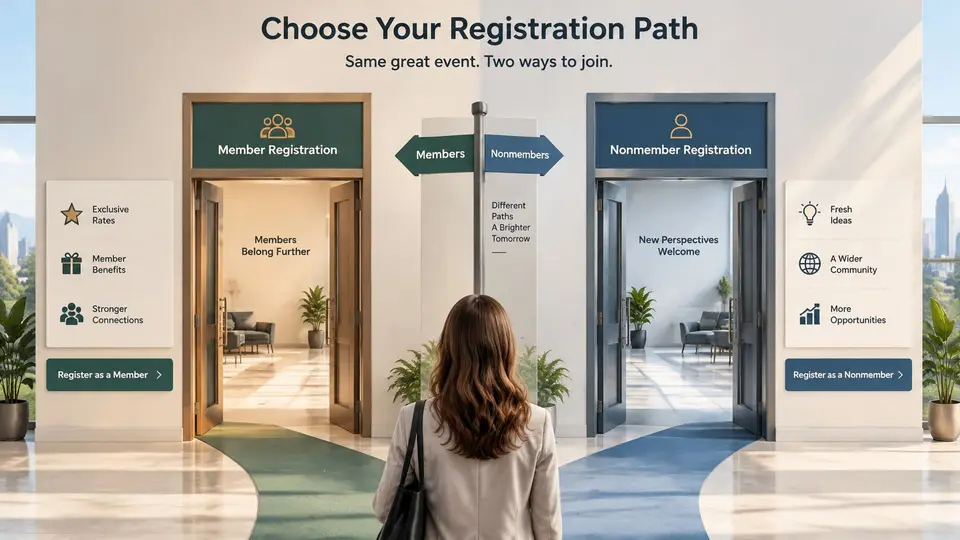
How the branching works
- Ask registrant type first. Everything else depends on this answer.
- If Member is selected, show the member number field with a short note that staff will confirm it.
- If Nonmember is selected, show the full contact and attendee fields, along with the nonmember price.
- If a member registers a guest, ask for the guest's name and email only. Don't ask the guest for membership information.
- Show the price next to each option. For example, a spring workshop might list $60 for members and $85 for nonmembers. Those are hypothetical example amounts. Replace them with your own fees.
- Let the person review the registrant type and price before submitting, so a wrong tap doesn't create a refund request later.
Two decisions belong to your team before launch, not to the form. Decide whether a lapsed member pays the member rate or the nonmember rate, and tell the membership coordinator how to handle renewals that come up during registration. Decide also whether a nonmember signup creates a temporary attendee record or no record at all. Either answer is fine. Picking one ahead of time is what prevents duplicate records in your member database.
| Registrant path | Fields shown | Record action | Price shown |
|---|---|---|---|
| Current member | Member number and confirmed contact details | Update the existing record only if details changed | Member rate |
| Nonmember | Full contact and attendee fields | Create a temporary attendee record or none, per your policy | Nonmember rate |
| Member bringing a guest | Guest name and email only | Link the guest to the member's registration; do not create a member | Guest rate set by your policy |
| Lapsed member | Member number plus a renewal check | Confirm dues status with the membership team | Set by your policy |
The guest path is the one teams get wrong most often. A guest isn't a prospect record or a partial member. The guest belongs on the host member's registration, nothing more, unless the guest later chooses to join.
Set Capacity, Waitlists and Accessibility Requests
Capacity isn't a number in a spreadsheet. It's a promise the form makes every time someone clicks submit. Before registration opens, write down the total seats for each session or ticket type. Show remaining seats only when that count updates with every confirmed registration. A stale count oversells the room.
Running the waitlist
- Count confirmed registrations for each session as they arrive.
- When a session fills, change the button to Join waitlist and collect only name and email.
- Tell waitlisted people how they'll hear about an opening and by what date.
- Release seats in arrival order, and confirm each one by email.
Block duplicates by checking email address plus event ID. That simple pair stops one person from holding two seats in the same session after a double click or a forgotten first signup. It also keeps your seat count honest.
A waitlist that collects dietary needs and payment choices promises more than it should. Name and email are enough until a seat opens.
Wording the accessibility request
Place the accessibility request as an optional text area near the end of the form, with plain wording anyone can answer without medical detail.
- Label to copy: Do you need any accommodations to take part? Tell us what would help, and we will follow up before the event.
- Who reads it: Name one staff member or volunteer who replies to each request.
- What not to ask: Don't ask for a diagnosis. You need to know what to arrange, not why.
Handle errors the same careful way. Mark required fields with visible text, not placeholder text alone, since placeholders disappear once a person starts typing. When something's wrong, name the field, describe the problem in words, and keep everything the person already entered. That approach matches the guidance in WCAG guidance on identifying input errors in text, which calls for errors to identify the affected field and describe the problem clearly.
Don't let the page change without warning when a dropdown changes. If selecting a session reveals new fields, that's fine, but the person shouldn't lose their place or their earlier answers. A short review screen before submission catches most mistakes, and it's especially important when a fee is involved.
Keep Only the Data You Need and Know Why
Every field you collect becomes a record someone has to store, protect, and eventually delete. The true cost of a "just in case" question is a spreadsheet of personal details sitting in a volunteer's downloads folder two years after the event ended.

A useful reference point comes from the Federal Trade Commission, which describes an event RSVP form asking only for name, email address, and telephone number, with that data held only briefly and purged after use, in its privacy impact assessment for public informational websites. Your events may need a little more than that. The principle still holds. Collect for a purpose, then let the data go.
Build a simple purpose map
Treat each field as a staffing decision. A field earns its place when a named person needs it for a named job.
- List every field currently on the form.
- Write one purpose sentence for each, naming the person who uses it and the task it supports: "the registration coordinator needs this to assign tables."
- Remove any field whose sentence ends with "might be useful someday."
- Assign an owner, such as the registration coordinator or the event lead.
- Set a deletion point for each operational field.
Deletion points are easier to set than they sound. An email address might stay until the event record closes. A phone number collected for day-of schedule changes can go once the event wraps. An emergency contact for an overnight trip gets deleted when the trip ends. Write these choices down with your board and put them in your internal procedures, so the rule survives a change in volunteers.
When a past attendee asks you to delete their record, that request belongs to a named owner too. They work through every copy the purpose map lists, from the form export to the shared spreadsheet, remove each one, and reply confirming what was deleted. Set the response deadline in your procedures before the first request arrives. A request nobody owns tends to resurface at the worst possible time.
One habit carries over from the field table earlier: keep the event updates opt-in separate from registration consent. And don't ask members for details already on file, such as a mailing address, unless the form is meant to update that record. Asking again creates conflicting versions of the same person, and staff end up guessing which one is current.
Send Confirmations and Handle Cancellations
The confirmation email is the attendee's receipt and reminder in one message. Treat it that way. Repeat the details a person will search for on event morning, and leave out anything they'd have to call your office to clarify.
What every confirmation must repeat
- Event name and date
- Start time with a labeled time zone, such as 6:00 p.m. Eastern Time or 9:00 a.m. Central Time
- Session or ticket the person selected
- Attendee name, plus guest names when they were collected
- Fee paid or due, or a clear $0 label for free events
- Registration ID, so staff can find the record fast
The time zone label matters more than teams expect. Associations with members in several states, and any virtual session, will get confused replies without it. The registration ID matters just as much on event day, when two attendees share a last name.
| Message | Send when | Must include | Owner |
|---|---|---|---|
| Registration confirmation | Right after submission | Event name, date, time with time zone, session, attendee, fee, registration ID | Registration coordinator |
| Waitlist notice | When the session fills | Waitlist position guidance and how openings are announced | Registration coordinator |
| Payment reminder | Before the payment deadline | Amount due, due date and how to pay | Treasurer |
| Cancellation confirmation | After a cancellation | Date canceled, refund status under your policy | Registration coordinator |
| Event change notice | As soon as details change | Changed time or location and any action needed | Event lead |
Writing the cancellation line
Add one short cancellation line to the confirmation, approved by your board, covering the deadline, how to cancel, and how refunds are handled, if they're offered at all. An example reads: You can cancel by replying to this email before March 15. Refund requests are reviewed by the treasurer. Replace that example with your own rule rather than copying it.
If a paid event includes an optional donation, show it as its own line item. The confirmation should never label the full ticket payment as a gift when part of it bought admission, a meal, or materials. Dues, fees, and donations are different things, and your records should keep them that way.
When someone cancels, work through four steps in order. Release the seat. Offer it to the next waitlisted person. Send the cancellation confirmation. Record the change in the registration list. Use the word canceled the same way in every message and list, so staff searching the records find every case.
Test the Form Before You Open Registration
Open registration only after every test below passes. Assign one person to run the tests and sign off, and give that person permission to delay the launch if something fails. A broken price or a missing confirmation creates more work than a one-day delay.
The pre-launch checklist
- Submit as a member and as a nonmember, and confirm each path shows the correct price and fields.
- Leave a required field empty, and confirm the error names that field in plain text.
- Complete the form on a phone, and confirm it stays in one column with buttons you can reach.
- Move through with the keyboard only, and confirm the focus order and labels make sense.
- Fill the last seat, then try another registration to confirm the waitlist appears.
- Register the same email twice for the same event, and confirm the duplicate warning shows.
- Read the test confirmation for the date, time zone label, and registration ID.
- Cancel a test registration, and confirm the seat returns to the count.
- Check staff access, and confirm each role sees only the registration data it needs.
Pay extra attention to the phone test and the error test. Plenty of members register from a phone in a parking lot, and a vague error message is where they give up. If the error doesn't say which field needs attention, fix the wording before launch, not after the first complaint.
The access test protects attendee data after launch. A check-in volunteer needs names and sessions. That volunteer doesn't need payment status or accessibility details. In campai, roles and permissions let you limit registration records to the staff and volunteers who need them, and event bookings are confirmed automatically with members added to participant lists. Due dates and reminders can also follow your organization's settings, which helps when a fee is still outstanding.
Run one last pass over the field list while the tests are fresh. For every field, name the person who uses it and the job it supports. If no one can claim a field for a real task, delete it now rather than after launch, when the data is already collected and harder to discard.
The final step is storage. Save the field list, the purpose map with its named owners, the deletion schedule, and the sign-off in the same place the team keeps event files. The next coordinator who inherits the form can see why each field exists, who asked for it, and when its data gets removed.